

Knowledge base › Survey guide
Survey guide
How do I connect the CEE-LINE™ to a Trimble TSC7?
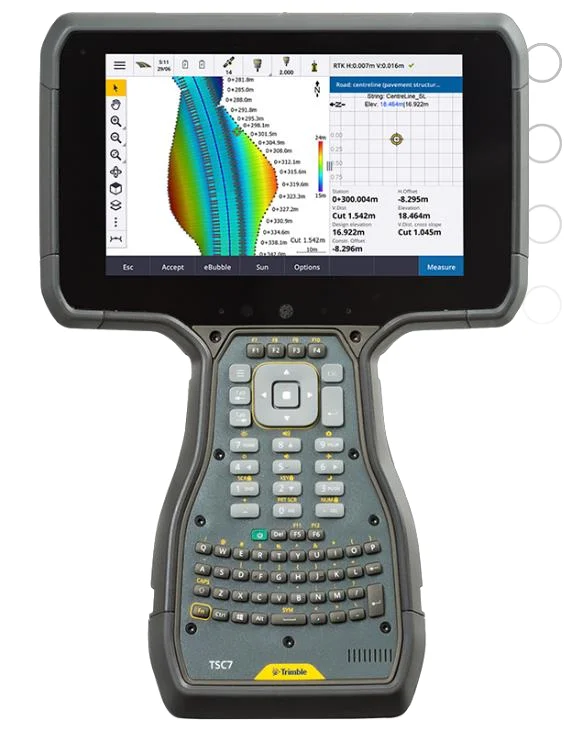
The TSC7 runs full Windows, so the CEE-LINE™ connects by cable and is powered from the TSC7 battery, using either the “Smart” USB cable or the USB-power combo RS-232 cable. Configure the CEE-LINE™ with CEE-LINE CONNECT on the TSC7 itself, then set the Trimble Access survey style’s echo sounder to NMEA SDDBT on the matching COM port and baud rate.
3cable options
COM1TSC7 DB9 RS-232 port
9600default baud rate
NMEA SDDBTecho sounder type
Why use the TSC7 with the CEE-LINE™?
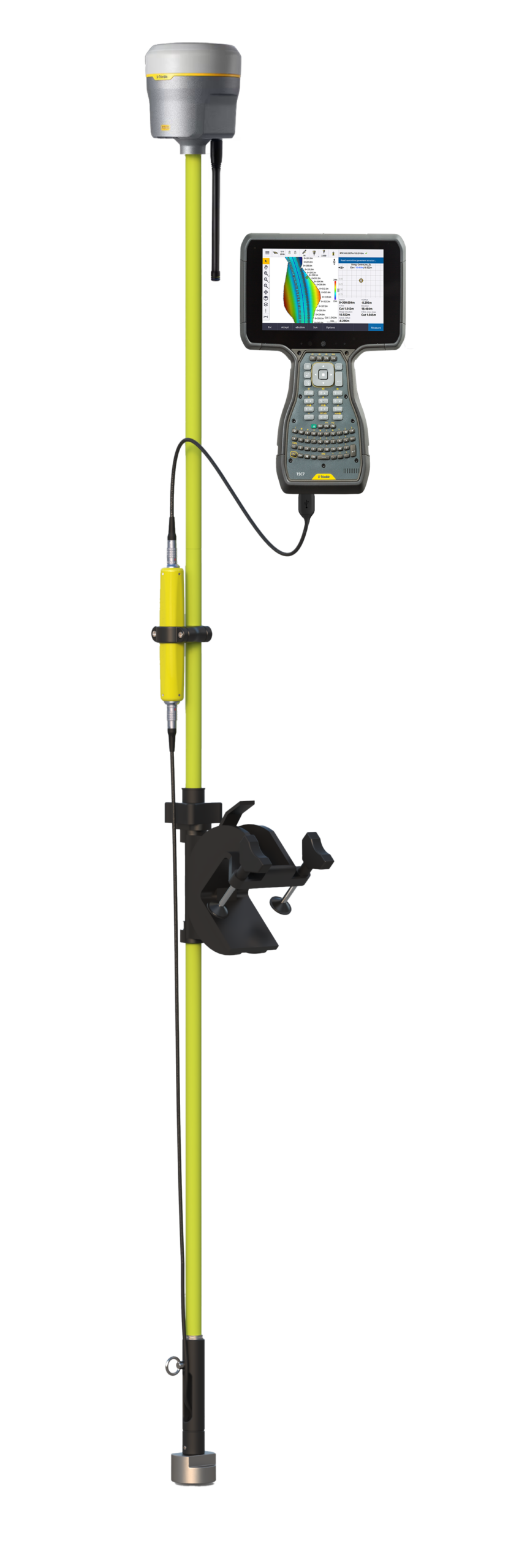
The Trimble TSC7 is an ideal data collector for the CEE-LINE™, which is designed for basic acquisition projects using GNSS collection hardware and software. Because the TSC7 runs a full Windows operating system, it gives you a convenient USB data / power connection, and it can run the CEE-LINE CONNECT utility to configure the echo sounder.
This guide covers the cabling, driver and software set-up needed for the CEE-LINE™ to work with both the Survey Controller and Trimble Access programs on the TSC7. Using a TSC5 instead? See connecting the CEE-LINE™ to a TSC5 over Bluetooth.
Which cable should I use?
There are three ways to connect the CEE-LINE™ to the TSC7. All of them use the CEE-LINE™ 12-pin LEMO connector at the echo sounder end.
| Cable | TSC7 end | Power | COM port |
|---|---|---|---|
| “Smart” USB cable | USB Type A | From the TSC7 battery, through the USB port. Powers the CEE-LINE™ and transducer. | A USB serial port. Needs the FTDI device driver, which should already be installed on the TSC7. |
| USB power “combo” RS-232 cable | DB9 RS-232 plus USB Type A | From the TSC7 battery, through the USB port. | The TSC7’s own COM1. No FTDI driver needed. |
| External power RS-232 cable | DB9 RS-232 plus black / red power leads | A separate 4.5–24 VDC supply. | COM1. This cable is not normally supplied with the CEE-LINE™. |
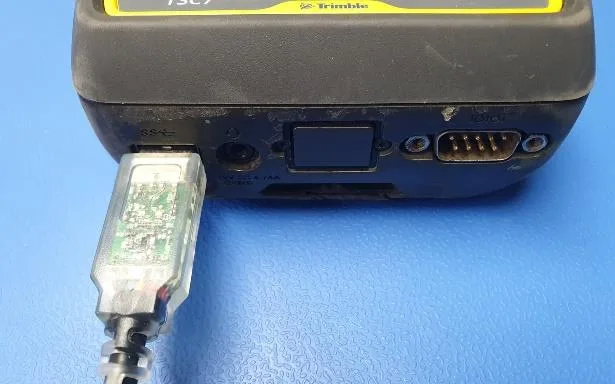
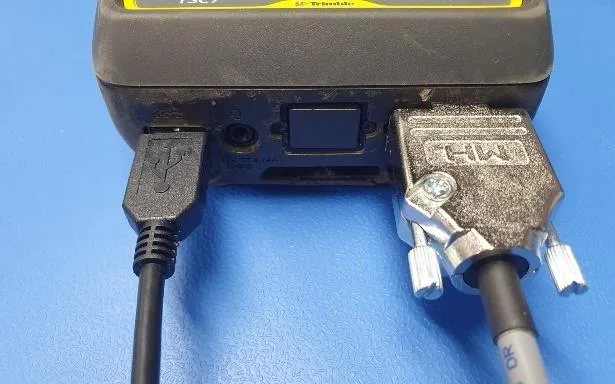
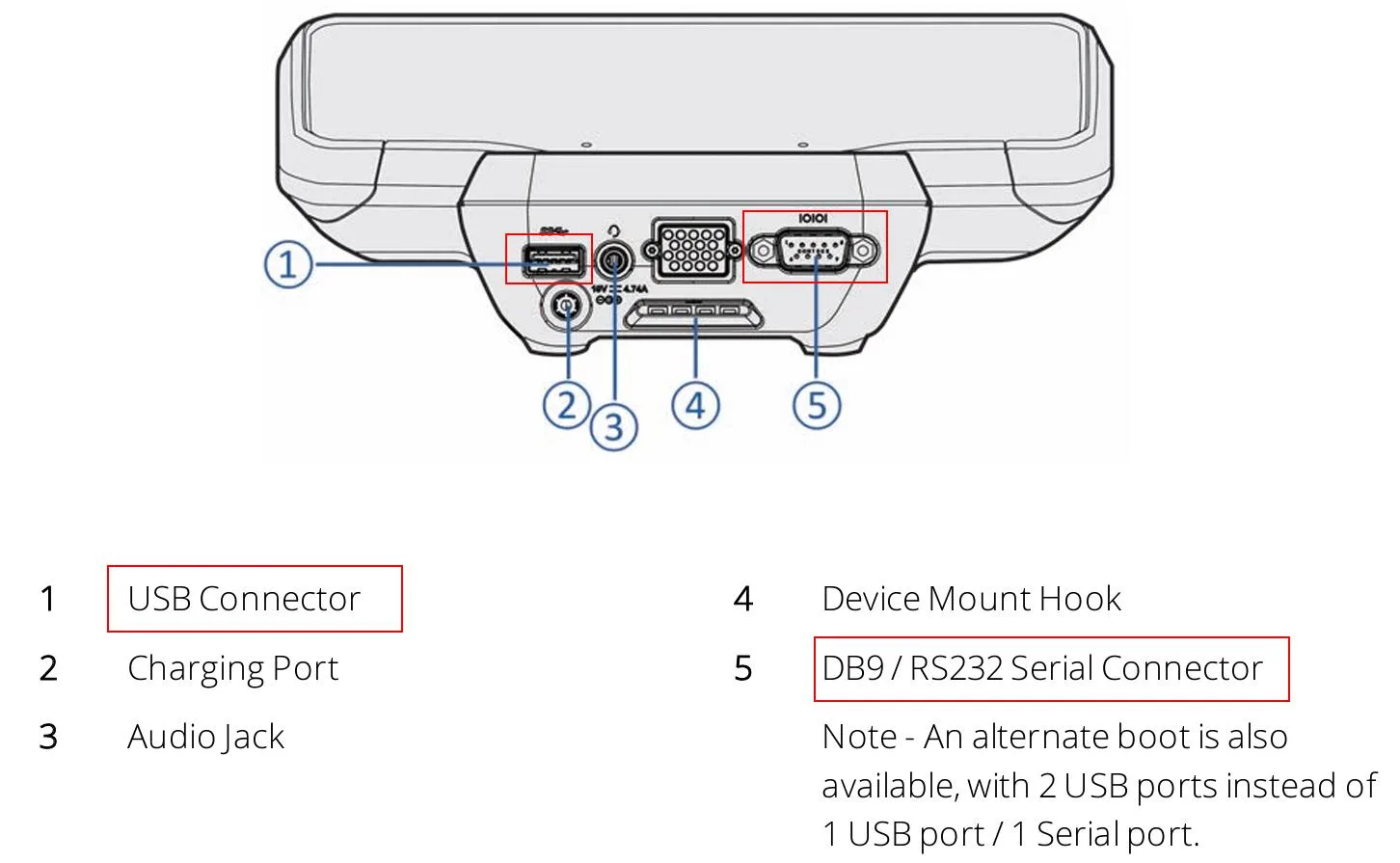
An alternate TSC7 boot is also available with two USB ports instead of one USB port and one serial port.
How do I install CEE-LINE CONNECT?
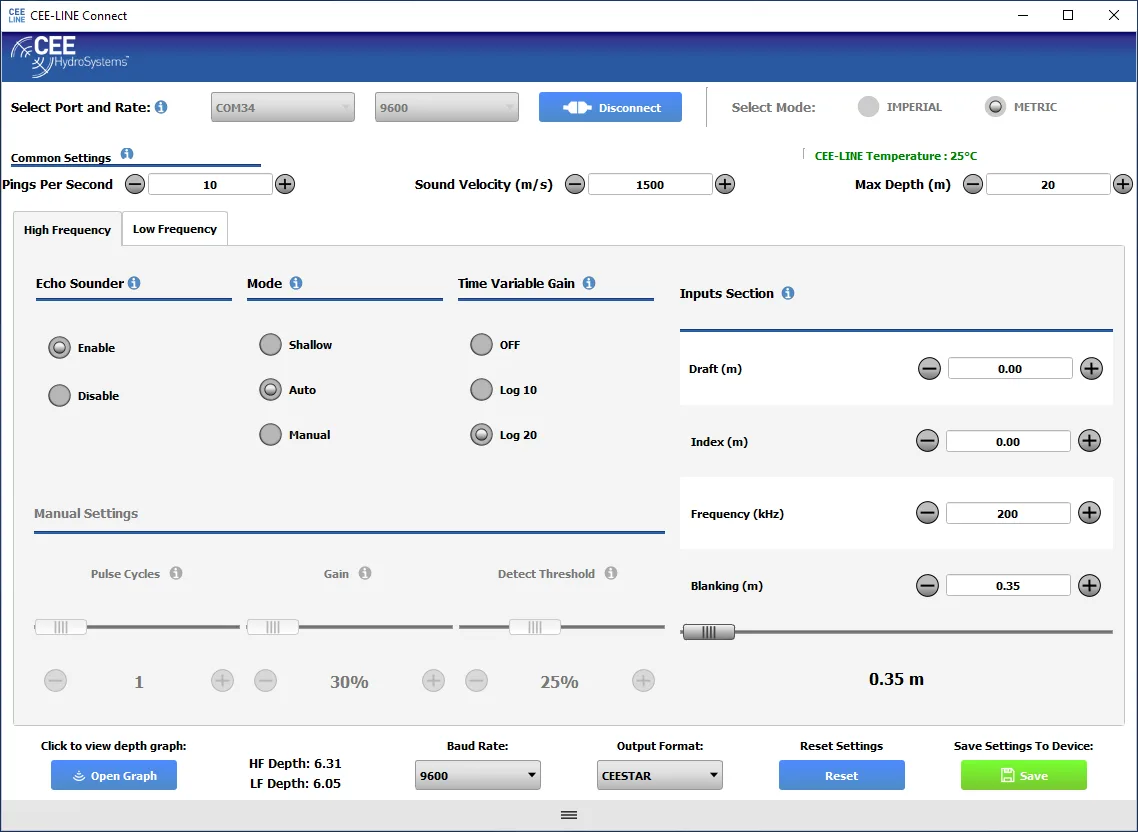
The CEE-LINE™ is configured with the CEE-LINE CONNECT software. The TSC7 is a Windows computer, so CEE-LINE CONNECT runs on it directly. If it isn’t already installed, download the installer from the CEE HydroSystems website. Once installed, a CEE-LINE CONNECT shortcut appears on the TSC7 desktop.
Which COM port is the CEE-LINE™ on?
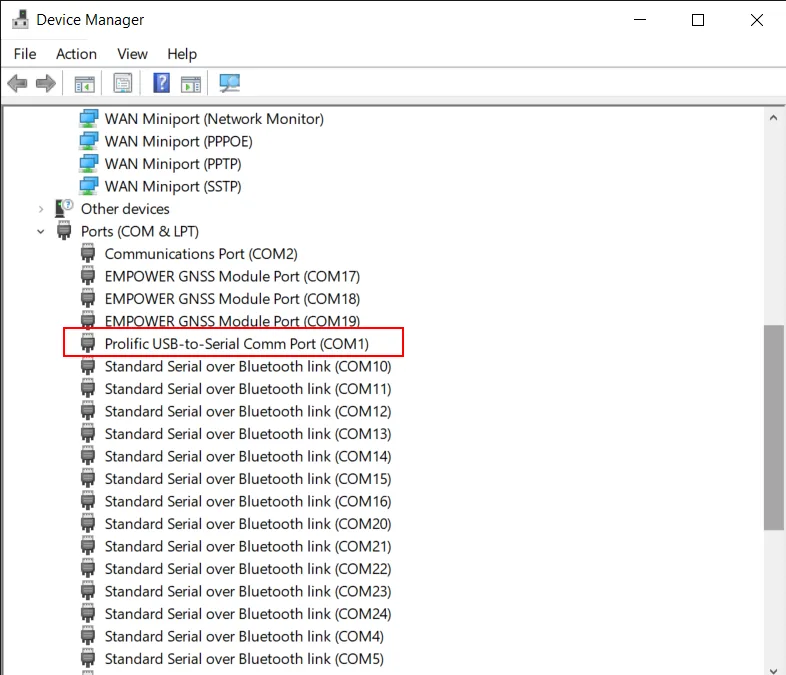
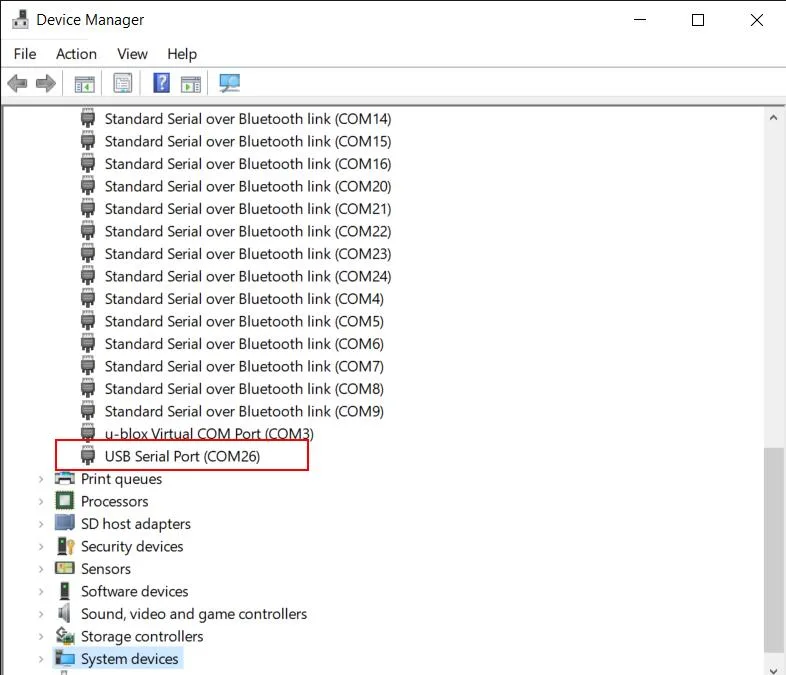
The CEE-LINE™ talks to the TSC7 through one of its COM (serial) ports. As on any Windows computer, open Device Manager and expand Ports (COM & LPT) to see the full list. The right port depends on the cable:
- DB9 RS-232 port: always COM1.
- “Smart” USB cable: Windows assigns an arbitrary COM port number when it’s plugged in, for example COM26. The number stays the same every time you connect with the same cable. A different “Smart” USB cable gets a new number, even for the same CEE-LINE™. When the cable is unplugged, the port disappears from the list.
How do I configure the CEE-LINE™?
One program at a time. CEE-LINE CONNECT and Trimble Access can’t share the COM port. Disconnect in CEE-LINE CONNECT before Trimble Access (or any other software) can talk to the CEE-LINE™, and vice versa.
Connect to the CEE-LINE™ in CEE-LINE CONNECT and set:
| Setting | Set to | Why |
|---|---|---|
| Output format | NMEA DBT (default) or CEESTAR | Trimble Access needs one of these to receive depth data. CEESTAR carries both channels (high and low frequency); NMEA DBT carries only the channel that’s enabled. |
| Baud rate | 9600 bps (default) | You can change it, but it must match the baud rate in the TSC7 survey style. |
| Maximum depth | Expected survey depth + 25–50% | It’s a hard limit: deeper than this and no data is received. Don’t enter the largest value (e.g. 100 m for a 20 m survey); a sensible limit improves echo sounder performance. |
| Draft | 0 | Draft is added to the depth output. The antenna height, from the base of the transducer to the GNSS, is applied in Trimble Access instead. |
Press the green Save button to store the settings in the CEE-LINE™’s non-volatile memory. Then press Disconnect and close CEE-LINE CONNECT before you carry on.
How do I set up the survey style?
Each survey style you use with the CEE-LINE™ needs its echo sounder settings configured.
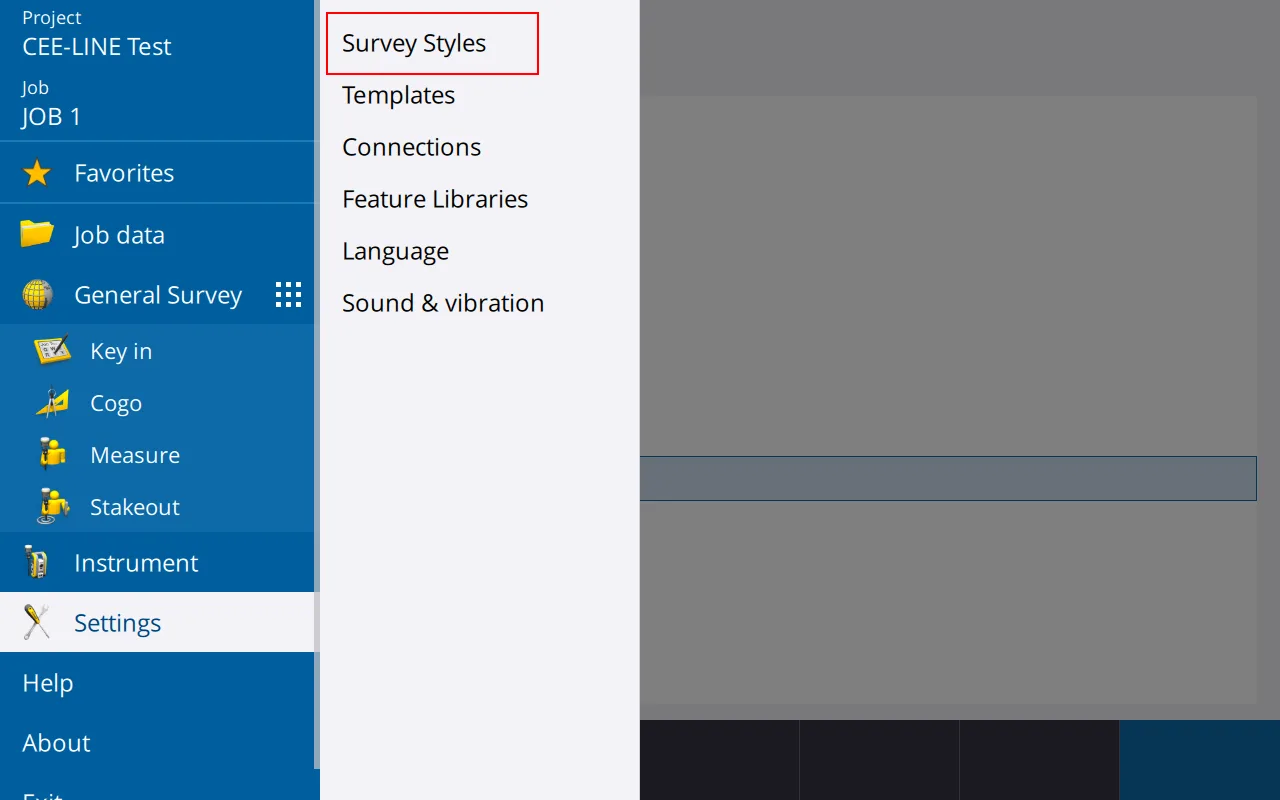
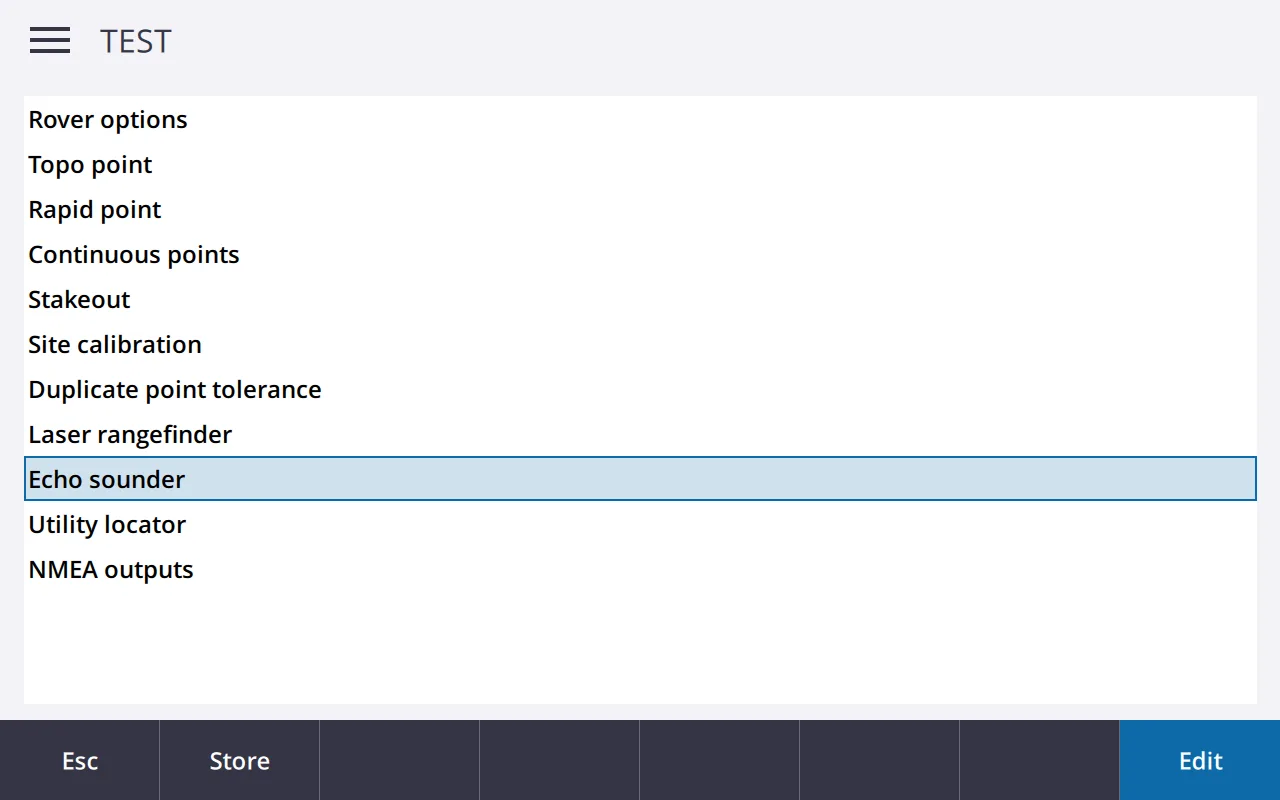
- Start Trimble Access, open your project and job, and go to Settings › Survey Styles.
- Select the survey style, then Echo sounder, and press Edit.
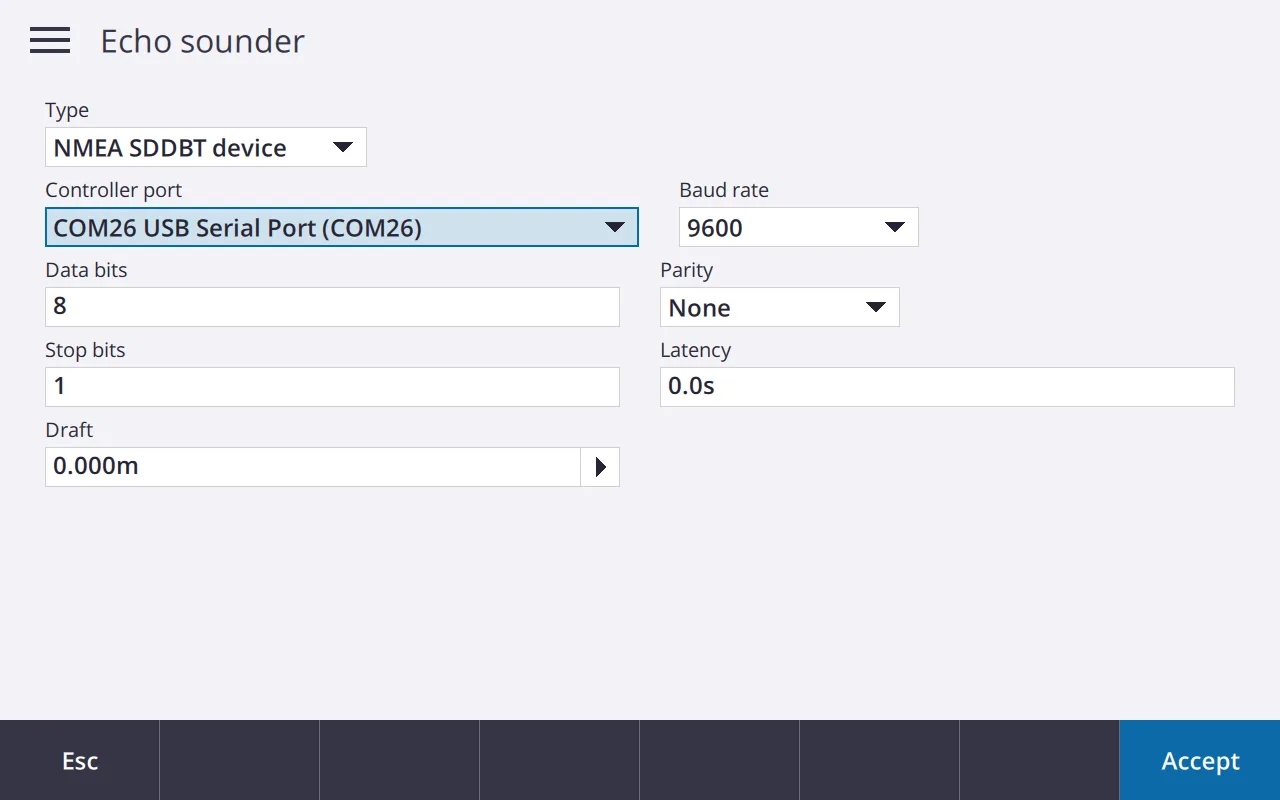
- Set the fields as in the table below.
- Press Accept to store the survey style, then escape from the configuration.
| Field | Set to |
|---|---|
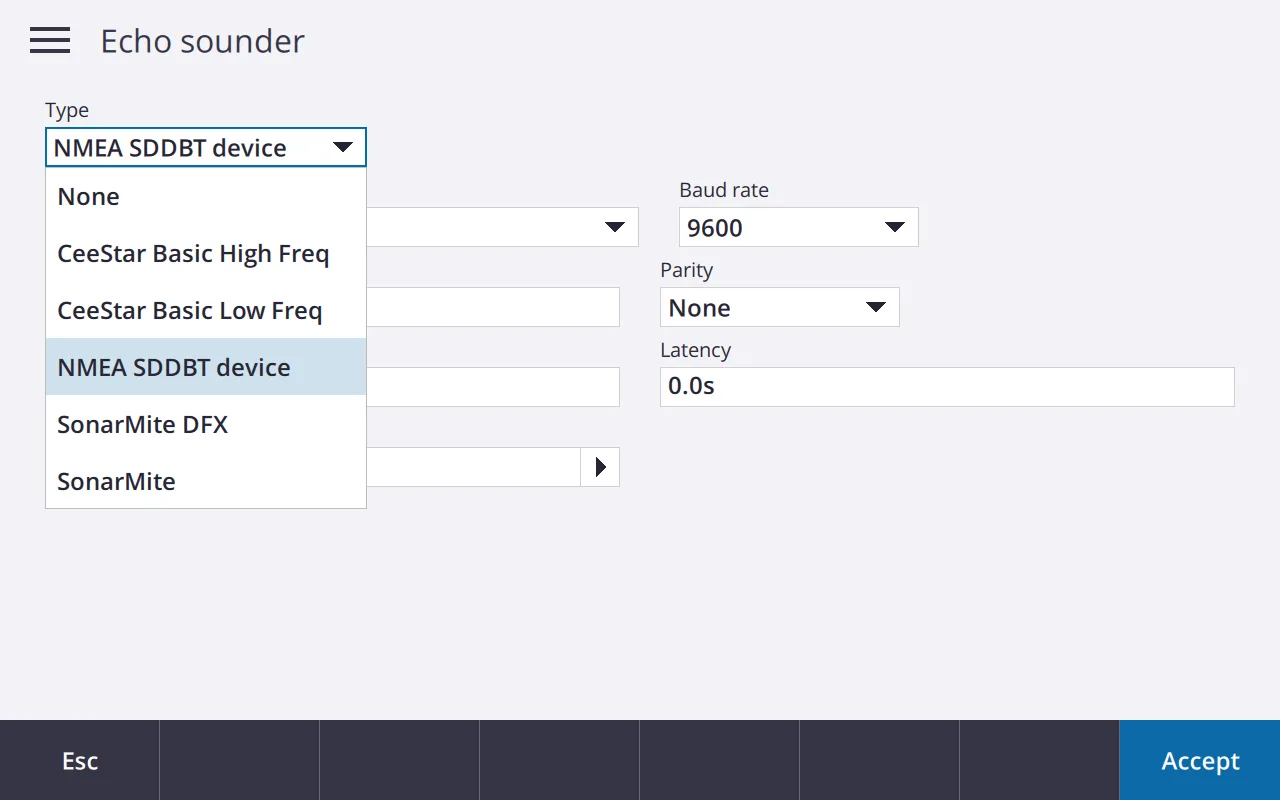
| Type | The output format the CEE-LINE™ is set to, usually NMEA SDDBT. |
| Controller port | COM1 for the DB9 RS-232 connector, or the “Smart” USB cable’s COM port from Device Manager. |
| Baud rate | The same as CEE-LINE CONNECT: 9600 bps by default. |
| Data bits | 8 |
| Parity | None |
| Stop bits | 1 |
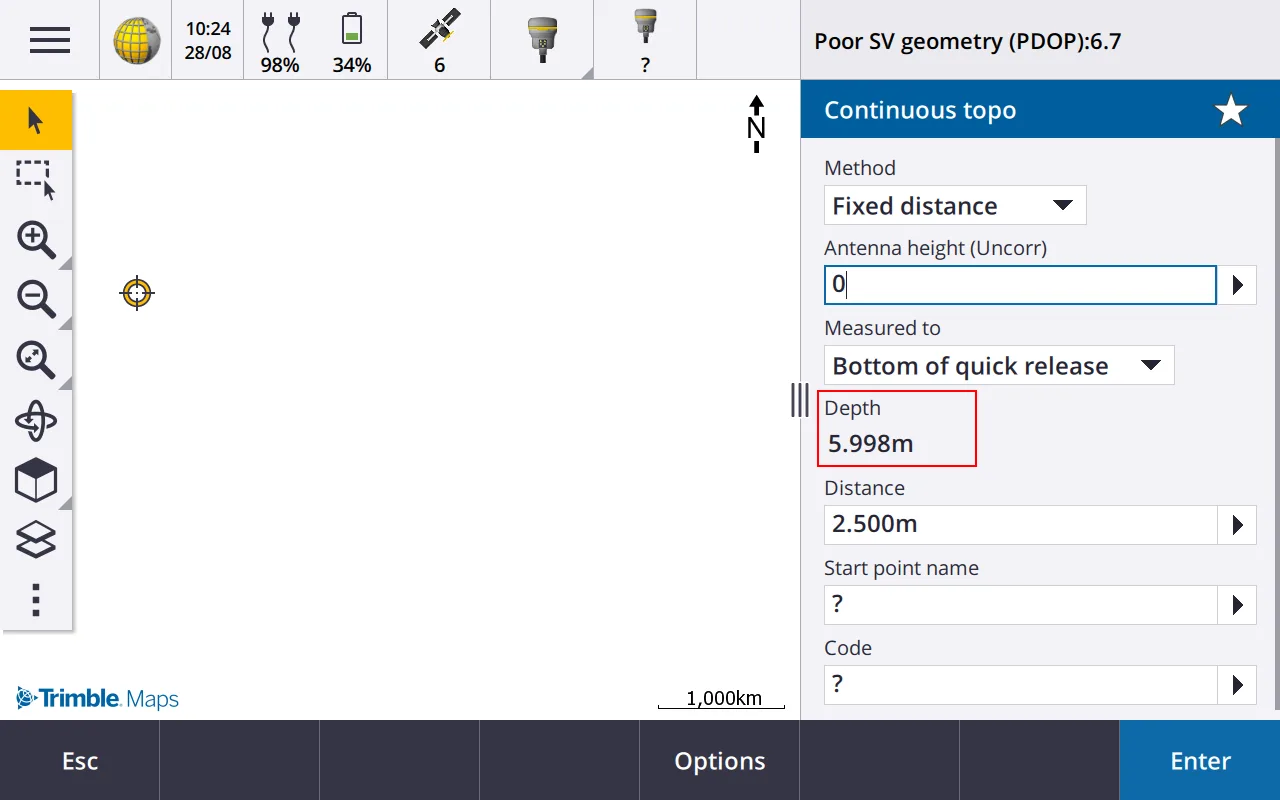
With the echo sounder set up, Trimble Access adds a Depth field to the survey screen whenever this survey style is used.
Equipment used
Talk to US
Need a hand with your set-up?
Our engineers answer survey questions every day.