

Knowledge base › Survey guide
Survey guide
How do I connect the CEE-LINE™ to a Trimble TSC5 over Bluetooth?
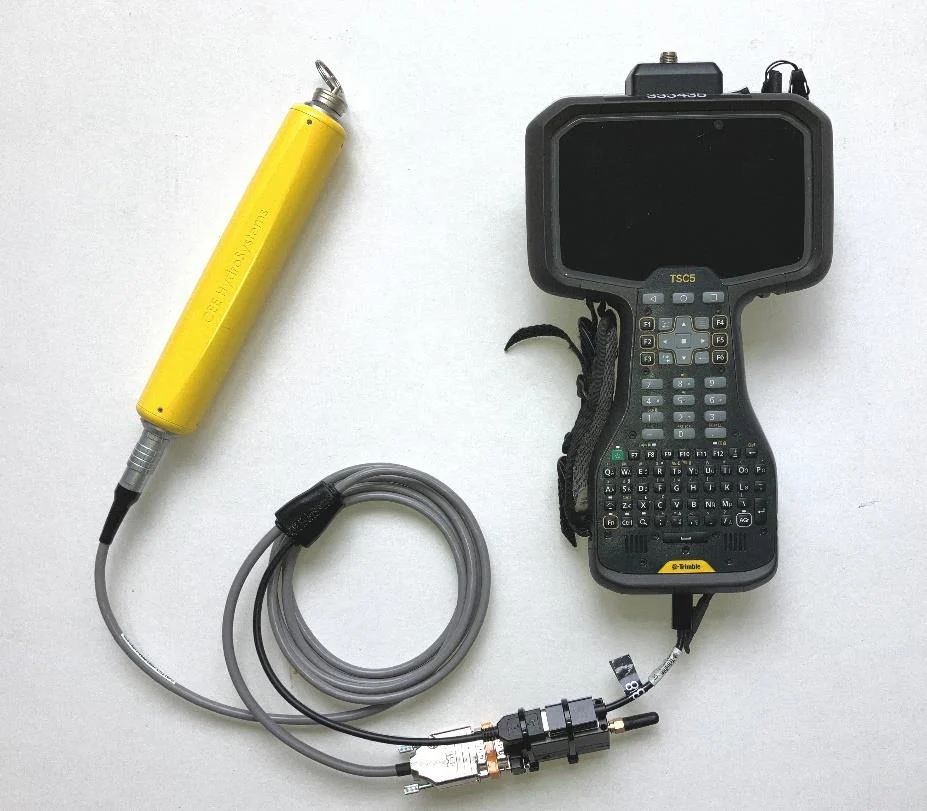
The Trimble TSC5 can’t receive depth data through its USB-C port, so use the CEE-LINE™ with a Sena Parani SD1000 Bluetooth module on the standard data / power Y cable. Pair the SD1000 in Trimble Access as an echo sounder, set the survey style to NMEA SDDBT, and keep the CEE-LINE™ at 9600 baud with draft set to zero.
New systems now ship with the CEE Bluetooth cable (LEMO to USB-C), which replaces the Sena Parani SD1000. If you have the new cable, follow How do I connect the CEE-LINE™ HD to a Trimble TSC5 with the CEE Bluetooth cable? This guide still applies if you use an SD1000.
SD1000Bluetooth module
9600baud rate
1234pairing PIN
NMEA DBToutput format
Why do I need a Bluetooth module?
The CEE-LINE™ is designed around a USB cable for power and data. The TSC5 cannot receive depth data through its USB-C port, so a Bluetooth radio is needed between the two.
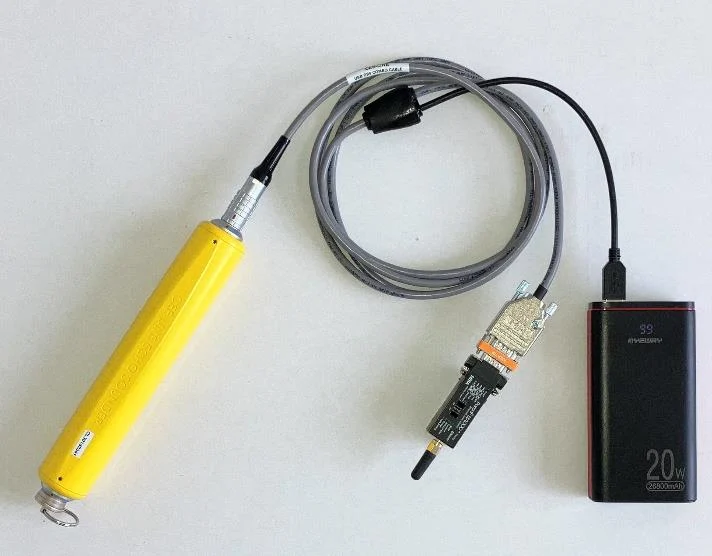
The Sena Parani SD1000 is a self-contained radio that plugs into the standard CEE-LINE™ data / power Y cable and pairs with Bluetooth-only devices like the TSC5. It has its own USB-rechargeable battery with several hours of runtime. Unlike a built-in Bluetooth radio, it has an external antenna and long range, so the CEE-LINE™ can work much further from the controller, which is useful on small USVs.
How do I power it?
There are two options. Power draw is low, so running from the TSC5 battery won’t noticeably shorten its runtime.
| Option | How | Best for |
|---|---|---|
| TSC5 battery | Power the CEE-LINE™ from the TSC5 through the USB-C to USB-A adapter cable. | The simplest set-up, with fewer parts. |
| USB power pack | Power the CEE-LINE™ from an external USB source, independent of the TSC5. | Long days: the power pack can also recharge the SD1000. |
How do I set up the SD1000?
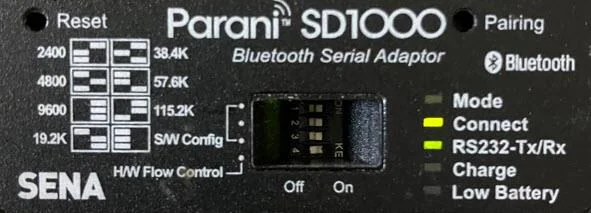
- Check the DIP switches match the CEE-LINE™ default of 9600 baud: top three switches to the right, bottom switch to the left.
- Put it in pairing mode the first time you connect: press the recessed Pair button with a paper clip or small screwdriver for 2–3 seconds. The MODE light flashes faster. After the first pairing it links automatically.
What the SD1000 lights mean
| Light | What it tells you |
|---|---|
| RS232-TX/Rx flashing rapidly | Data is arriving from the CEE-LINE™. If it isn’t flashing, the CEE-LINE™ is not enabled, not powered, or its baud rate doesn’t match the SD1000. |
| Connect | Only lights when the acquisition software is receiving data, i.e. a survey has started. It does not light just because the SD1000 is paired. |
How do I pair it in Trimble Access?
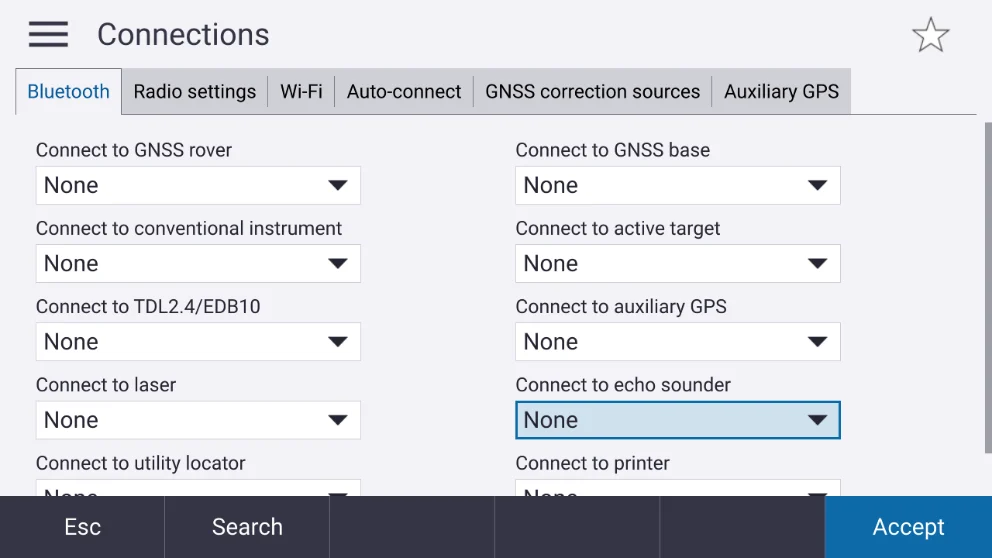
- In Trimble Access, open the Connections screen and search for Bluetooth devices.
- When the scan finishes, select CEELINE and press Pair. An SD1000 not supplied and configured by CEE HydroSystems shows as
SD1000_XXXXXinstead. - Enter the PIN
1234(unless it has been changed with the ParaniWin software). - When pairing is confirmed, set the device type to echo sounder.
- Back on Connections, select the new CEELINE connection under Connect to echo sounder.
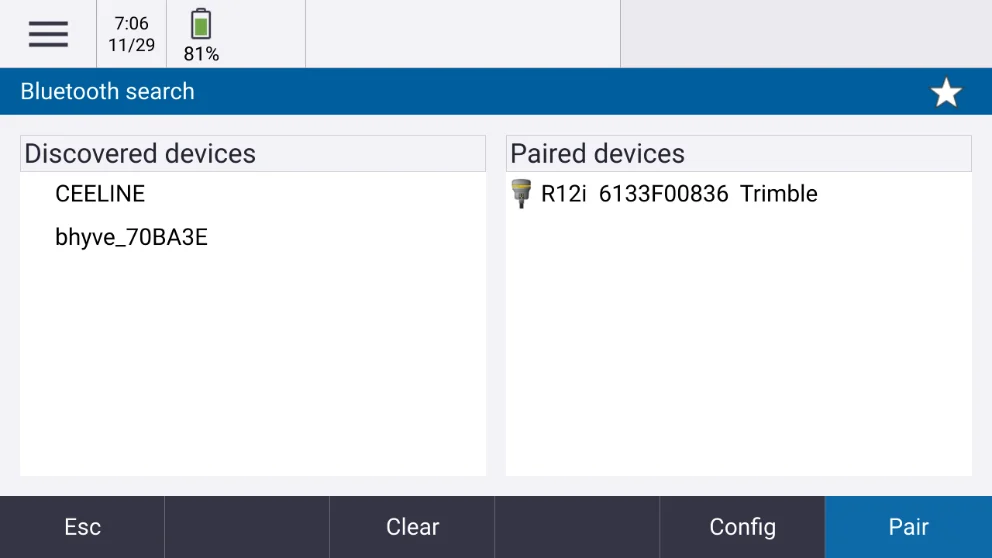
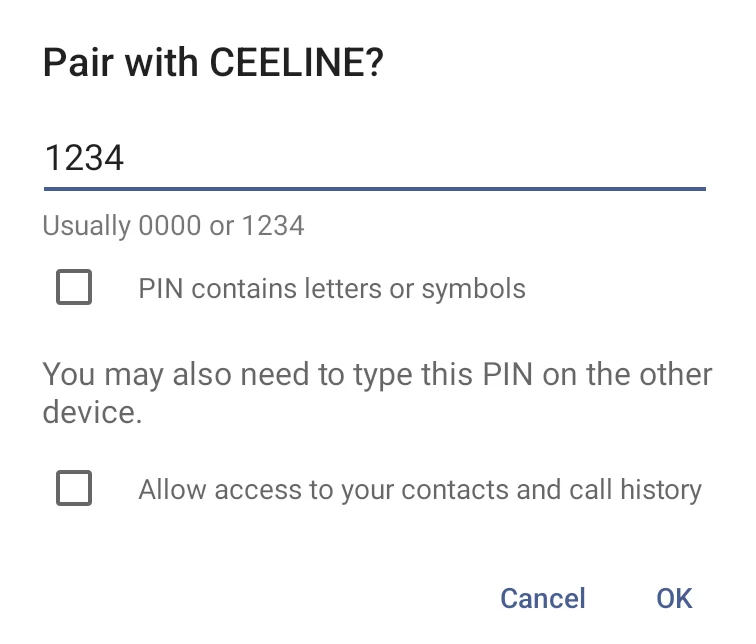
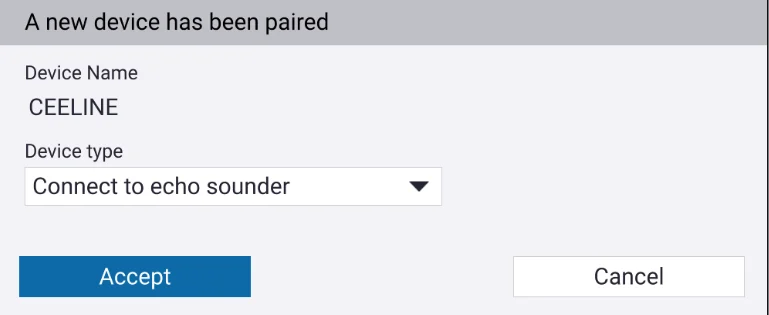
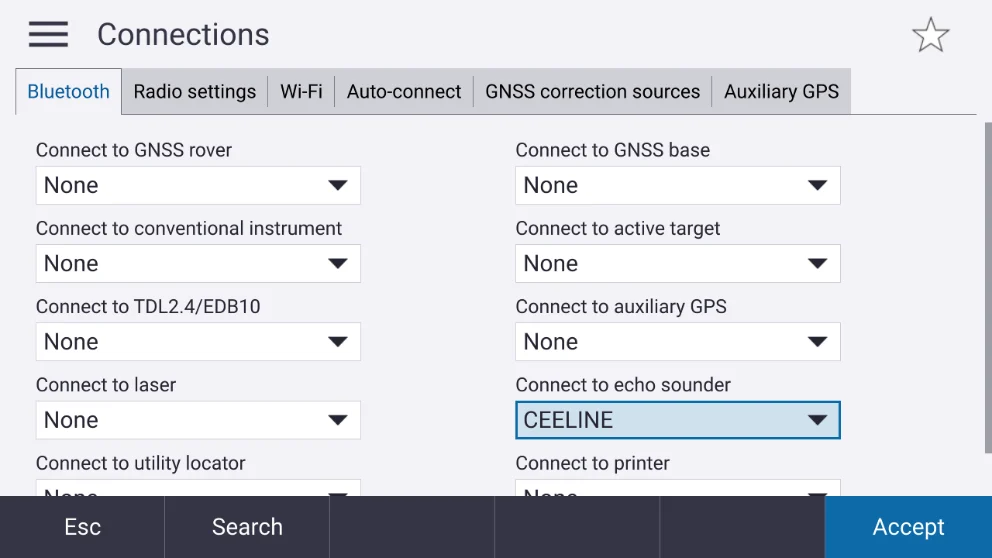
The CEE-LINE™ is now ready to record position with appended depths in your survey style.
How do I set up the survey style?
Each survey style you use with the CEE-LINE™ needs its echo sounder settings configured.
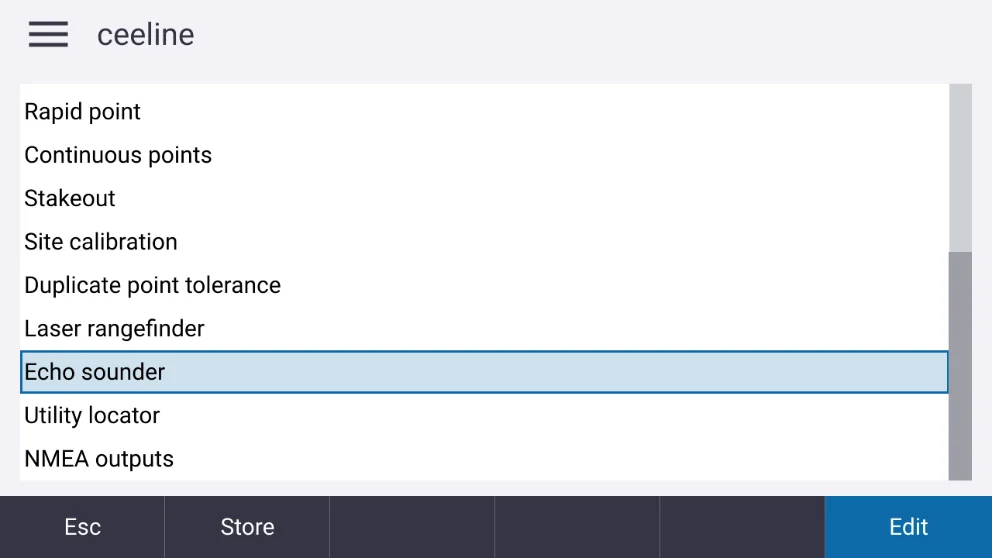
- Open the project and job, go to Settings › Survey Styles, and select Echo sounder.
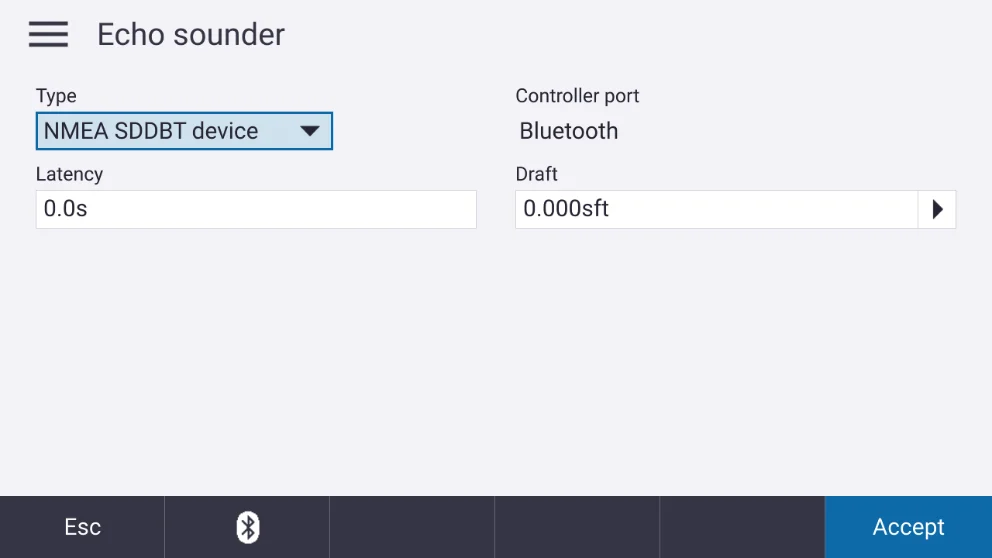
- Set Type to the output format the CEE-LINE™ is set to, usually NMEA SDDBT.
- Press Accept to store the survey style.
Set draft to zero if you enter the antenna height as the total distance from the CEE-LINE™ transducer face to the GNSS antenna. Adding a draft here as well counts it twice in the final elevations.
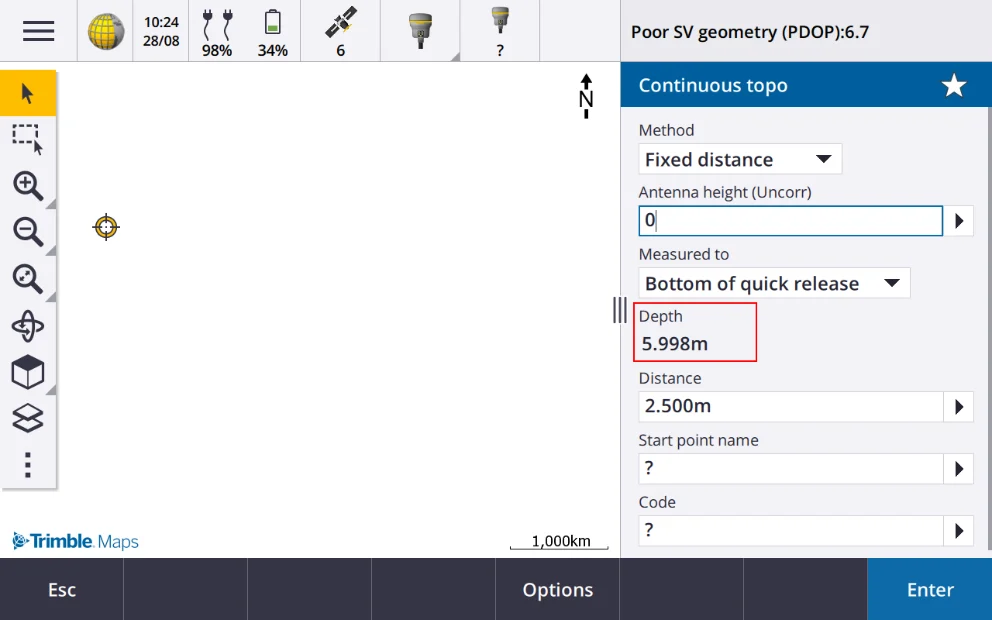
With the echo sounder set up, Trimble Access adds a Depth field to the survey screen when this style is used for continuous topo bathymetric surveys.
How do I configure the CEE-LINE™?
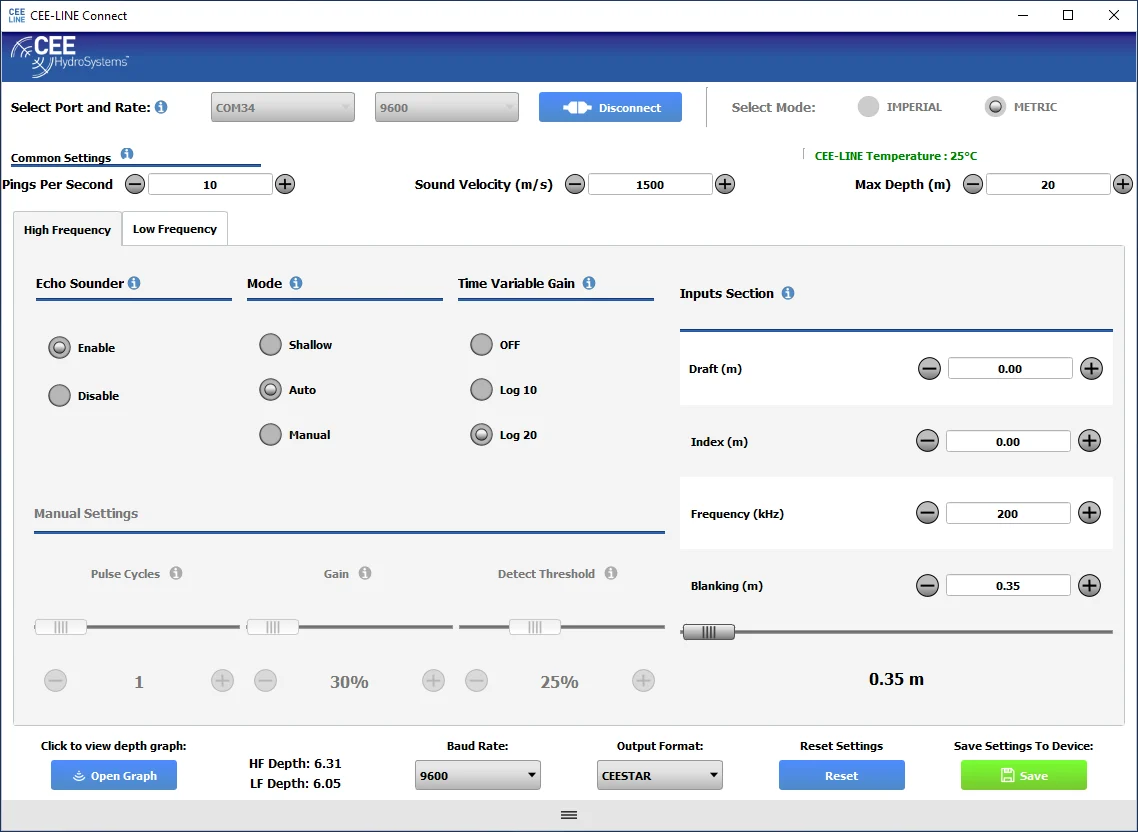
The CEE-LINE™ is configured with the CEE-LINE CONNECT software, which runs on a PC or tablet with full Windows (not on the TSC5). Download the installer, then connect the CEE-LINE™ with the “Smart” USB cable.
| Setting | Set to | Why |
|---|---|---|
| Output format | NMEA DBT (default) or CEESTAR | Trimble Access reads either. CEESTAR carries both channels (high and low frequency); NMEA DBT carries only the channel that’s enabled. |
| Baud rate | 9600 bps (default) | Don’t change it when using the SD1000 with a TSC5 or other wireless device. |
| Maximum depth | Expected survey depth + 30–50% | It’s a hard limit: deeper than this and no data is received. Don’t use the largest value (e.g. 100 m for a 20 m survey); a sensible limit improves performance. |
| Draft | 0 | The antenna height from the base of the transducer to the GNSS is applied in Trimble Access. |
Press the green Save button. The settings are stored in the CEE-LINE™’s non-volatile memory.
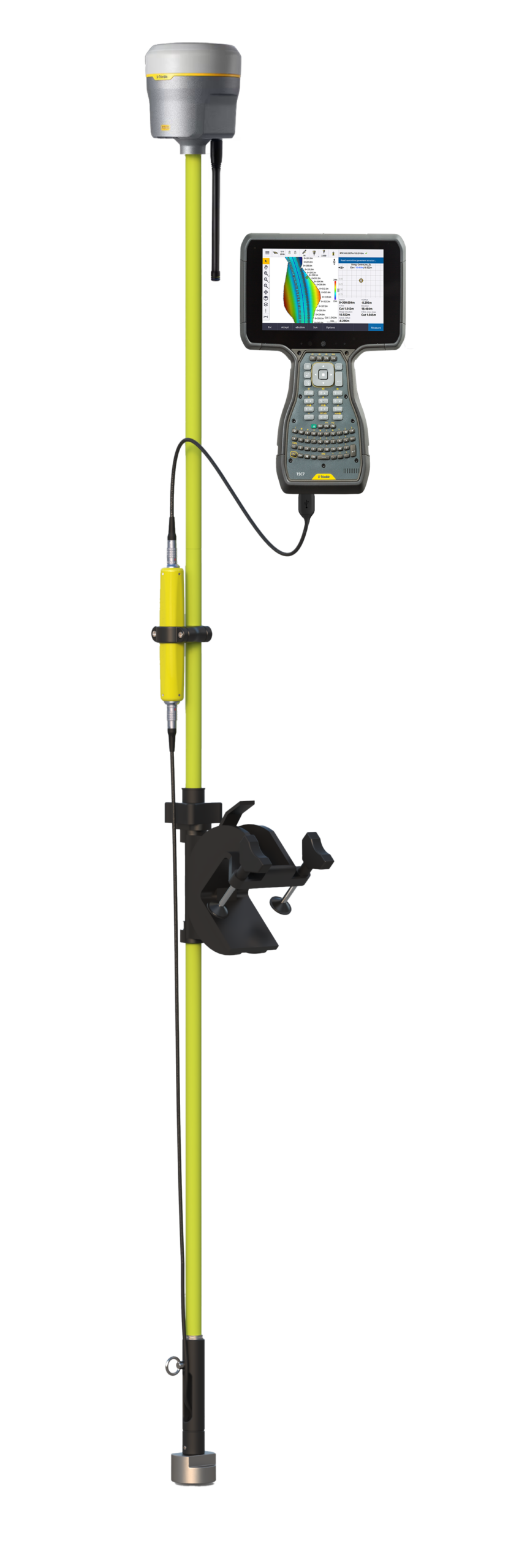
Equipment used
Talk to US
Need a hand with your set-up?
Our engineers answer survey questions every day.