

Knowledge base › Survey guide
Survey guide
What are the 10 most common CEE echo sounder setup mistakes?
Most “no data” problems come down to three things on the PC: a wrong Ethernet IP address (fix it at 192.168.2.10), the real time output button switched off, or the Windows firewall blocking the software. The other seven tips cover the max depth setting, GNSS input on the CEE ECHO, the transducer, HYPACK timing, the hard reset, GNSS connectors and battery care.
3of the 10 are “no data” problems on the PC
192.168.2.10suggested fixed IP for your PC
Bluereal time output button must stay blue
3 monthscharge stored echo sounders at least this often
Quick checklist. No data in the software? Check the PC’s IP address, the real time output button and the firewall, in that order. No depth? Check the maximum depth setting and listen to the transducer. No position? Check the GNSS output settings and the antenna cable. These ten points explain most of the support questions we get.
No data? Check your PC’s IP address
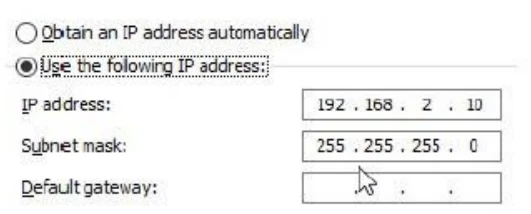
If you can’t see data in the software, the most common cause is the PC’s Ethernet IP address. Windows may have updated, or someone may have changed it.
The PC’s Ethernet IP must be fixed at 192.168.2.10 (suggested) to match the default IP of the CEESCOPE™ / CEE ECHO™. If it’s set to “Obtain an IP address automatically” it will never work.
Check this first, even if you think it’s right. You might have mistyped it.
No data? Check the real time output button
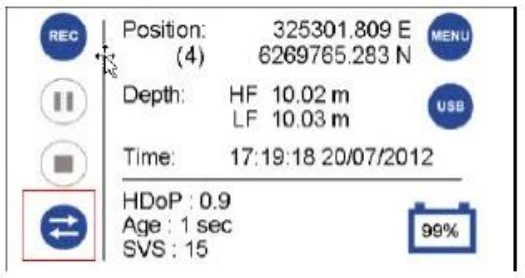
This one is hidden in plain sight. The dual arrow button on the echo sounder’s home screen should always have a blue background.
Pressing it turns it clear, and that disables all data coming out of the echo sounder. Nothing will appear in the software, which is not a great situation if you don’t know why your data has vanished.
No data? Check the Windows firewall
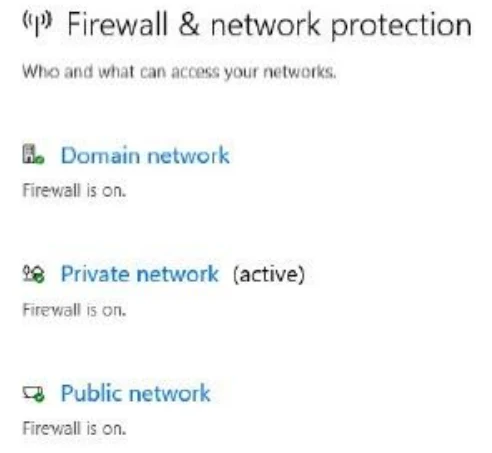
Windows Defender can block the network data from the CEESCOPE™ / CEE ECHO™. If the IP address is right and there’s still no data, the firewall is the next suspect.
Either turn off the Windows Defender firewall, or go to Allow an app through firewall and allow these programs on both private and public networks:
| Software | Allow these programs |
|---|---|
| Hydromagic | “Eye4Software” |
| HYPACK® | “Hardware – Device Test” and “Survey” |
Remember the maximum depth setting
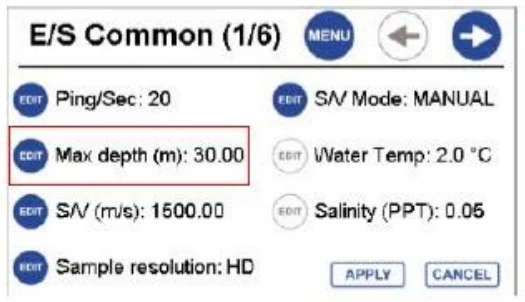
Every CEE echo sounder has a maximum depth field in the setup menu. It’s a hard limit that helps the echo sounder track the bottom in the range you expect.
Go deeper than the max depth and all useful data disappears, and it’s not recoverable. More than once we’ve seen data missing in the middle of a lake because the user didn’t notice the max depth was set too shallow.
Watch out on unfamiliar sites. This is most treacherous when a survey goes well outside the normal depth range and the operators have no idea what the max depth is set to.
Can’t see GNSS data in the CEE ECHO™?
If the GNSS is connected but the CEE ECHO™ shows no position, the problem is most likely the GNSS receiver’s settings.
- Baud rate: make sure the GNSS and the CEE ECHO™ are set to the same baud rate.
- NMEA output: check the GNSS is configured to output the right NMEA messages. This is usually the issue.
- Terminal screen: use the CEE ECHO™ terminal screen in the GNSS menu to see the incoming data. If it’s garbled, the baud rate is wrong.
- Cabling: avoid gender changers and null modems that make the cable a mess. Just because it physically connects doesn’t mean it will work.
For the full set-up, see our guide to connecting an external GNSS receiver to the CEE ECHO™.
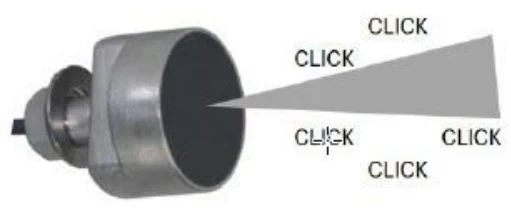
It’s a sonar: can you hear it?
Transducers have a hard life. They hit rocks and get knocked about, and cables get yanked and twisted, so they can be damaged.
If you have no depth data, listen to the transducer up close. You should hear it clicking; it’s quiet but clear. If you can’t hear it, nothing will give you depth data by magic, and the transducer or cable needs checking.
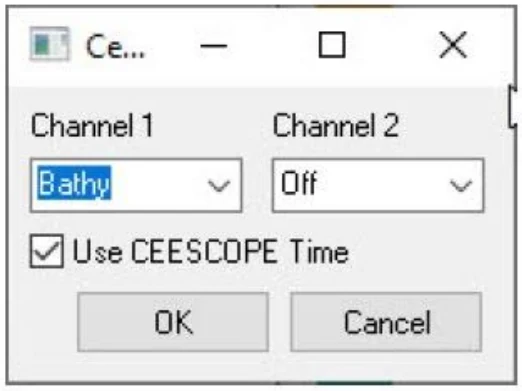
Set up the HYPACK® driver to avoid timing issues
HYPACK® changed how it handles CEE time-stamped data in 2021. Understanding this is key to avoiding induced (but fixable) timing errors in your data, which may or may not be obvious.
Know the timing and setup options in HYPACK®, especially if you move between versions before and after 2021. In the driver setup, the Use CEESCOPE Time option controls whether HYPACK® uses the echo sounder’s time stamps.
See our guide to which HYPACK® drivers to use with the CEESCOPE™ and CEE ECHO™, and the other HYPACK® set-up and test guides in the knowledge base.
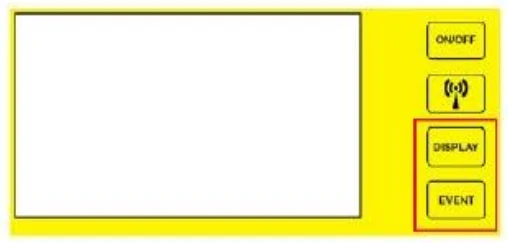
Know the DISPLAY + EVENT hard reset
If you see any upset condition, you can shut off power with a hard reset, the equivalent of pulling the plug. Press the DISPLAY and EVENT buttons at the same time.
Then power up again and carry on. It’s rarely needed, but worth knowing.
Check for damaged GNSS cables and connectors
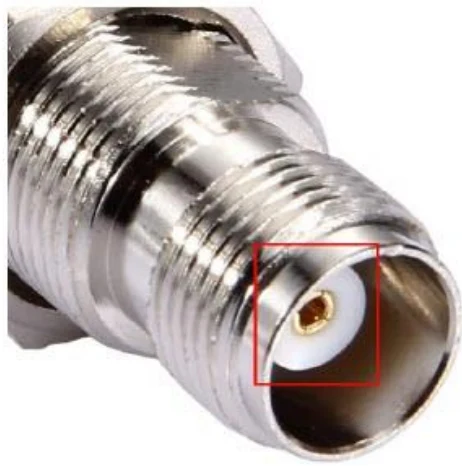
The signal from the CEESCOPE™ (or any GNSS) antenna is tiny. Damaged RF coaxial cables and connectors can easily degrade it and make the GNSS position vanish.
If your CEESCOPE™ GNSS shows “No Data”, the connectors may be tarnished or dirty:
- Replace the cable, and / or
- Use a tiny screwdriver or paper clip to scrape the inner surface of the copper mating connector, to reveal fresh metal where the pin seats.
Keep the battery charged
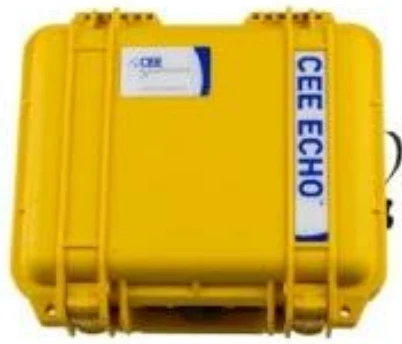
The internal NiMH battery drains down in storage. Charge every CEE echo sounder with an internal battery regularly, ideally every three months when it’s not in use.
If the battery goes completely flat it can’t be recharged, and an avoidable factory visit is needed. With proper care, the batteries last for years.
Still stuck? If you’ve worked through all ten and still have no data, send us a support request with a photo of the echo sounder’s home screen and your software settings.
Equipment used
Talk to US
Need a hand with your set-up?
Our engineers answer survey questions every day.