

Knowledge base › Survey guide
Survey guide
How do I set up and check HYPACK® timing with a side scan or other equipment?
With an echo sounder alone, use CEE time and leave the PC clock alone. When you add equipment without time stamps, such as a side scan sonar, the PC clock must be synchronised to the CEESCOPE™ clock. Whatever the set-up, record 10–20 seconds and check the RAW file: the EC1 and POS lines must always go forward in time.
10–20 s test RAW file
3 typical configurations
1234 / 1235 position / depth UDP ports
UTC set offset to 0
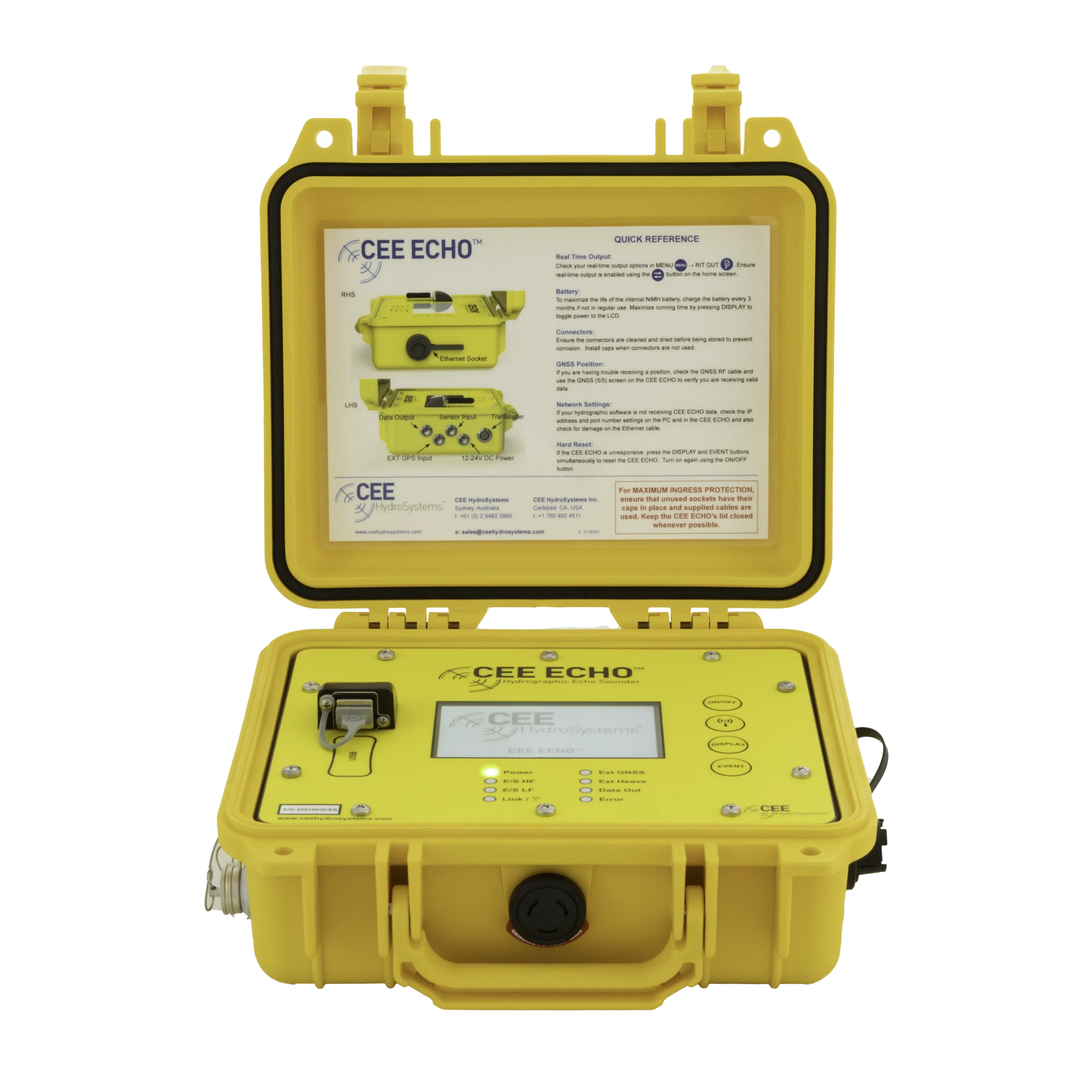
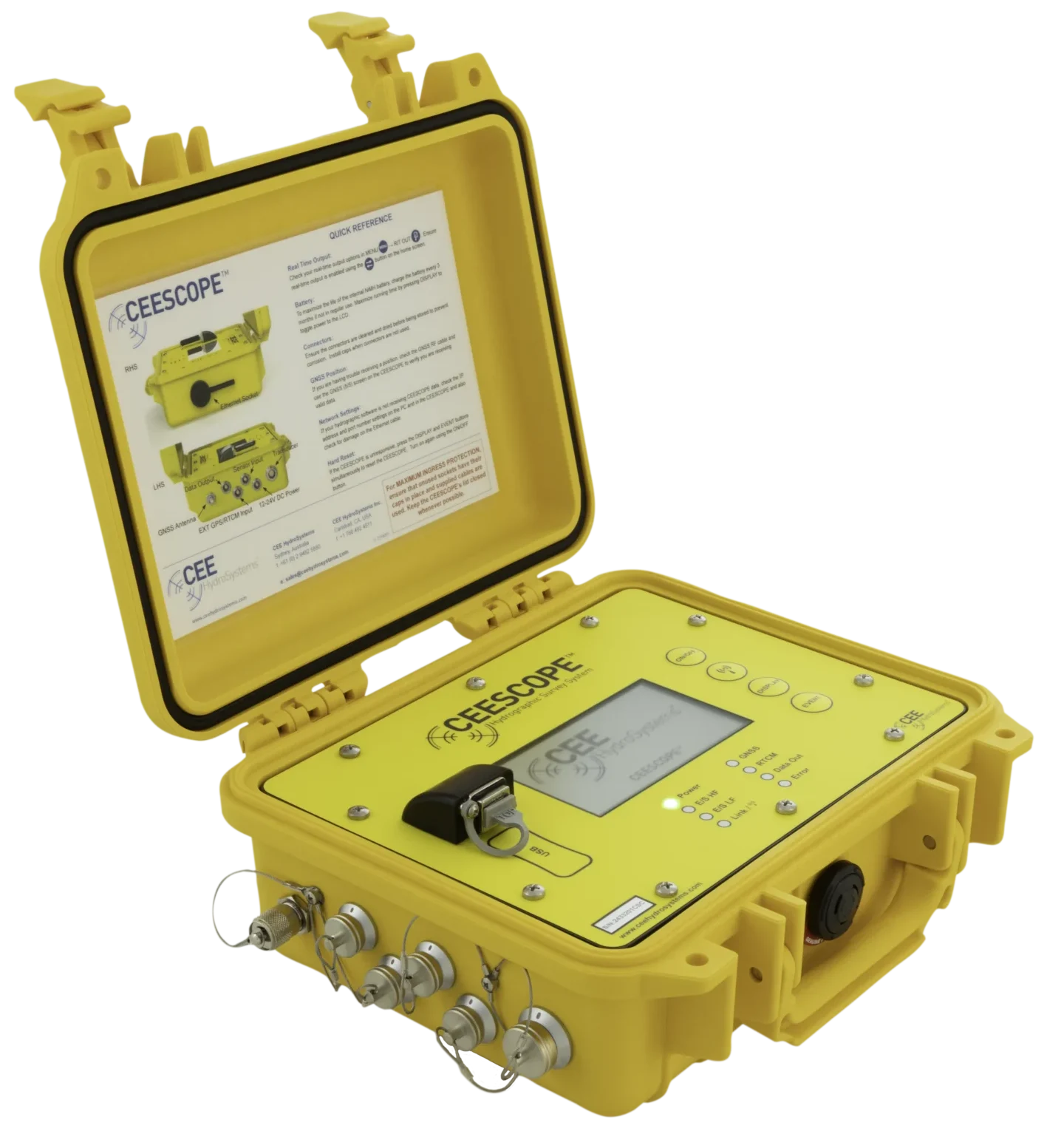
Configuring the CEESCOPE™ or CEE ECHO™ and HYPACK® correctly is critical. With an echo sounder alone it’s straightforward; adding third-party equipment such as a side scan sonar complicates the timing. Everything here applies to both the CEESCOPE™ and CEE ECHO™. For the basic driver choice, see which HYPACK® drivers to use.
Driver names changed in HYPACK® 2021 Q3. The configurations below were written for the CEE-GPS driver (cee-gps.dll). From 2021 Q3 the standard GPS-NMEA0183 driver reads the POS time stamps instead. If you’re adding a side scan on a current HYPACK® release, check the set-up with CEE HydroSystems.
Where does the time come from?
- The CEESCOPE™ has an internal GNSS receiver, so the 1PPS signal is always available.
- The CEE ECHO™ can only use 1PPS if the external receiver generates it and the cable carries it. Otherwise the ZDA message alone sets the clock. 1PPS isn’t available over Bluetooth.
| Term | Meaning |
|---|---|
| CEE time | The echo sounder’s clock, synchronised to UTC when it has a valid position. Used for internal logging and real-time output. |
| PC time | The clock of the HYPACK® PC, ignoring your regional offset. HYPACK® can sync it to a time source such as the CEESCOPE™ and uses it to log any data without time stamps. |
| ZDA | NMEA sentence with time and date, usually 1 Hz, 10 ms precision. Both HYPACK® and the CEESCOPE™ use it to set their clocks. |
| 1PPS | A 1 Hz electrical pulse from a GNSS receiver for better time precision than ZDA alone. Without it, syncing to ZDA depends on when the message arrives, so latency and jitter must be low. |
| Latency / jitter | The delay between sending and receiving data, and its moment-to-moment variation. Wi-Fi and Bluetooth can suffer more than Ethernet or RS-232. |
| POS NMEA prefix | The CEE time stamp (milliseconds since midnight) added in front of each NMEA line. |
Which configuration do I need?
| Config | When | PC clock | POS prefix | Clock sync device |
|---|---|---|---|---|
| 1 | HYPACK® with only the echo sounder | Doesn’t need syncing | ENABLE | None (no sync) |
| 2A | Echo sounder plus other equipment, cee-gps.dll older than 19.2.0.0 | Synced to the echo sounder | DISABLE | CEE-GPS |
| 2B | Echo sounder plus other equipment, cee-gps.dll 19.2.0.0 or later (preferred) | Synced to the echo sounder | ENABLE | GPS Sync Only |
- Config 1: use CEE time in HYPACK® with the CEE-GPS driver; Advanced › User Modified NMEA Messages = POS (CeeScope).
- Config 2A: the echo sounder’s stamps can’t be used, so PC time stamps everything. Use CEE-GPS or GPS NMEA-0183 with User Modified NMEA Messages = None, and select that driver under Select Device to Synchronize Clock.
- Config 2B: CEE time is used for the echo sounder data, so data logged inside the echo sounder and in HYPACK® have identical time stamps. Use CEE-GPS (User Modified NMEA = POS (CeeScope)) plus the GPS Sync Only driver to sync PC time to CEE time.
Other set-ups, such as syncing the PC to a separate GNSS receiver, are possible but not covered here. If your echo sounder doesn’t show the POS NMEA prefix option (older software), the prefix is always on: ask CEE HydroSystems for an update, or use cee-gps.dll 19.2.0.0 or later.
Echo sounder settings
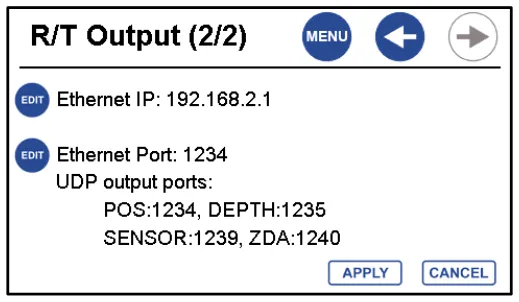
Turn real-time output on from the home screen (the Data Out LED blinks). Then set:
| Menu | Setting | Value |
|---|---|---|
| R/T Output | RT Format | GNSS+CEE (all configs) |
| R/T Output | POS NMEA prefix | ENABLE (1, 2B) / DISABLE (2A) |
| R/T Output | Ethernet | ENABLE |
| R/T Output | Ethernet IP | 192.168.2.1 (default; may need changing in some set-ups) |
| R/T Output | Ethernet Port | 1234 |
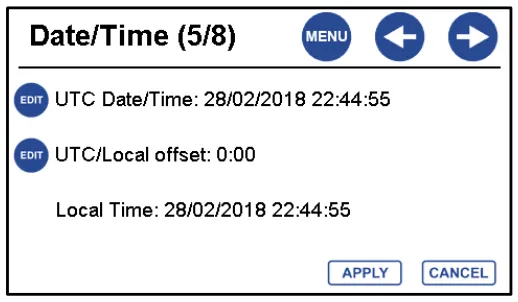
| System › Date/Time (5/8) | UTC/Local offset | 0: keep all equipment working with HYPACK® on UTC |
HYPACK® driver settings
| Driver | Setting | Config 1 | Config 2A | Config 2B |
|---|---|---|---|---|
| System › Hardware | Synchronize Computer Clock | None | CEE-GPS | GPS Sync Only |
| CEESCOPE | Use CEESCOPE Time | Ticked | Not ticked | Ticked |
| CEESCOPE | Survey Connect | Network, UDP, Server, port 1235, write port 0 | Same | Same |
| CEE-GPS | Advanced: User Modified NMEA Messages | POS (CeeScope) | None | POS (CeeScope) |
| CEE-GPS | Survey Connect | Network, UDP, Server, port 1234, write port 0 | Same | Same |
| GPS Sync Only | Enabled | No | No | Yes: Network, UDP, Server, port 1240, write port 0 |
Default CEESCOPE™ UDP ports
| Data | Port | Notes |
|---|---|---|
| Position (GPS) | 1234 | ASCII position, heave and compass data. Prefixed with the CEE time stamp when POS NMEA prefix is on. |
| Sounder | 1235 | Echo sounder data. |
| Sensor | 1239 | Heave (TSS1) or compass (HDG or HDT). Not time-stamped. |
| NMEA ZDA | 1240 | ZDA only. Not time-stamped. |
HYPACK® driver files
| Driver | File | Purpose |
|---|---|---|
| CEE-GPS / GPS CEE | cee-gps.dll / gps-cee.dll | CEE’s custom GPS driver for position. Identical apart from the file name; gps-cee.dll is being dropped, so ignore it. |
| CEESCOPE | ceescope.dll | CEE’s echo sounder driver for depth. |
| GPS NMEA-0183 | gps.dll | Standard HYPACK® GPS driver. |
| GPS Sync Only | gps_sync_only.dll | Syncs the PC clock to ZDA messages. Rejects ZDA lines with the CEE time prefix. |
How do I check for timing errors?
Whatever the driver set-up, the HYPACK® RAW file must have a consistent time base, with times increasing as data is written. Check it before every survey:
- Record about 10–20 seconds of RAW data.
- Right-click the RAW file › Open in Notepad.
- Look at column 3 (time in seconds past midnight) on the EC1 (echo sounder depth: 1 single, 2 dual channel) and POS (calculated XY position) lines. Each new line must be later than the one before.
Other lines (MSG: GPS NMEA; GYR: heading; QUA: satellite quality; RAW: lat / long) don’t matter for this check. If the GNSS and echo sounder drivers share a time base, a new line can never be earlier than the previous one.
| Offset | Example | What happens |
|---|---|---|
| Small | EC1 written before POS but 0.015 s later (43310.215 − 43310.200). Often the PC was recently synced to a Windows time server, close to GPS time. | Unlikely to show in editing, but the set-up is still wrong. |
| Larger | 5.017 s. Often a PC that hasn’t been online for a long time and has drifted from GPS time. | SBMAX loads, but RAW and edited soundings appear in different places on the map. |
| Huge | The echo sounder on UTC and the PC on local time. | SBMAX will probably fail to start. |
Already collected data with a timing error? In HYPACK® go to Utilities › Files Work › RAW Data Adjustments › Adjust Depths › dTime. It writes new RAW files with a .ZZZ extension and doesn’t delete the originals.
Equipment used

Talk to US
Need a hand with your set-up?
Our engineers answer survey questions every day.