

Knowledge base › Survey guide
Survey guide
How do I use the CEESCOPE™ with RosePoint ECS and Hydromagic at the same time?
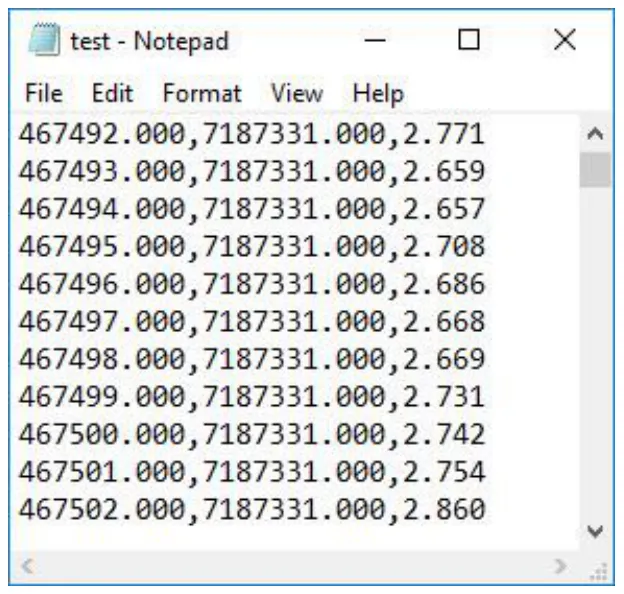
Connect the CEESCOPE™ to the PC by Ethernet (PC on a static IP such as 192.168.2.10) and change its real-time output from GNSS + CEE to plain GGA, VTG + DBT, which both programs can read. Use the Hydromagic NMEA plugin, and add a UDP network port in RosePoint ECS for 192.168.2.1, port 1234. Afterwards, export a Hydromagic matrix as an .xyz file to use as a RosePoint chart overlay.
192.168.2.10 example PC IP
192.168.2.1 CEESCOPE™ IP
1234 UDP port
.xyz overlay file
RosePoint ECS (navigation charts) and Eye4Software Hydromagic (hydrographic mapping) can both read the CEESCOPE™ data stream at the same time, as long as the echo sounder output is set up correctly.
How do I connect the PC?
Connect the CEESCOPE™ to the acquisition PC with the Ethernet (LAN) cable. Give the PC a static IP on that LAN port, for example 192.168.2.10. It can’t be 192.168.2.1, which is the CEESCOPE™.
Which output format?
With Hydromagic on its own, set the CEESCOPE™ R/T Output to GNSS + CEE and use the CEESCOPE plugin, so the high definition echogram is shown and recorded. RosePoint ECS can’t read the proprietary CEE data, so when running both, change the output to a plain NMEA 0183 text stream both can read:
| Message | Content |
|---|---|
| $GPGGA | Time, position and elevation |
| $GPVTG | Course and speed |
| $SDDBT | Depth |
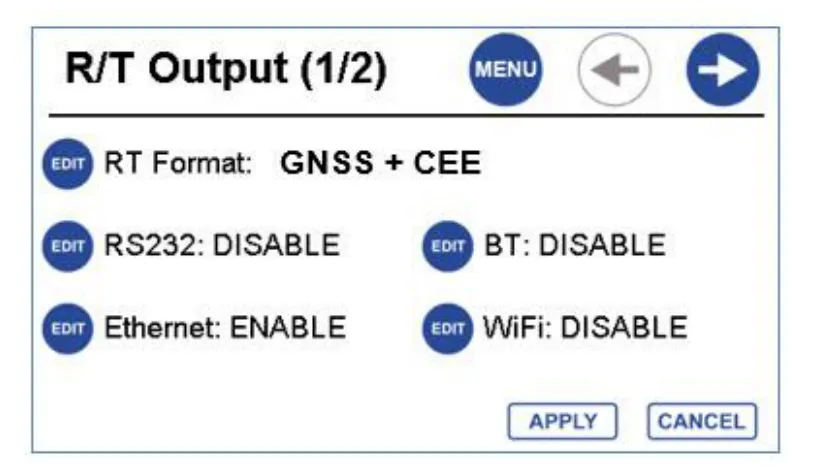
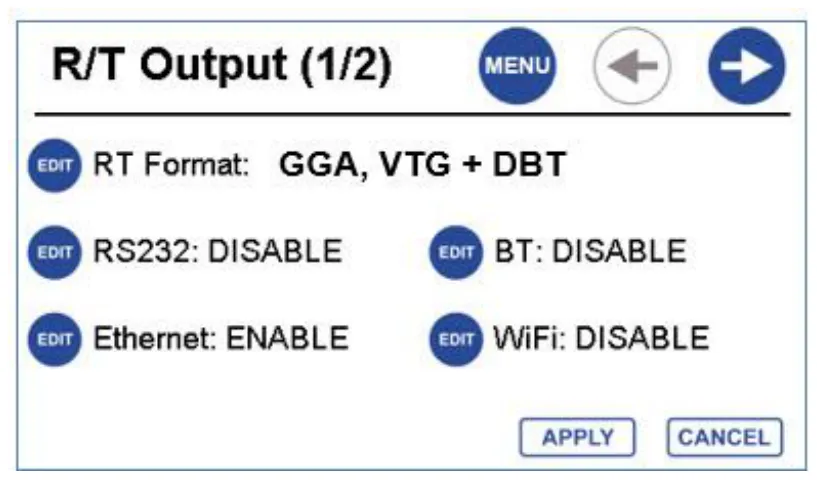
No echogram in this mode. The plain NMEA stream doesn’t carry the echogram, so you lose the ability to check and edit against it. Switch back to GNSS + CEE when you don’t need RosePoint. See what is an echogram.
How do I set up Hydromagic?
- Options › Preferences › Devices: replace the CEESCOPE plugin with Hydromagic NMEA Plugin #1, set to receive the network (UDP) data from the CEESCOPE™ (host 192.168.2.1, port 1234). The Oceanscience Z-Boat plugin works too, with identical results.
- A green tick next to the device means it’s configured; an hourglass means no data; a red mark means no instrument connected.
- Select the right coordinate system when you create the project (for example the correct NAD83 State Plane zone); exported data uses the project XY.
Check X and Y are positive when you start the survey (bottom info bar or Navigation Data view). If not, you’re in the wrong zone and the data will be corrupt.
How do I set up RosePoint ECS?
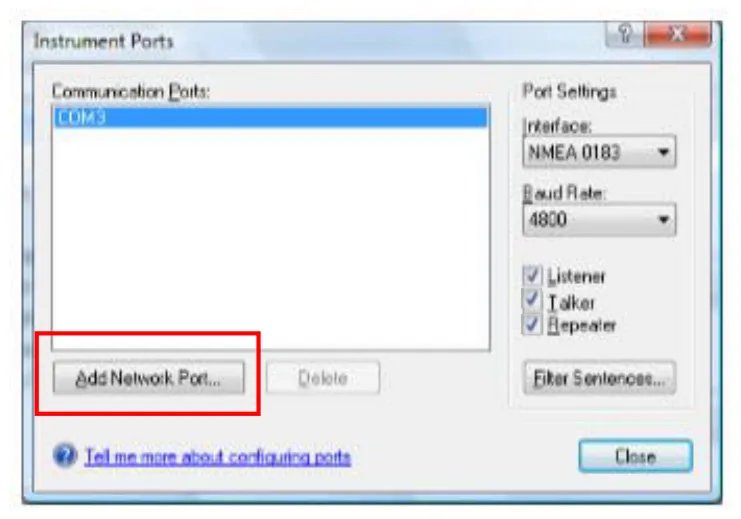
- Go to Configure Vessel and Electronics › Data Ports › Port Settings.
- Set Interface to NMEA 0183 with Talker ticked (Listener, Talker and Repeater can all be ticked). Under Filter Sentences, select all. Baud rate doesn’t matter.
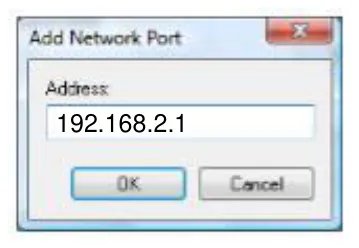
- Press Add Network Port and enter the CEESCOPE™ IP, 192.168.2.1, port 1234, protocol UDP (not TCP/IP).
RosePoint ECS then shows depth, position and heading from the CEESCOPE™.
Not getting data?
- Turn off the boat’s own echo sounder to avoid crosstalk.
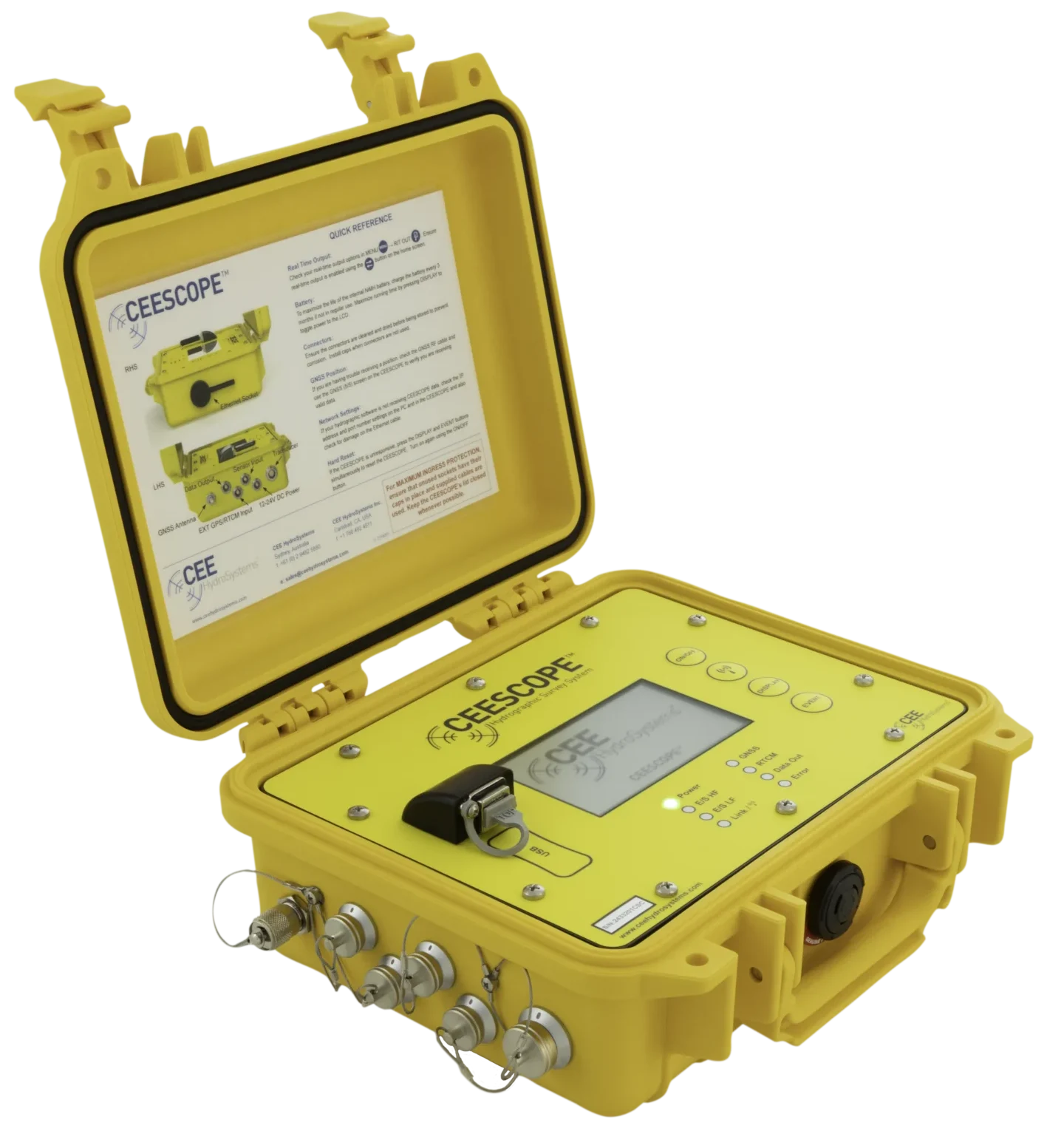
- Check the CEESCOPE™ Real Time Output button is blue (bottom left of the home screen).
- Check the laptop’s IP address: no data arrives if it’s wrong.
- Turn off anti-virus and firewalls, which block the network data.
How do I put the survey on the RosePoint chart?
- Make soundings: right-click RAW DATA › Process Raw Data, and clean the data with the Echogram Editor and other tools. Generate a sounding for each GPS position fix, not a position for each sounding, which can make up to 20× more data.
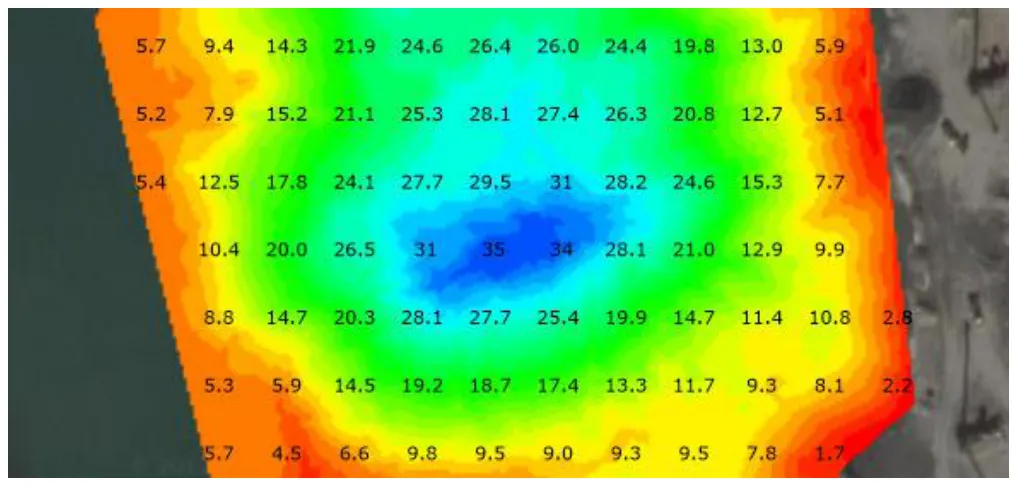
- Make a matrix: thousands of soundings are far too many for a chart overlay, so grid them. Right-click MATRIX › Generate Matrix, select the sounding files, choose the survey Boundary as the clipping area if you have one, and set the matrix spacing.
- Export: File › Export › Export ASCII Data. Choose the matrix, fields Easting, Northing, Depth (XYZ), comma separator.
- Rename the file extension to .xyz in Windows Explorer, so RosePoint recognises it as a hydrographic survey.
- In RosePoint ECS: File › Open › Survey Data / XYZ, select the file, and choose the coordinate system and units (ft or m) used. RosePoint converts XY to latitude / longitude for the chart overlay.
Watch the coverage. Matrix depths are interpolated from the soundings, so make sure coverage is good enough that large areas aren’t just interpolated.
Equipment used

Talk to US
Need a hand with your set-up?
Our engineers answer survey questions every day.