

Knowledge base › Survey guide
Survey guide
How do I connect an external GNSS receiver to the CEE ECHO™?
Send the GNSS receiver into the CEE ECHO™, not separately to the PC: set the GNSS input to EXTERNAL (RS-232) or BLUETOOTH, output GGA, VTG and ZDA from the receiver (GGA and VTG at 5 Hz), set both ends to the same baud rate (38400 or higher) and 8-N-1, and check the position appears on the home screen. A baud rate mismatch is the most common problem.
GGA, VTG, ZDA messages needed
5 Hz GGA and VTG rate
≥38400 baud rate
8-N-1 serial settings
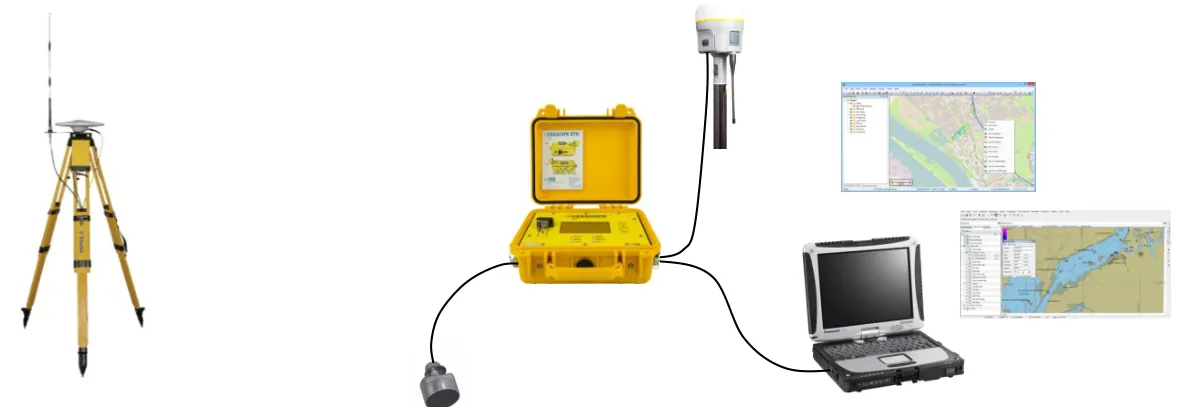
Route GNSS data into the CEE ECHO™, not straight to the acquisition PC. The echo sounder combines position and depth and sends both over its active real-time ports (Ethernet, RS-232 or Bluetooth), usually on a single LAN cable. This:
- avoids a second PC connection (often a different type, such as RS-232 for GNSS and Ethernet for depth), with the latency, complex driver set-up and cabling that brings;
- lets you use the precise CEE POS time stamps;
- shows the position on the CEE ECHO™ screen;
- records the whole dataset inside the echo sounder.
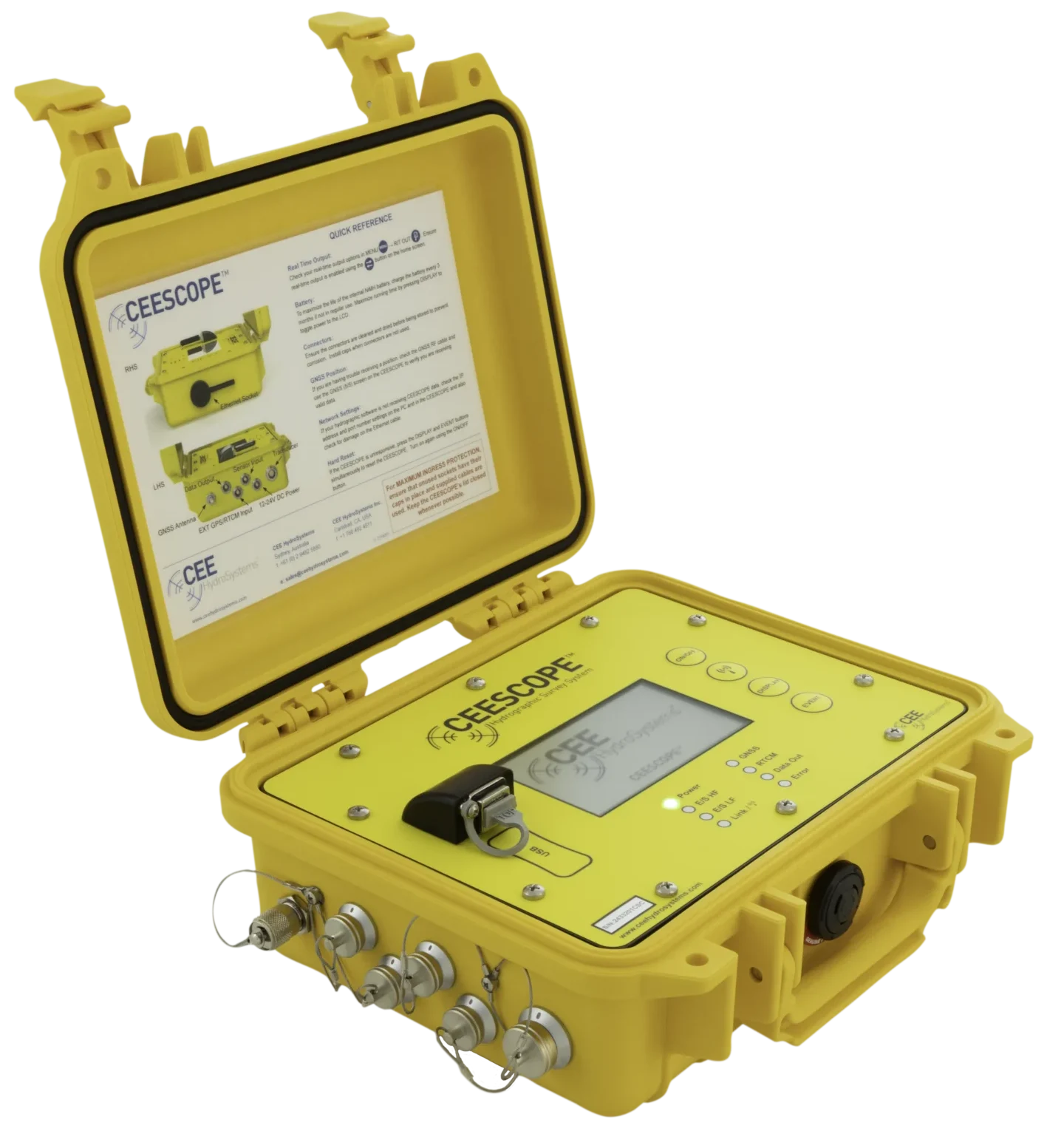
Everything here also applies to a CEESCOPE™ used with an external GNSS instead of its built-in receiver.
What are the steps?
- Set the CEE ECHO™ GNSS input mode.
- Turn on the right NMEA messages on the receiver’s output port.
- Set identical baud rate and serial settings at both ends.
- Check the position appears on the CEE ECHO™ home screen. If it doesn’t, no valid position is being received.
1. Set the GNSS input mode
| Mode | Use |
|---|---|
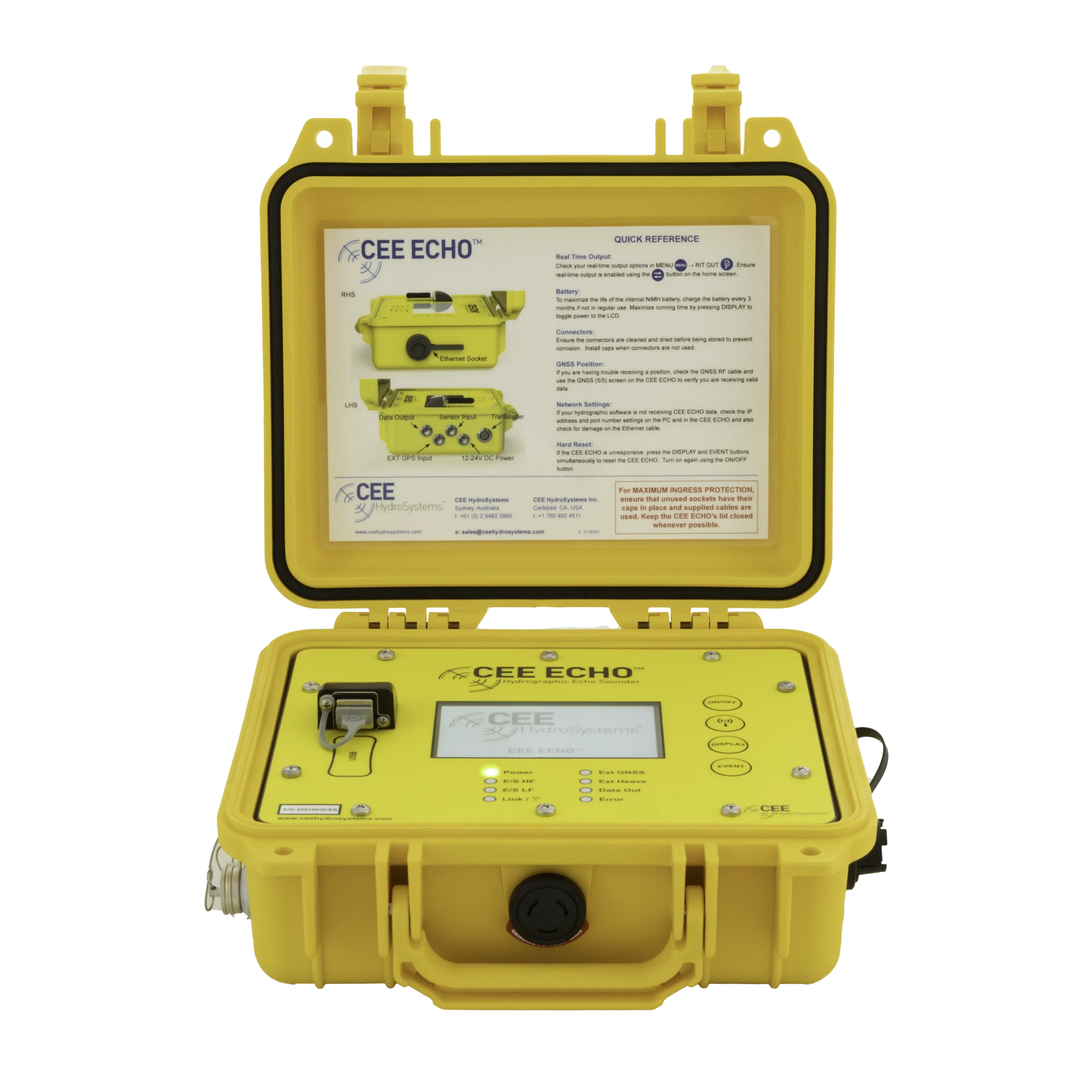
| EXTERNAL | RS-232 cable into the 5-pin LEMO GNSS input (standard). Use the 5-pin LEMO to DB9 male adapter in the CEE ECHO™ kit; it mates with standard RS-232 cables from GNSS makers (not supplied by CEE). |
| BLUETOOTH (BTSERIAL on older units) | Bluetooth input. No baud rate or serial port settings, but everything else here applies. See Bluetooth set-up. |
| DISABLE | No GNSS input. |
2. Choose the NMEA output messages
Use the receiver’s own configuration tool (a Wi-Fi browser page, or a data collector such as a Leica CS15/16 or Trimble TSC3) to turn on NMEA output on the port connected to the CEE ECHO™. Always output from the GNSS receiver itself, not from a data collector. On some receivers (especially some Leica models) NMEA output is an extra feature that must be activated.
| Message | Content | Rate |
|---|---|---|
| GGA | Position and elevation: the main message | 5 Hz |
| VTG | Course and speed | 5 Hz |
| ZDA | Date and time | 1 Hz (never output faster than 1 Hz) |
| GST (optional) | Position error statistics | ≤1 Hz |
| GSA, GSV (optional) | Satellite details | ≤1 Hz |
Minimum rate is 1–2 Hz, but 5 Hz for GGA and VTG with everything else at 1 Hz or less gives good precision without too much data; use 5 Hz or more on a moving boat. More messages need a higher baud rate. Talker IDs GP, GL or GN (GPS, GLONASS, GNSS) vary by manufacturer; the CEE ECHO™ reads them all.
3. Set the baud rate and serial settings
Baud rates run from 4800 to 115200 bps. Too low and data is lost or delayed, causing big position lag that can’t be recovered, making the survey unusable. If the two ends don’t match, no data flows at all.
- Never use 4800 bps. Treat 38400 as the minimum; the maximum 115200 is always a good choice.
- Set 8 data bits, no parity, 1 stop bit, no flow control (8-N-1).
Baud rate mismatch is the most common cause of GNSS problems.
4. Check the position
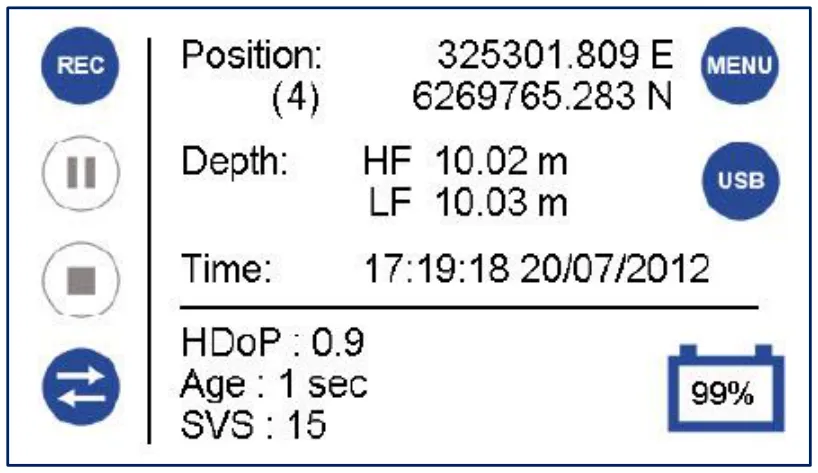
When everything is right, the position appears on the home screen with a quality code: (1) autonomous, (2) differential, (4) RTK fixed, (5) RTK float, (9) SBAS.
No position? Use the data viewer
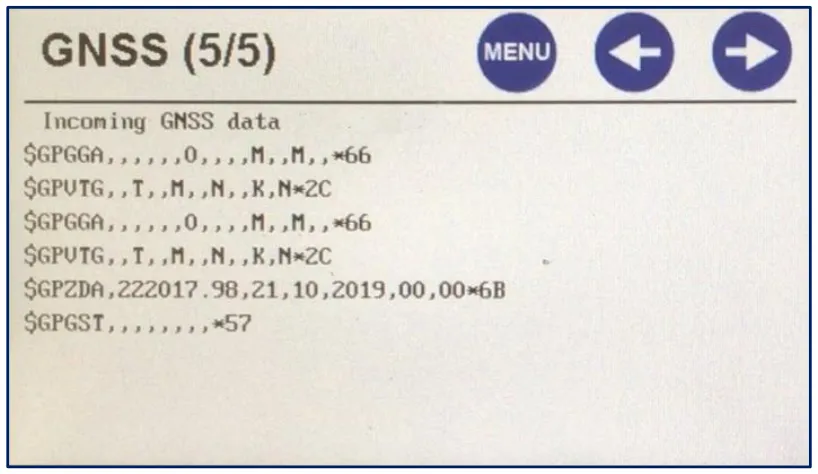
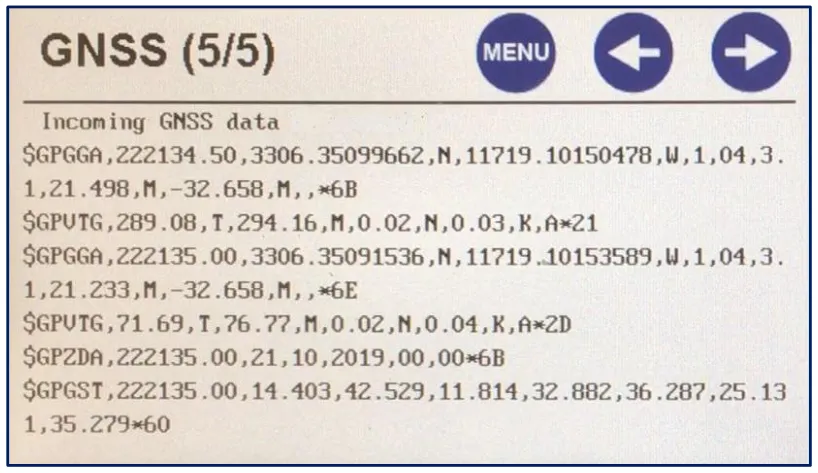
GNSS menu page 5 shows the data arriving in real time, like a terminal program. (If your unit doesn’t have it, ask CEE HydroSystems for the firmware update.)
| You see | It means |
|---|---|
| Nothing | Wrong communication settings, or the receiver isn’t outputting NMEA. |
| “Garbage” characters | Baud rate mismatch. Changing the CEE ECHO™ input baud rate and watching the viewer is the easiest test. |
| Complete messages but empty fields | Set-up is right, but the receiver has no position yet. |
| Messages but no GGA | No position will be available: turn on GGA. |
Still stuck? Use a PC terminal program
- Download TeraTerm.
- Connect the receiver output to the PC serial port (or a USB to serial adapter).
- In TeraTerm choose the serial port and enter the receiver’s serial settings.
- Adjust the receiver until you see a stream like Figure 4, then reconnect it to the CEE ECHO™.
Why does the ZDA message matter?
The default real-time output (GNSS+CEE over Ethernet) puts a POS time stamp in front of every line. It’s critical for USVs, where telemetry adds latency. Later firmware lets you turn it off in the GNSS menu, but keep it on (factory default) unless you have an unusual set-up. Your acquisition software decides whether it uses the stamp instead of PC time.
No ZDA, no valid time stamp. The POS stamp comes from the CEE ECHO™ clock, which only syncs to GNSS time when a valid ZDA message arrives. Without ZDA you may still see a position (from GGA), but the stamp comes from the unsynchronised internal clock and can cause problems in processing.
Can I use the CEE ECHO™ with a data collector instead?
Yes. Connect the GNSS receiver to the data collector, and the CEE ECHO™ to the data collector over Bluetooth as a stand-alone echo sounder. Set the CEE ECHO™ output to $SDDBS and the data collector’s external echo sounder input (“Generic NMEA”) to $SDDBS too, and enter the transducer draft in the CEE ECHO™. See hydrographic vs land survey set-ups for the trade-offs.
Equipment used
Talk to US
Need a hand with your set-up?
Our engineers answer survey questions every day.