

Knowledge base › Survey guide
Survey guide
How do I connect a PC to the CEESCOPE™ or CEE ECHO™ over Ethernet?
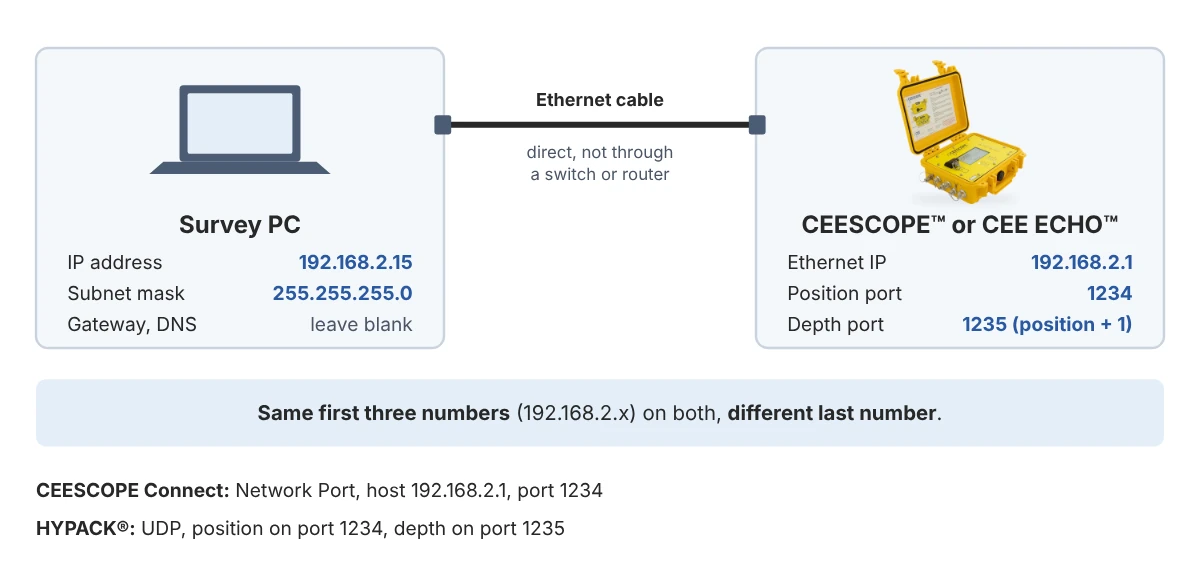
Give the PC a fixed address in the same range as the unit (192.168.2.15, subnet mask 255.255.255.0; the unit is 192.168.2.1). Enable Ethernet and turn on R/T OUTPUT on the unit. Then connect CEESCOPE Connect to port 1234, or set HYPACK® to receive UDP on ports 1234 (position) and 1235 (depth).
192.168.2.1 the unit’s default Ethernet address
1234 / 1235 position and depth ports
UDP real-time data to survey software
Ethernet only for the full water column data
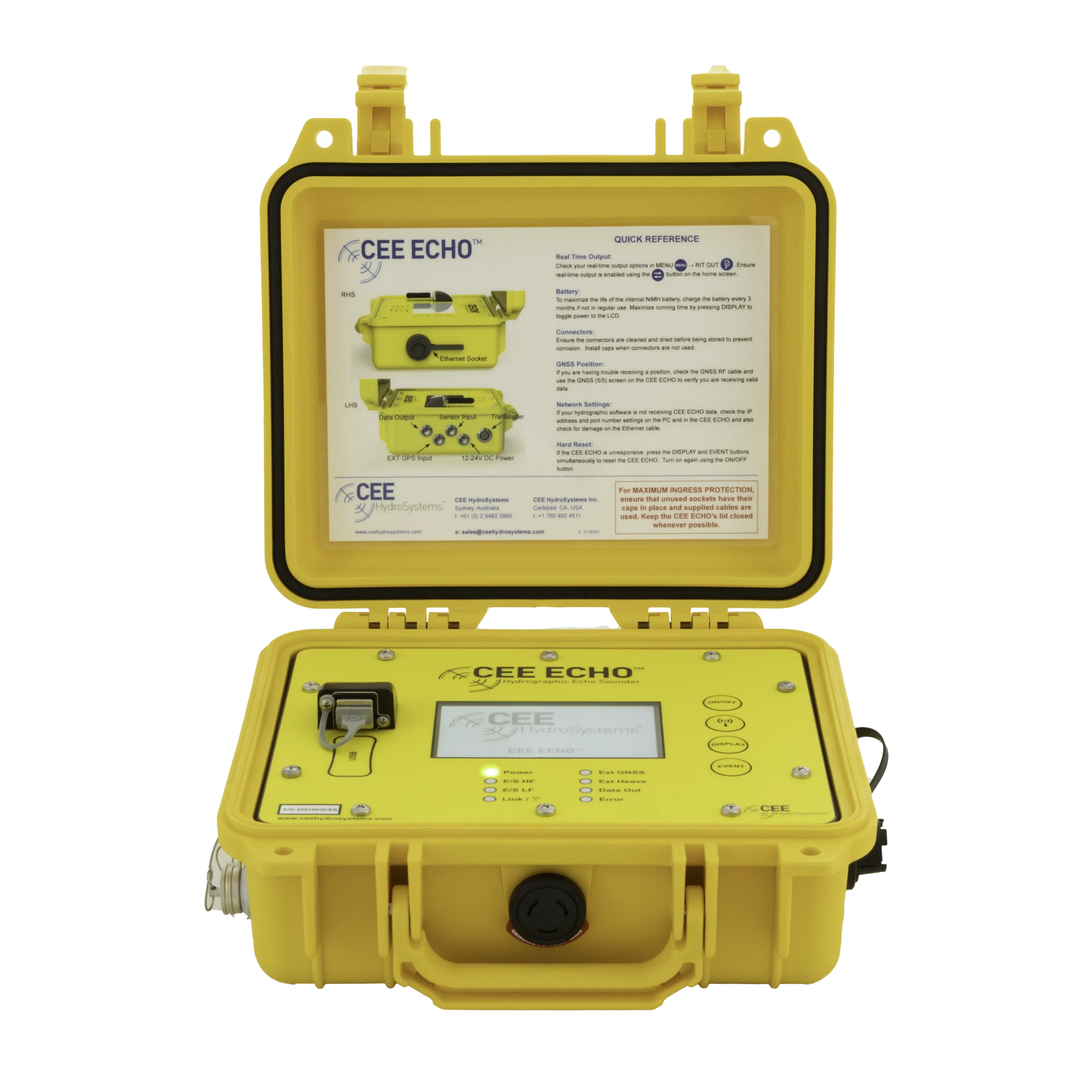
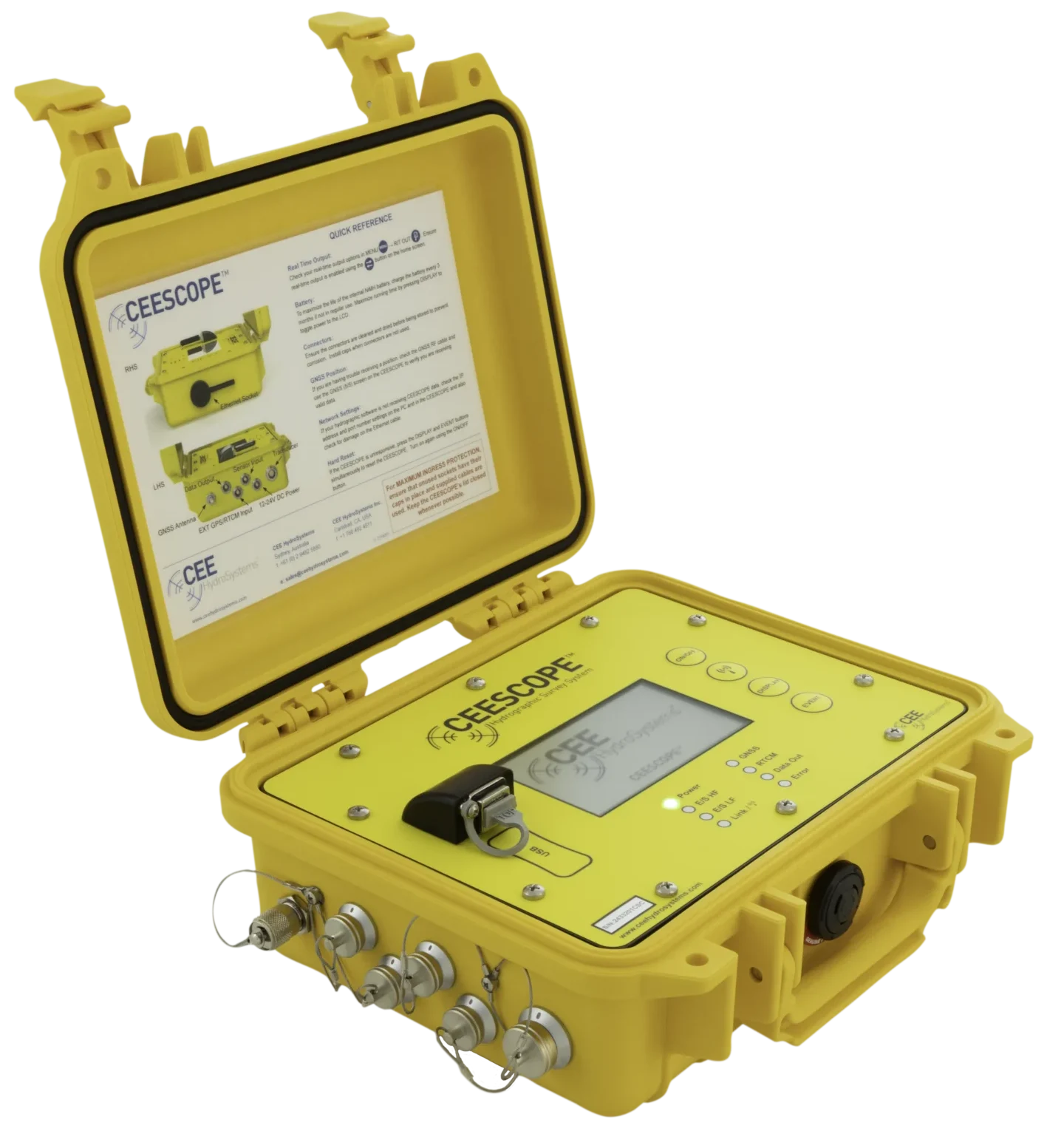
Ethernet is the fastest link between a CEESCOPE™, CEESCOPE LITE™ or CEE ECHO™ and a survey PC. It carries:
- the real-time position and depth to HYPACK® or other survey software;
- the full water column data, which only goes over Ethernet;
- CEESCOPE Connect, which shows the unit’s screen on the PC and lets you change settings and start logging from there.
It takes three steps: give the PC a fixed IP address, set up the unit’s output, then connect the software.
What do I need?
- The Ethernet cable supplied with the unit. It screws onto the unit’s Ethernet connector and keeps it sealed. A normal RJ45 network cable also fits, but without the screw seal the unit is no longer waterproof at that connector.
- A PC with an Ethernet port, or a USB Ethernet adapter.
- CEESCOPE Connect, from the Software downloads on the CEESCOPE™ or CEE ECHO™ product page, and/or your survey software.
Connect the cable straight from the PC to the unit. Going through a switch, hub or router can cause problems, so avoid it where you can.
Using the Ethernet port for an LTE router instead? That’s for network RTK without a PC: see how do I get network RTK on the CEESCOPE™ without a survey PC?
Which IP addresses and ports does it use?
| Setting | Default | Where to change it |
|---|---|---|
| Unit’s Ethernet IP address | 192.168.2.1 | R/T Output page 2/2 |
| Position port | 1234 | R/T Output page 2/2 (1024–10000) |
| Depth port | 1235 | Always the position port + 1 |
| Wi-Fi IP address (CEESCOPE-R™) | 192.168.3.1 | R/T Output page 2/2 |
How do I set the PC’s IP address?
On Windows 10 or 11:
- Plug the Ethernet cable into the PC, so you can see which network adapter it is.
- Press Windows key + R, type ncpa.cpl and press Enter. This opens Network Connections.
- Right-click the Ethernet adapter the unit is plugged into and choose Properties.
- Select Internet Protocol Version 4 (TCP/IPv4) and click Properties.
- Choose Use the following IP address. Enter IP address 192.168.2.15 and subnet mask 255.255.255.0. Leave the default gateway and DNS boxes blank.
- Click OK, then OK again.
Same first three numbers, different last number. The PC’s address must start 192.168.2, like the unit’s, but must never be 192.168.2.1. If someone has changed the unit’s address, match its first three numbers instead.
The fixed address only applies to that Ethernet adapter. If you later plug the same port into an office network, set it back to Obtain an IP address automatically.
How do I set up the unit?
- Press MENU → R/T OUT. On page 1/2, set RT Format to GGA,GST,VTG,ZDA+CEE and Ethernet to ENABLE, then press APPLY. This format is recommended over a network: the unit time-stamps the data itself, so network delays don’t affect it.
- Press RIGHT for page 2/2 to see the Ethernet IP address and port. Leave the defaults unless you need to change them.
- Go back to the main screen and press R/T OUTPUT to start sending data. The button turns blue and the Data Out light on the front panel flashes.
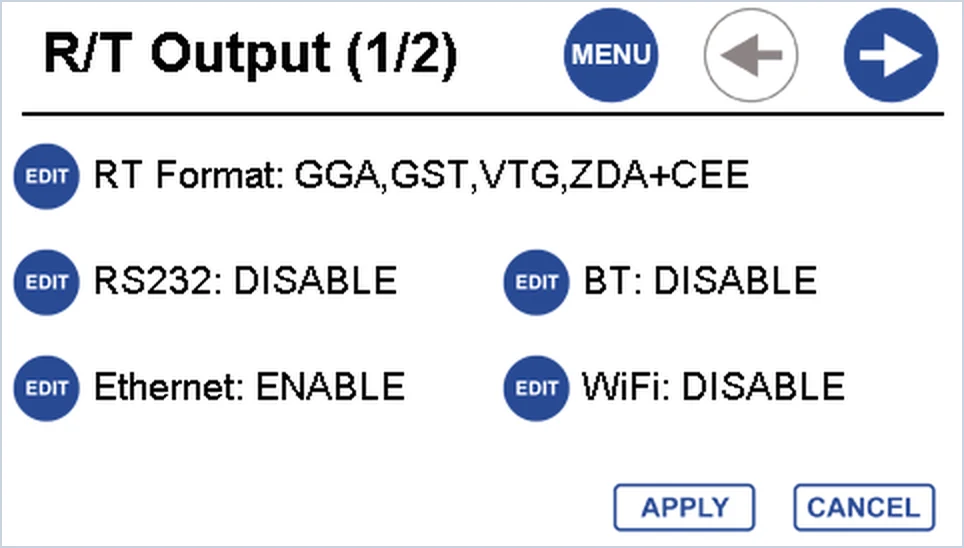
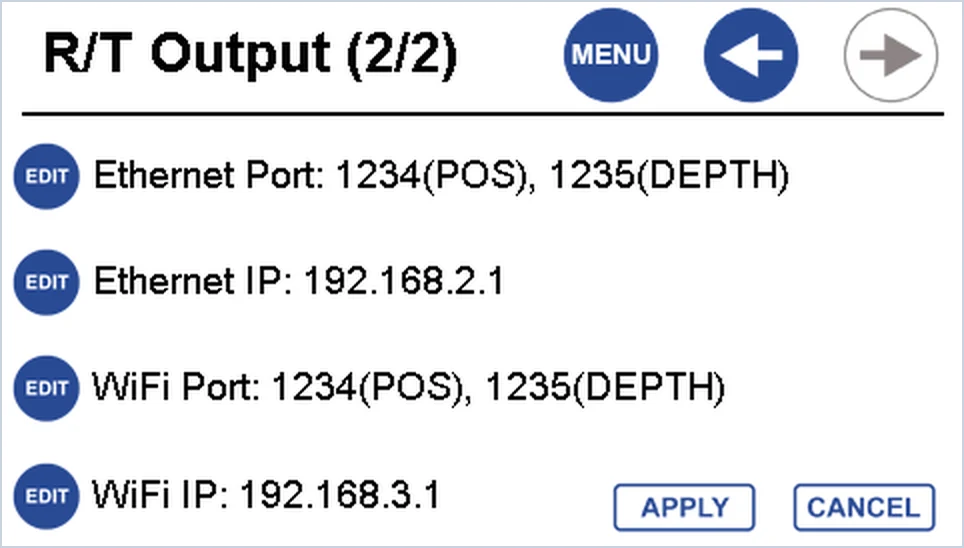
Turn real-time output off before changing the IP address or port. The unit won’t let you edit them while R/T OUTPUT is on. Change them, press APPLY, then turn the output back on.
How do I connect CEESCOPE Connect?
- Install CEESCOPE Connect from the product page download and open it.
- In the connection window, set Connect to Network Port.
- Choose the unit’s version (v1.x or v2.x). If you’re not sure, check the OS firmware on the unit’s MENU → ABOUT page.
- Enter Host: the unit’s Ethernet IP address (192.168.2.1 by default). Enter Port: the position port (1234).
- Click Apply. When the status bar shows the connection is active, the unit’s main screen appears on the PC.
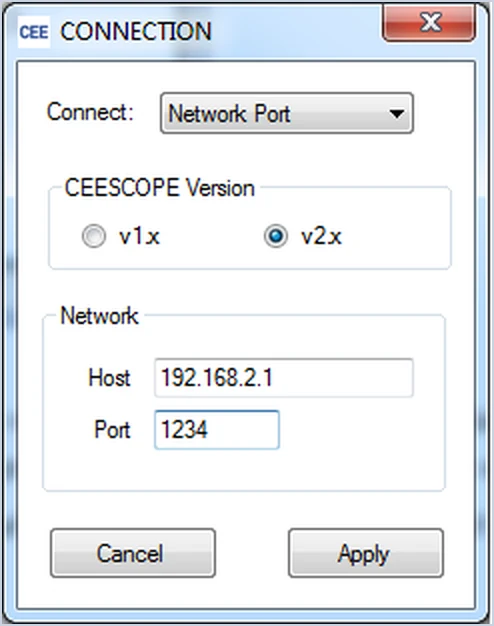
CEESCOPE Connect saves these settings, so they’re already filled in next time you connect to the same unit. With it you can:
- watch the position, depth, battery and any error messages;
- start and stop logging with the Record button;
- change the echo sounder settings in the Echosounder Control window. The Common, HF and LF sections each have their own Apply button;
- step the maximum depth up or down by 1, 2, 4, 8 or 10 m from a small window you can keep on screen.
Critical settings such as draft and sound velocity are still locked while a file is logging: see how do I set draft, index and sound velocity?
How do I get the data into HYPACK®?
Set the drivers to receive UDP from the unit:
- GPS driver (position): Network Port, Protocol UDP, Role Server, Port and Write Port 1234.
- CEESCOPE™ driver (depth): Network Port, Protocol UDP, Role Server, Port and Write Port 1235.
With real-time output on, use the HYPACK Hardware test to confirm data is coming in. For which drivers to choose, see which HYPACK drivers should I use? For other survey software, use the same two UDP ports.
What if it won’t connect?
| Problem | What to check |
|---|---|
| No data arrives | Is the R/T OUTPUT button blue, and is Ethernet set to ENABLE on R/T Output 1/2? |
| Can’t edit the IP address or port | Turn real-time output off first. |
| The PC warns of an IP address conflict | Another device has the same address. Change the last number of the PC’s or the unit’s address. |
| Still nothing after setting the address | Check you set it on the Ethernet adapter the cable is plugged into, and that the first three numbers match the unit’s. |
| The connection drops | Connect the cable straight to the PC, not through a switch or router. |
| Windows asks about network access | Allow CEESCOPE Connect or your survey software on the network. |
Related guides
Equipment used
Single Beam Echo Sounder with Built-in GNSS
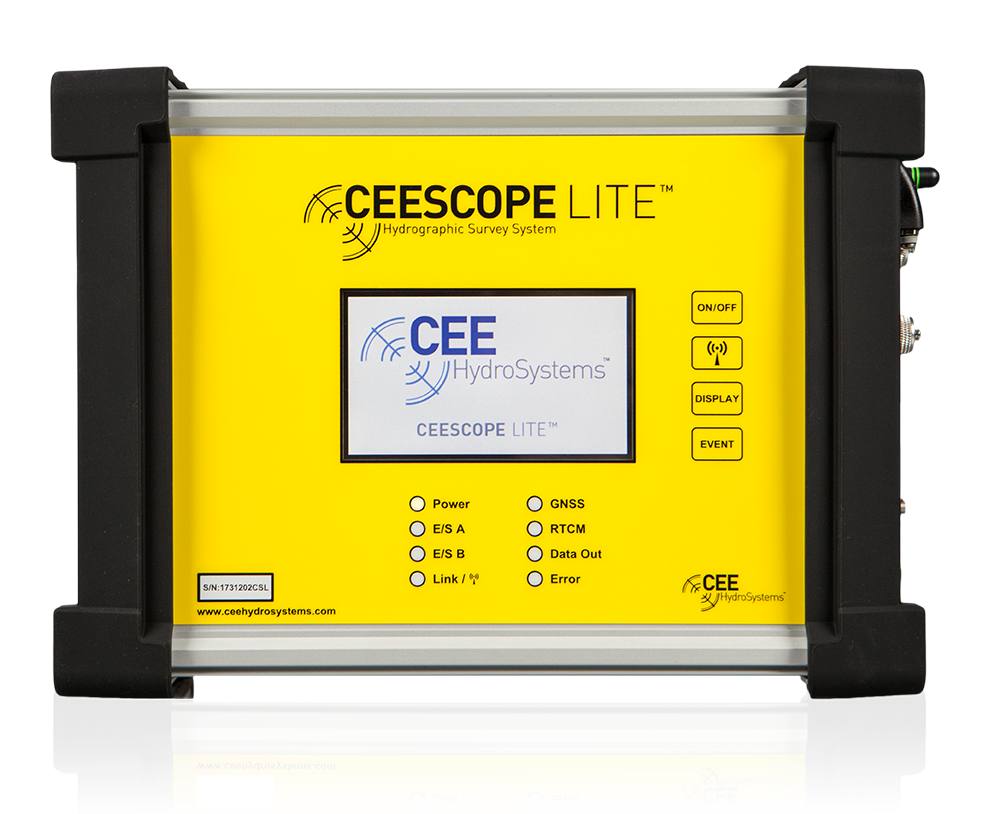
CEESCOPE LITE™
The whole CEESCOPE, in an even smaller footprint
View product
Talk to US
Need a hand with your set-up?
Our engineers answer survey questions every day.