

Knowledge base › Survey guide
Survey guide
How do I get network RTK on the CEESCOPE™ without a survey PC?
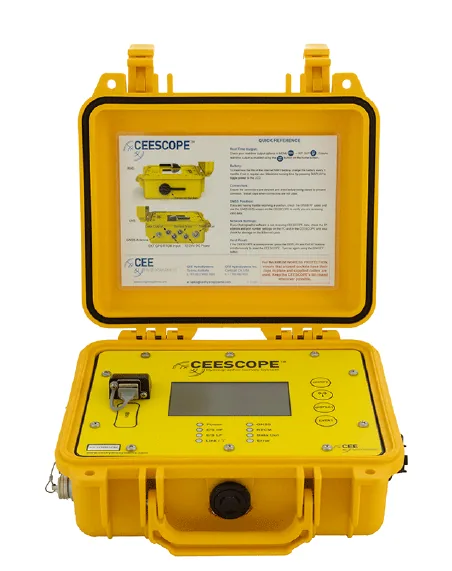
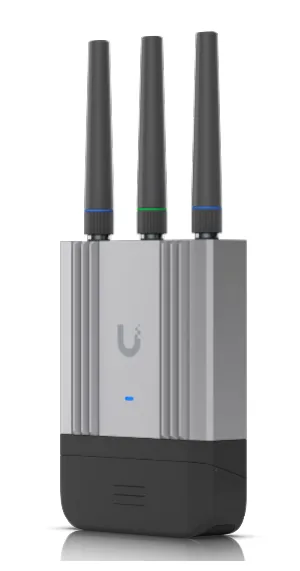
On a CEESCOPE™ with the built-in Trimble BD990 (software 4.2.0 or later), the GNSS receiver’s own NTRIP client can get corrections through a Ubiquiti UMR-Industrial LTE router plugged into the CEESCOPE™’s Ethernet socket, so no survey PC is needed. Set the router up once at 192.168.2.5, point the BD990’s gateway at it, enter your NTRIP details in NTRIP Client 1 and set the CEESCOPE™’s RTCM source to NTRIP_CLIENT. Expect a fixed RTK solution about 2.5 minutes after switching on.
4.2.0 CEESCOPE™ software needed
192.168.2.5 router address
NTRIP_CLIENT RTCM source
~2.5 min power-on to RTK fix
On a CEESCOPE™ with the built-in Trimble BD990 GNSS receiver, the receiver’s own NTRIP client can connect to a web-based NTRIP caster through a Ubiquiti UMR-Industrial LTE router. The router plugs into the CEESCOPE™’s Ethernet socket, so the corrections no longer have to come through the survey PC. The NTRIP CLIENT RTCM source was added to the CEESCOPE™ software in version 4.2.0 (August 2025).
Using a survey PC and HYPACK® or Hydromagic for network RTK instead? See how do I use network RTK (NTRIP) with the CEESCOPE™?
Why use the CEESCOPE™’s own NTRIP client?
- The link is very robust. If the data connection is interrupted, the BD990 and the UMR-Industrial both work to re-open the connection to the NTRIP caster without you doing anything.
- It connects by itself. Once it’s set up, the connection opens automatically when the CEESCOPE™ is powered up, which makes deployment simpler.
- No survey PC is needed for the corrections. Combined with the CEESCOPE™’s internal logging, you can complete an NTRIP survey without a survey PC.
- The router shares its internet connection. The UMR-Industrial has a Wi-Fi interface, so other equipment (such as your phone or survey PC) can use its internet connection.
Three separate pieces of equipment must be set up for the NTRIP CLIENT RTCM source to work:
- the Ubiquiti UMR-Industrial router;
- the CEESCOPE™ itself;
- the BD990 GNSS receiver inside the CEESCOPE™.
The CEESCOPE™ doesn’t manage all of the BD990’s parameters itself, so some have to be set through the BD990’s built-in web server.
You only do this once. All of these settings (UMR-Industrial, CEESCOPE™ and BD990) are non-volatile. They stick until a factory reset is performed.
What do I need?
- A CEESCOPE™ with a built-in Trimble BD990 GNSS receiver.
- A Ubiquiti UMR-Industrial LTE router with two antennas (RP-SMA).
- A nano SIM card, activated and with credit (if prepaid).
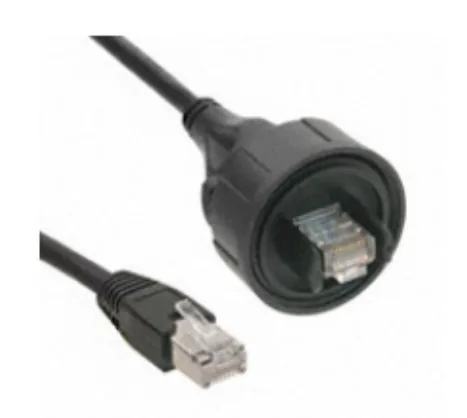
- A ruggedised Ethernet cable.
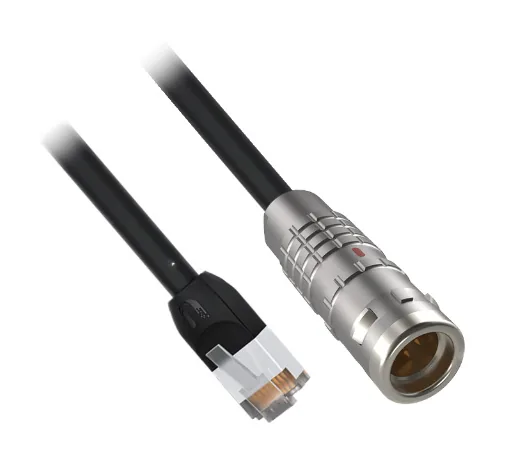
- A CEELINK-R cable, CSC-2K008-RJ45-L050-01WP (if you’re using a survey PC over Ethernet).
- A 12 V or 24 V DC power supply or battery.
- The CEESCOPE™ power cable, CSC-1K002-YRBCC-L025-02EP.
How do I connect everything?
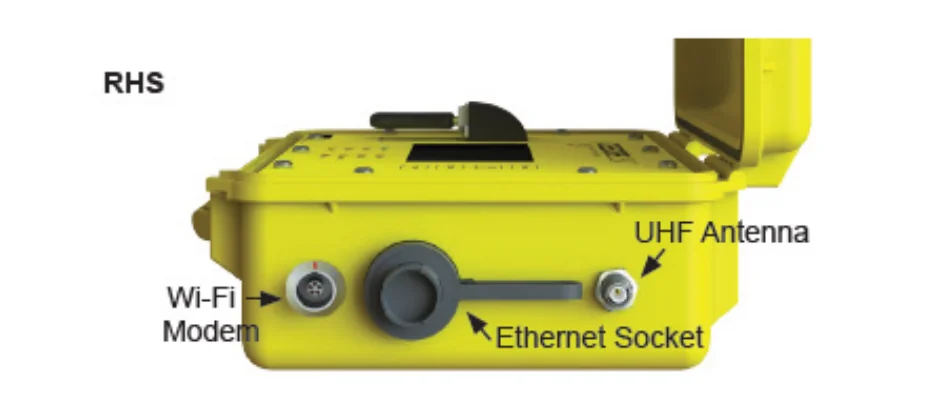
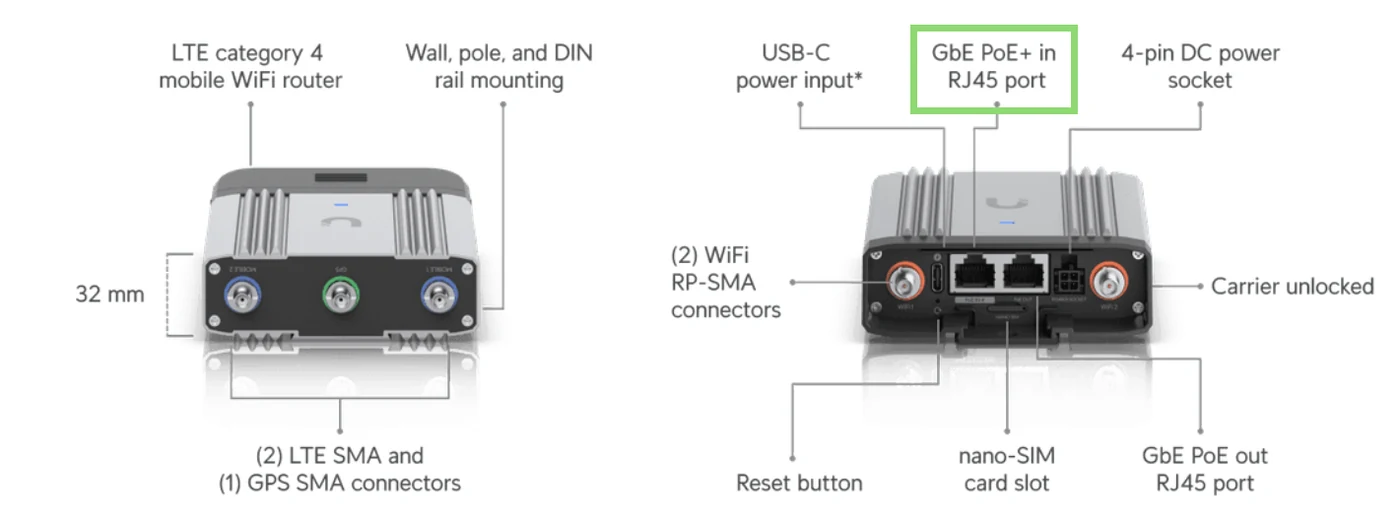
- Plug the UMR-Industrial’s PoE+ In RJ45 port into the RJ45 (Ethernet) socket on the CEESCOPE™. The rugged Ethernet cable supplied with the CEESCOPE™ can be used for this.
- Don’t connect the UMR-Industrial to the 2K LEMO socket next to the Ethernet socket (if your CEESCOPE™ has one).
- Make sure both LTE SMA antennas are screwed onto the UMR-Industrial.
- If you’re using a survey computer, plug the CEESCOPE™ into it with the CSC-2K008-RJ45-L050-01WP (CEELINK-R) cable. You don’t need this connection if the survey computer talks to the CEESCOPE™ over the UMR-Industrial’s Wi-Fi.
The router can’t run from the CEESCOPE™’s internal battery. The CEESCOPE™ doesn’t supply the active PoE power from its internal battery, so connect an external 12 V or 24 V DC supply to the CEESCOPE™ to power the UMR-Industrial through it. If that isn’t possible, power the UMR-Industrial from another USB or DC power source.
How do I adopt the UMR-Industrial?
Ubiquiti requires the router to be “adopted” before any settings can be changed. It has a built-in web server, but it won’t let you change anything until it’s adopted. You only need to do this once.
- Insert the SIM. It’s nano size and quite fiddly.
- Power the router from a USB-C PD supply and plug it into your PC with an Ethernet cable.
- Wait about one minute.
- Set your PC’s IP address to 192.168.105.10.
- Open a browser and go to 192.168.105.1.
- The password is
ui. - The LED flashes white.
- Click Activate and log in to your Ubiquiti account. You can’t change any settings over Ethernet or Wi-Fi until the router is activated (adopted).
Once it’s adopted, the Ubiquiti website (mobility.ui.com) automatically updates the UMR-Industrial to the latest software, so routers supplied by CEE come with the latest software at the time of delivery.
How do I configure the UMR-Industrial?
Set the following (once only):
| Setting | Value |
|---|---|
| Name | A name that identifies the router. |
| Network address | 192.168.2.5 |
| DHCP range | 192.168.2.6 to 192.168.2.254 |
| Supervisor password | A strong password of your own. Keep a record of it. |
| Wi-Fi SSID | We recommend the CEESCOPE™ serial number, e.g. 2533501CSR. |
| Wi-Fi password | We recommend the CEESCOPE™ serial number, e.g. 2533501CSR. |
How do I set up the BD990?
Open the BD990’s web interface in a browser. The default user name and password are admin and password; you can change them if you want to.
Network settings
Set the BD990’s Gateway to the UMR-Industrial’s IP address. Without it, the BD990 can’t find the router, and so can’t reach the internet.
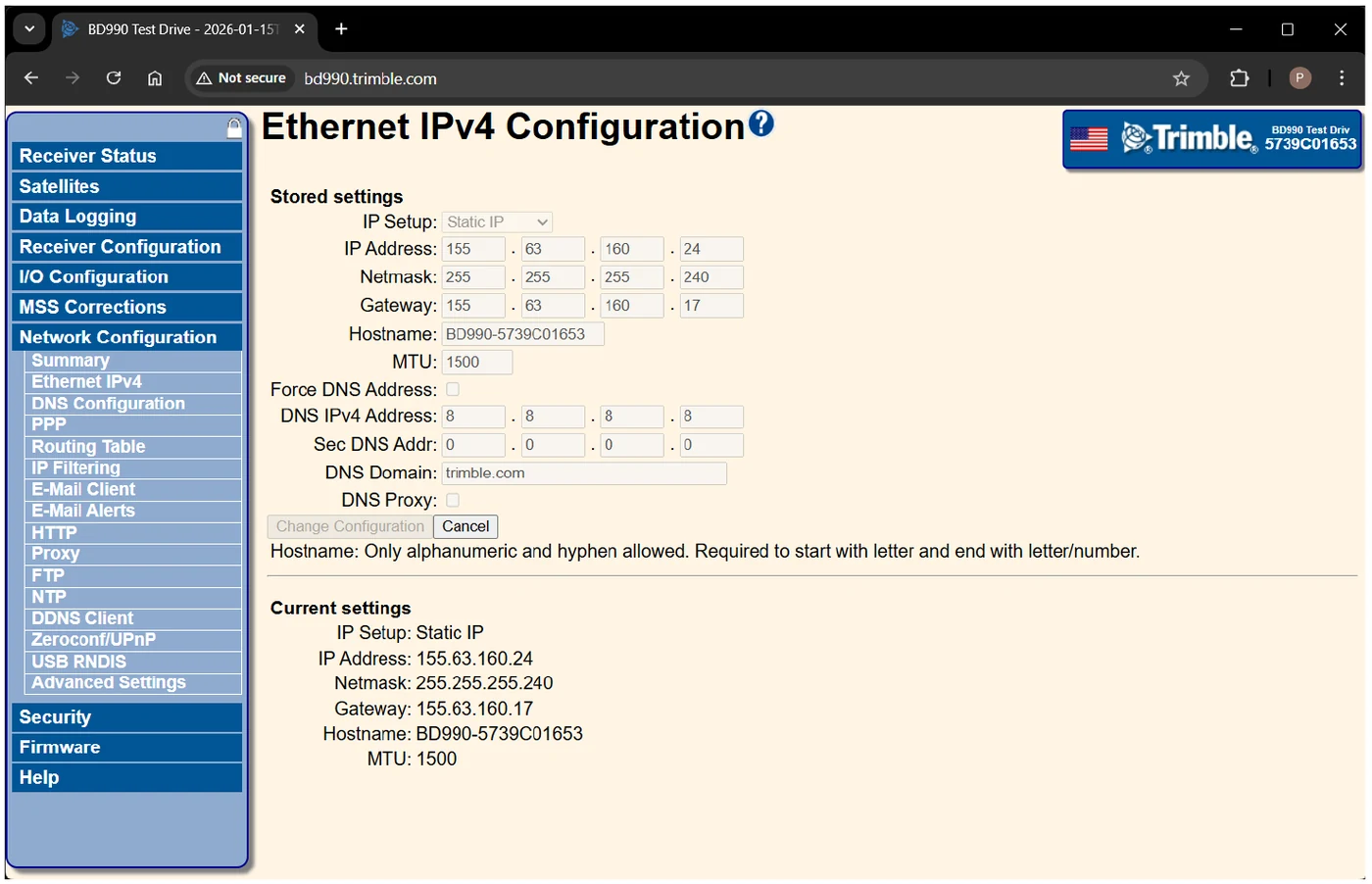
| Field | Setting |
|---|---|
| IP Setup | Leave as Static IP. The CEESCOPE™ controls this field. |
| IP Address | Don’t set. The CEESCOPE™ controls this field. |
| Netmask | Don’t set. The CEESCOPE™ controls this field. |
| Gateway | Set this to the IP address of the UMR-Industrial (192.168.2.5). |
Press Change Configuration to save.
UMR-Industrial routers are delivered with their Wi-Fi turned on. Any Wi-Fi device on the boat can use it for internet or to reach the CEESCOPE™. For example, your survey computer can use it so your hydrographic software talks to the CEESCOPE™ over Wi-Fi instead of Ethernet. In testing, though, Ethernet was more reliable, so it’s the preferred option.
NTRIP client settings
Enter your NTRIP details on the BD990’s NTRIP Client page, under I/O Configuration › Port Configuration. The CEESCOPE™ only uses NTRIP Client 1, so use Client 1 only.
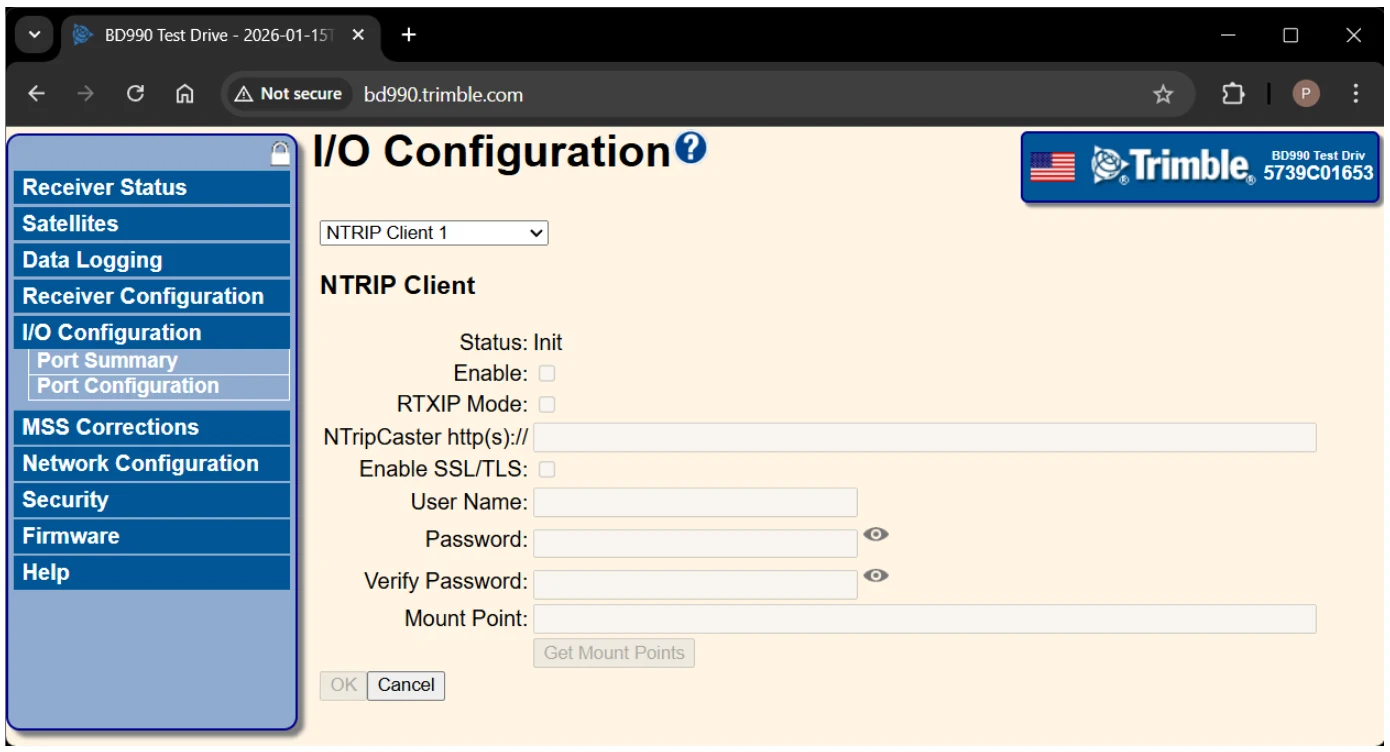
| Field | Setting |
|---|---|
| Enable | Don’t set. The CEESCOPE™ controls this field. |
| RTXIP Mode | Leave unticked. |
| NTripCaster http(s):// | Your NTRIP service URL or IP address (e.g. ntrip.data.gnss.ga.gov.au). |
| User Name | Your NTRIP account user name. |
| Password and Verify Password | Your NTRIP service password. |
| Mount Point | The mount point you want. Once the other details are entered, Get Mount Points can fill this in. |
Press OK to save.
DNS settings
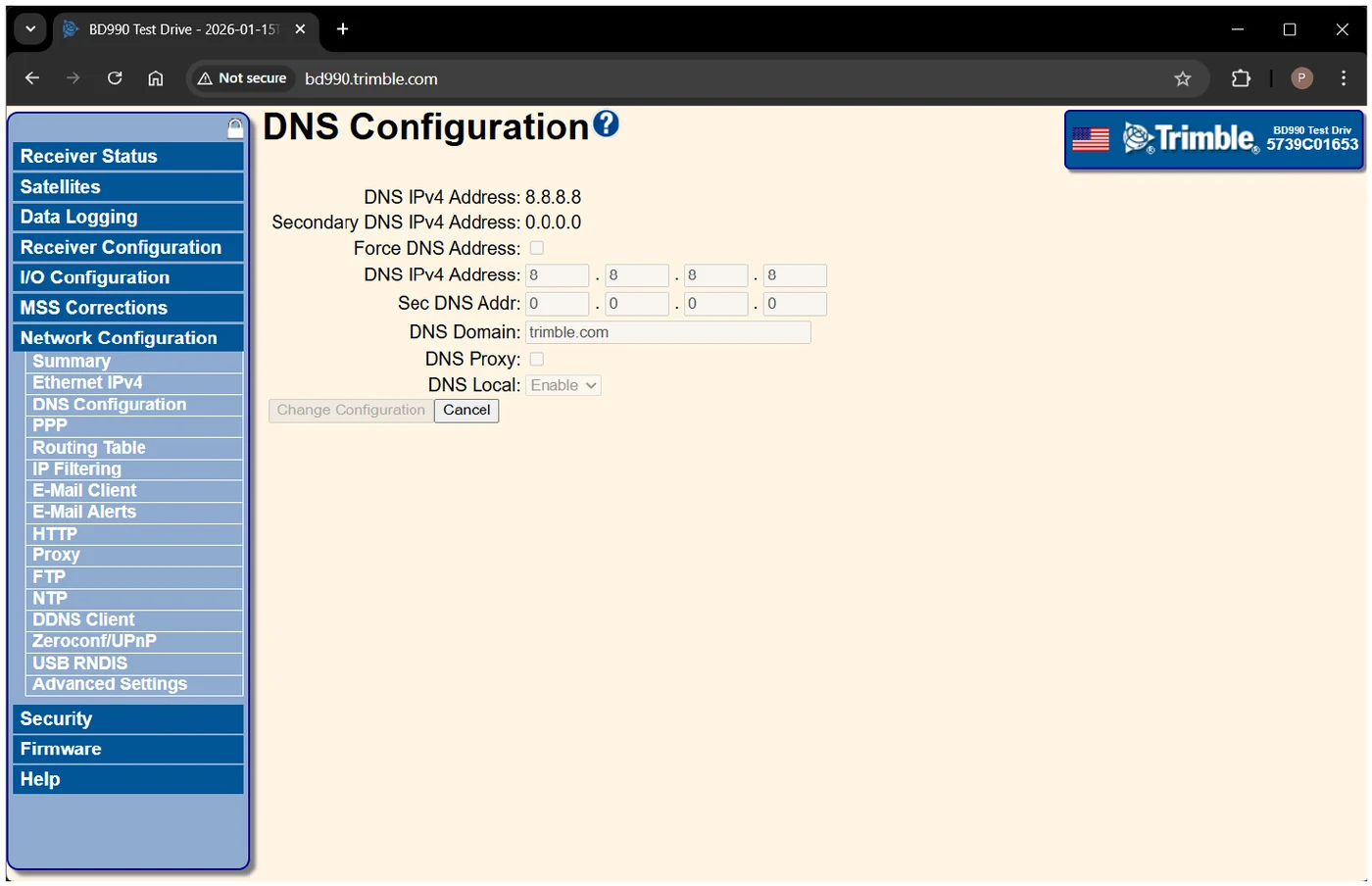
We recommend setting the BD990’s primary and secondary DNS addresses to 8.8.8.8 and 8.8.4.4 (Google Public DNS). This lets you enter a URL for the NTRIP caster instead of an IP address. The IP address behind a URL can occasionally change, so using a fixed IP address can eventually cause a problem that’s hard to track down.
How do I set up the CEESCOPE™?
- Turn on the 802.3af supply on the CEESCOPE™’s System (8/8) screen. Pressing the battery symbol on the home screen is a shortcut to the same screen.
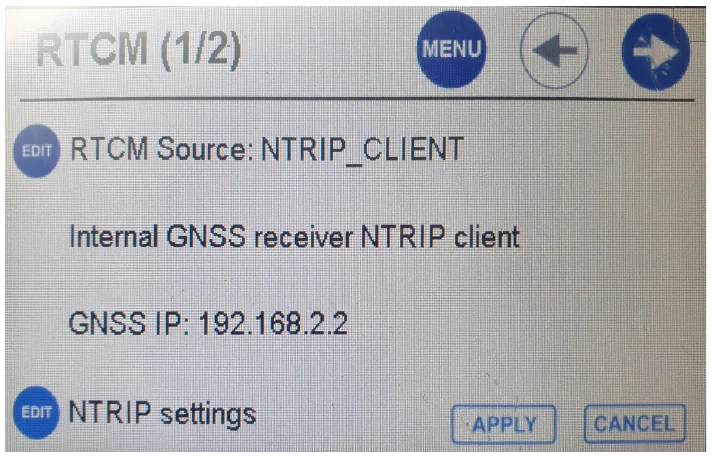
- Set the RTCM source to NTRIP_CLIENT. Alternatively, choose NTRIP OR SATELLITE if you want the BD990 to fall back to SBAS, HAS or CP-RTX corrections when the NTRIP corrections fail.
The CEESCOPE™ calls the 2K LEMO Ethernet socket its “Wi-Fi” port. That port is for powering passive PoE devices such as the Ubiquiti Bullet, and it can’t power the UMR-Industrial.
What should happen when I switch on?
With everything set up, this is the start-up sequence CEE measured:
| Time (seconds) | Event |
|---|---|
| 0 | ON/OFF button pressed on the CEESCOPE™. |
| 32 | The CEESCOPE™ powers the UMR-Industrial (PoE). The router LED comes on solid white. |
| 70 | The router LED starts flashing white (booting up). |
| 143 | Fixed RTK reported by the BD990/CEESCOPE™. The GNSS quality indicator on the CEESCOPE™ home screen changes to 4. |
| 157 | The router LED goes solid blue (normal operating mode). |
So if the CEESCOPE™, BD990 and UMR-Industrial are set up correctly, the CEESCOPE™ should report a fixed RTK solution about 143 seconds (around 2.5 minutes) after you switch it on.
What do the UMR-Industrial’s LEDs mean?
| LED | Meaning |
|---|---|
| Off | The router is powered off. |
| Flashing white (1.5 s interval) | Starting up and booting. |
| Rapid flashing white | Connecting. |
| Steady white | Ready for adoption, or connected via LTE. |
| Steady blue | Adopted and in normal operating mode. |
| Flashing blue (3 s on, 0.2 s off) | Network or Wi-Fi error: the router is on but not connected to the internet. |
| Flashing white (3 s on, 0.2 s off) | SIM card initialisation failed (SIM locked or deactivated). |
Still not getting a fix? See why won’t my CEESCOPE™ get an RTK fix?
Equipment used
Talk to US
Need a hand with your set-up?
Our engineers answer survey questions every day.