

Knowledge base › Survey guide
Survey guide
How do I use network RTK (NTRIP) with the CEESCOPE™?
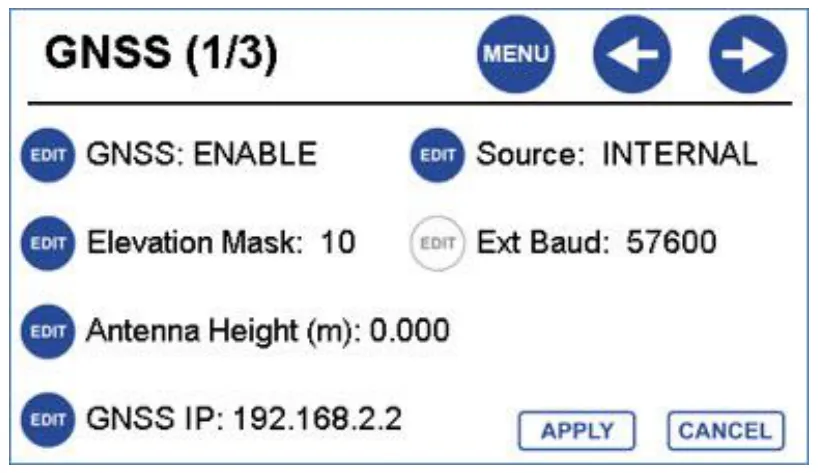
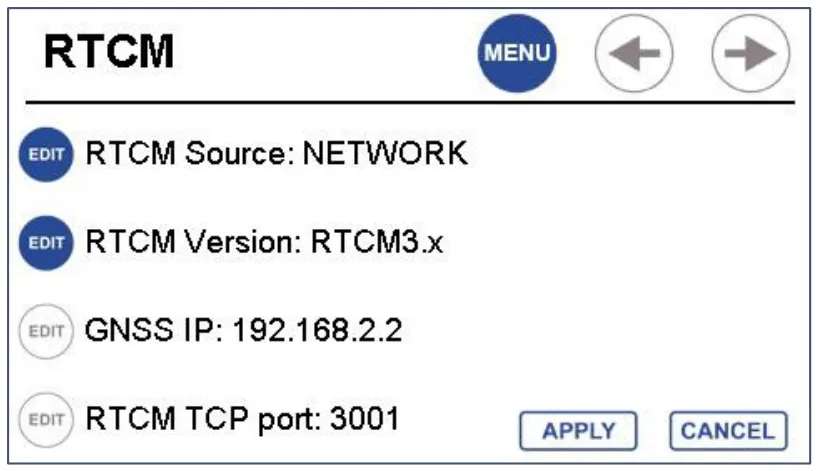
The acquisition PC gets the corrections over its internet connection, and the NTRIP client in HYPACK or Hydromagic passes them back to the CEESCOPE™ over the same LAN cable (or Wi-Fi) as the survey data: TCP client to 192.168.2.2, port 3001. Set the RTCM menu to NETWORK, start the CEESCOPE™ and wait for a position before starting the NTRIP driver, and don’t touch the GNSS settings once it’s running.
192.168.2.2 GNSS receiver IP
3001 RTCM TCP port
NETWORK RTCM source
20 Hz raw GNSS log for PPK
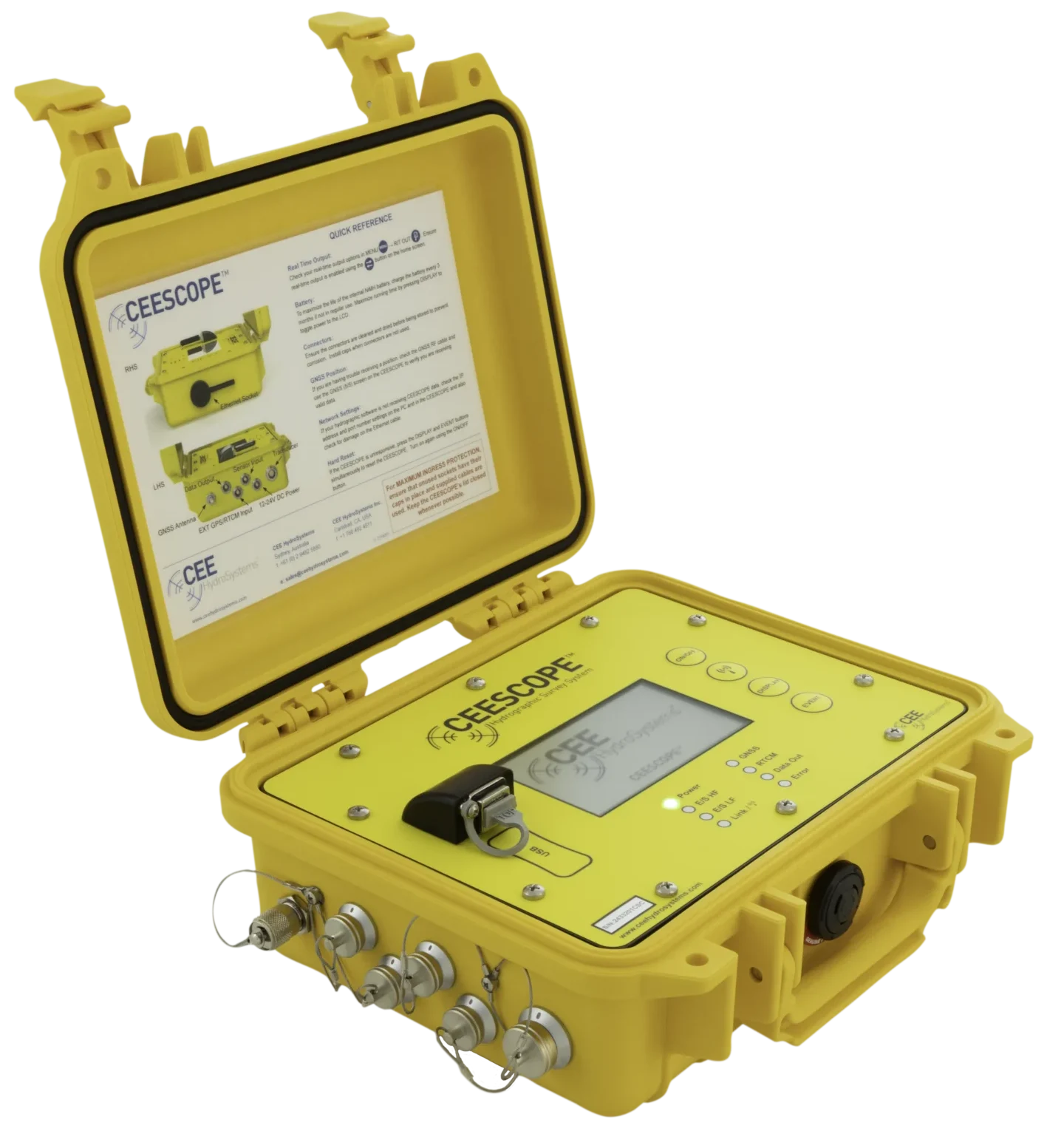
A CEESCOPE™ with built-in RTK GNSS (NovAtel 628 or 729, or Trimble BD970) can use network RTK corrections received through a cell phone or cell modem on the acquisition PC. Corrections travel over Ethernet TCP/IP, so no extra cables or hardware are needed: the NTRIP driver in HYPACK® or Hydromagic sends them back to the CEESCOPE™ over the same LAN cable or Wi-Fi link as the survey data (Wi-Fi access point on the CEESCOPE-R™).
As well as network RTK and its built-in 403–470 MHz UHF radio, the RTK CEESCOPE™ can record a 20 Hz raw GNSS file for post-processing (PPK) via RINEX. See post-processing raw GNSS.
What do I need?
- A cell modem or phone on the acquisition PC or tablet for a continuous internet connection. A phone or modem can’t connect directly to the CEESCOPE™.
- Survey data streams from the CEESCOPE™ on UDP ports while corrections go back on a dedicated TCP port.
- The GNSS receiver inside the CEESCOPE™ has a static IP of 192.168.2.2 and takes corrections on TCP port 3001. The IP can be changed in the GNSS menu, but it’s not recommended.
How do I set up the CEESCOPE™?
In the RTCM menu, set the source to NETWORK, and make sure the corrections format matches what the NTRIP stream sends (for example RTCM3.x).
In what order should I start things?
The NTRIP driver must be set up as a TCP client and open a TCP socket to the CEESCOPE™’s GNSS receiver.
- Configure the CEESCOPE™ and the survey software.
- Start the CEESCOPE™ and wait until its GNSS receiver has a position.
- Only then start the NTRIP driver (survey software), so it can open the socket.
Don’t change GNSS or RTCM settings while NTRIP is running. Any change makes the CEESCOPE™ reconfigure the GNSS, which closes the TCP socket and stops corrections. Get the GNSS settings (output rate, message types) right before you start. If you do change something, close the NTRIP driver (survey software) and reopen it to reconnect.
HYPACK® set-up
- Select and enable the NTRIP Output driver.
- Survey Connect: Type Network Client TCP, IP 192.168.2.2, Port 3001.
- Setup: enter the stream server address, port, user name and password; the corrections stream list then activates. Pick the stream, and untick Simulated coordinates. An internet connection is needed.
Hydromagic set-up
- Add the NTRIP Plugin for Hydromagic to the devices list.
- Connection: Type TCP/IP, Host IP 192.168.2.2, IP Port 3001.
- Enter the provider’s server (hostname) and port, user name and password, then press refresh to fill the streams list and choose the station.
How do I know if corrections drop out?
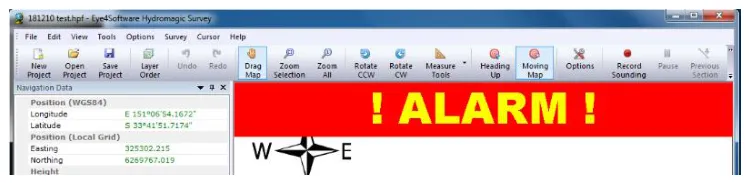
- HYPACK®: in the GPS device set-up, choose the GPS status codes that trigger a warning. The survey window shows a visual and audible alarm when quality drops below RTK, and clears when RTK returns.
- Hydromagic: Preferences › Alarms tab › GPS alarms. Use the reset alarm toolbar icon, or it clears when RTK returns. It only activates once RTK has first been recorded.
Can I look at the GNSS receiver in a browser?
Yes, on CEESCOPE™ units with the Trimble BD970, later NovAtel 628 or any NovAtel 729: browse to the GNSS IP (default 192.168.2.2) over Wi-Fi or the LAN cable and log in (Trimble BD970: user admin, password password). Use it to view settings and connections only; changing receiver settings through the browser is strongly discouraged.
Not getting a fix? See why won’t my CEESCOPE™ get an RTK fix?
Equipment used


Talk to US
Need a hand with your set-up?
Our engineers answer survey questions every day.