

Knowledge base › Survey guide
Survey guide
How do I connect an Emlid Reach GNSS to the CEESCOPE™ or CEE ECHO™ over Bluetooth?
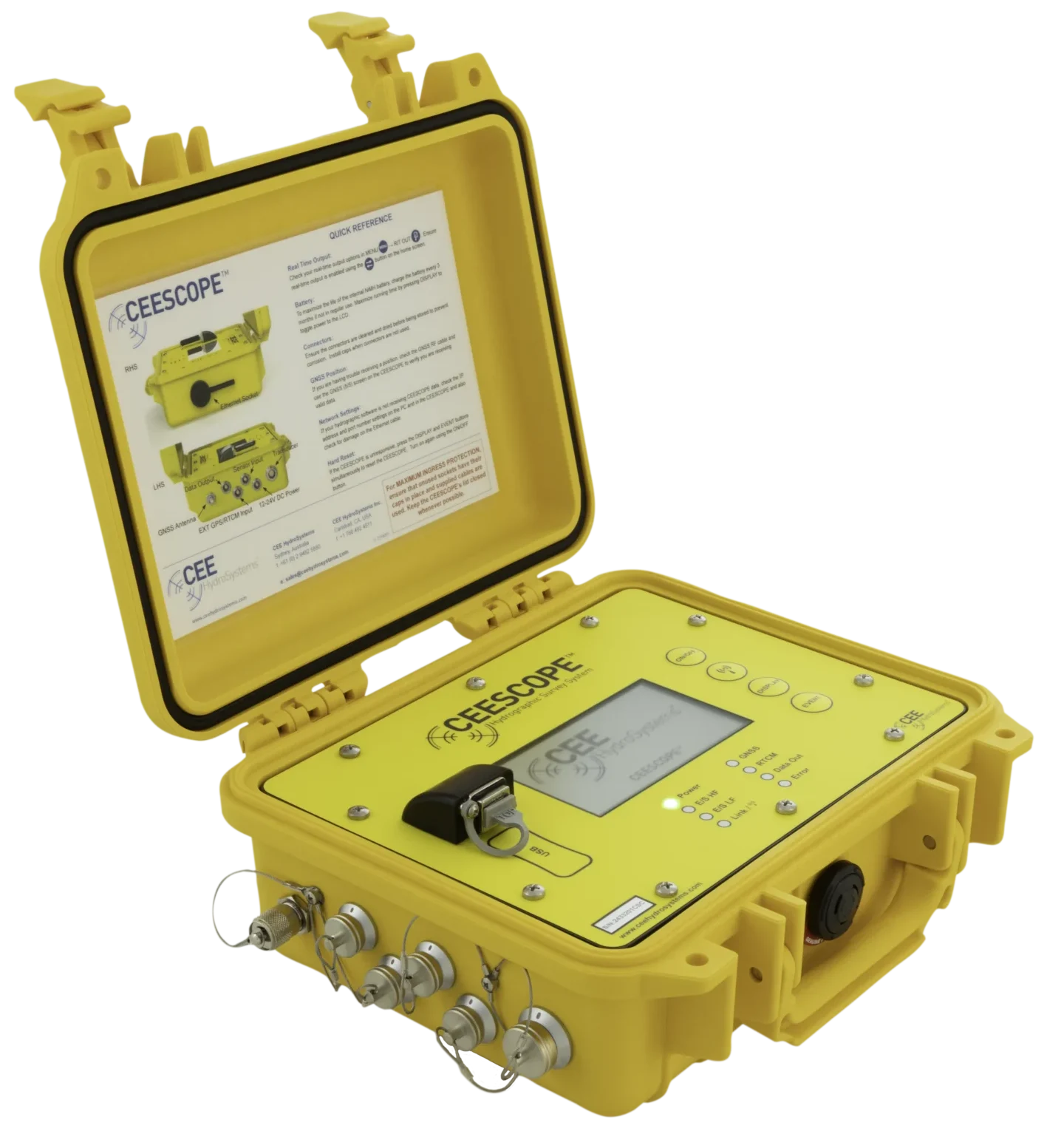
The CEESCOPE™ and CEE ECHO™ can take NMEA position data straight from an Emlid Reach receiver over Bluetooth, so you don’t need separate GNSS and echo sounder connections to the PC. On the Reach, stream GGA, VTG, GST and ZDA on Bluetooth and make it discoverable; on the echo sounder, set the GNSS source to BLUETOOTH, the link to BLUETOOTH_MASTER, and match the pairing passwords.
5 HzGGA and VTG rate
123456Emlid default pairing code
12345CEESCOPE™ default password
SolidLINK LED when connected
Why connect the GNSS over Bluetooth?
Emlid Reach receivers are popular low-cost GNSS receivers for standalone, network (NTRIP) RTK or base–rover positioning. Paired with the CEESCOPE™ or CEE ECHO™ over a direct Bluetooth link, they send selected NMEA position messages straight to the echo sounder.
- No separate GNSS and echo sounder connections to an acquisition PC.
- Position can be logged internally in the echo sounder, with time-tagged data.
- Once configured, the devices stay paired and can be linked again quickly.
How do I set up the Emlid Reach?
Set-up varies between Emlid receivers. The example here uses the Reach RS+.
- Connect your smartphone to the receiver’s own Wi-Fi hotspot (
Reach xx:xx). - Connect the receiver to a local Wi-Fi network with internet access, so it can update its firmware automatically.
- After the firmware update, you can manage the device settings.
Won’t join your Wi-Fi? The RS+ is 2.4 GHz only (no 5 GHz band). Put it close to the router, and if the password and network details are right, check the Wi-Fi is connecting at 2.4 GHz. If the receiver seems stuck at the connecting stage, power cycle the smartphone and reconnect.
The Emlid Reach will not connect to a third-party device or output position data until it has been configured as below.
Receiver and output settings
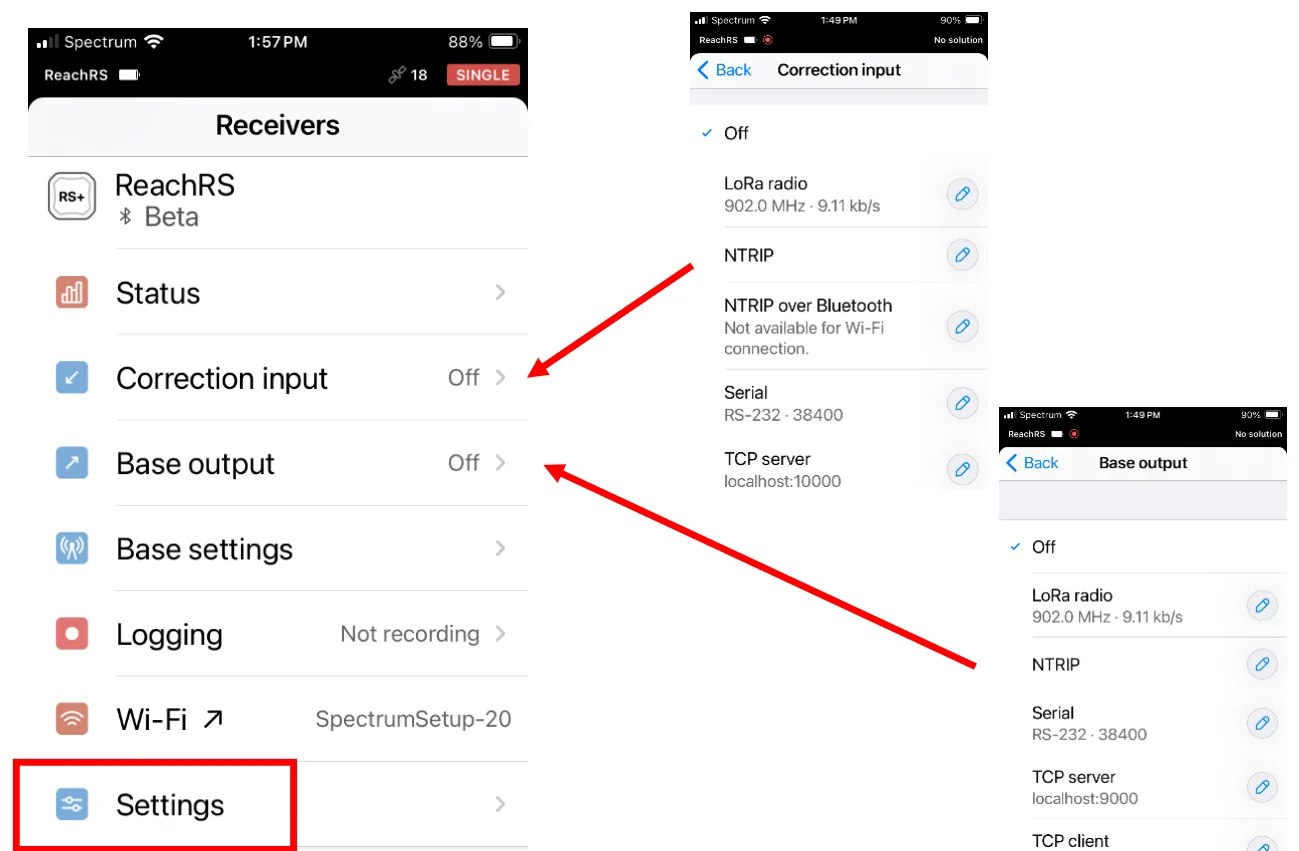
- Select the corrections source, if any, under Correction input.
- Turn off Base output and automatic Logging.
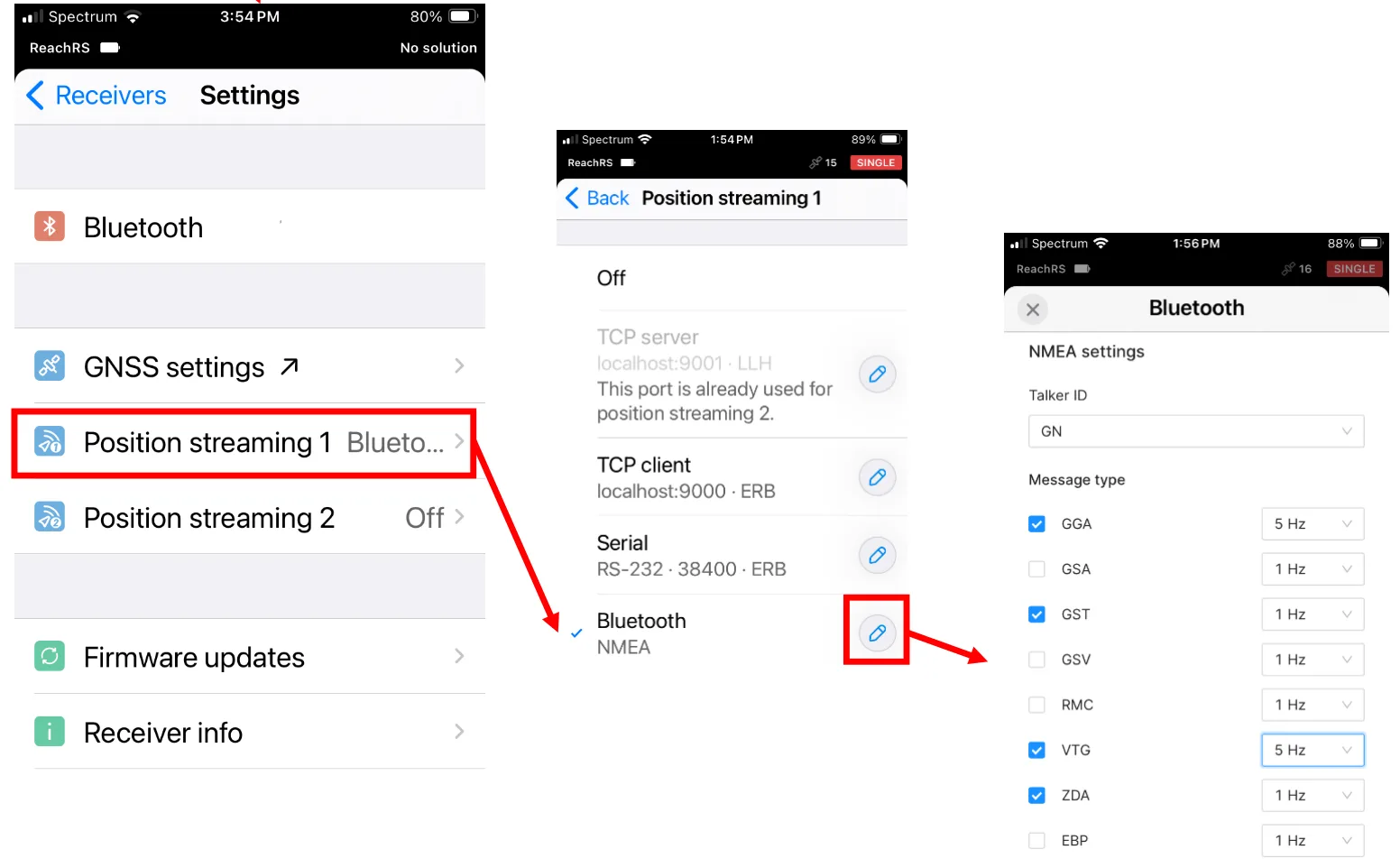
- Under Settings, set Position streaming 1 to Bluetooth, then choose the NMEA messages and update rates for that port.
| NMEA message | Recommended rate |
|---|---|
| GGA | 5 Hz |
| VTG | 5 Hz |
| GST | 1 Hz |
| ZDA | 1 Hz |
Make the Reach discoverable
Before it can pair with the echo sounder, go to Settings › Bluetooth, turn Discoverability on and enter the pairing code you want (default 123456, numbers only, up to 6 digits).
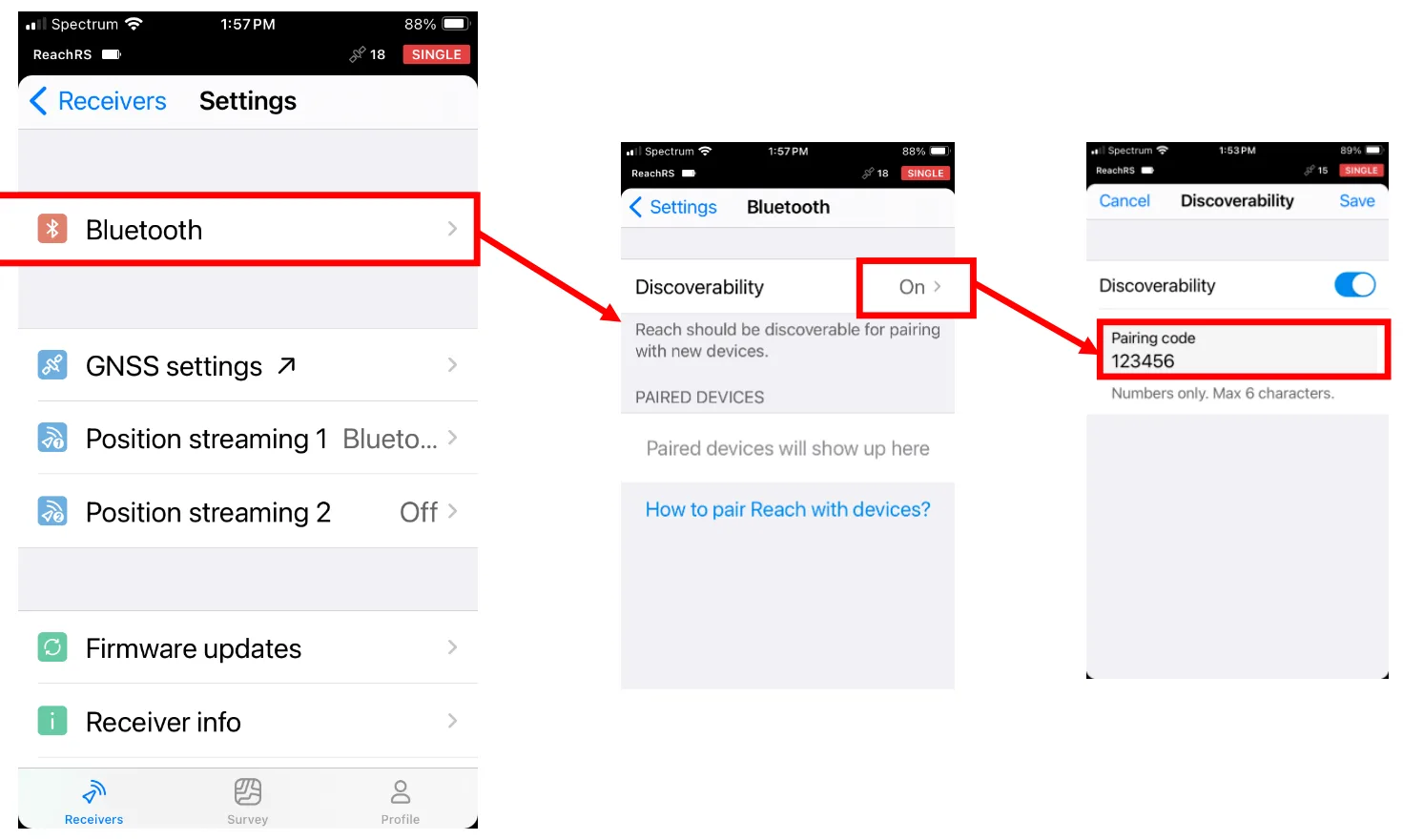
The Emlid Reach is now sending standard GNSS position messages on its Bluetooth port, ready to connect to the CEESCOPE™ (or a PC).
How do I pair it with the CEESCOPE™?
The screens shown are from a CEESCOPE™.
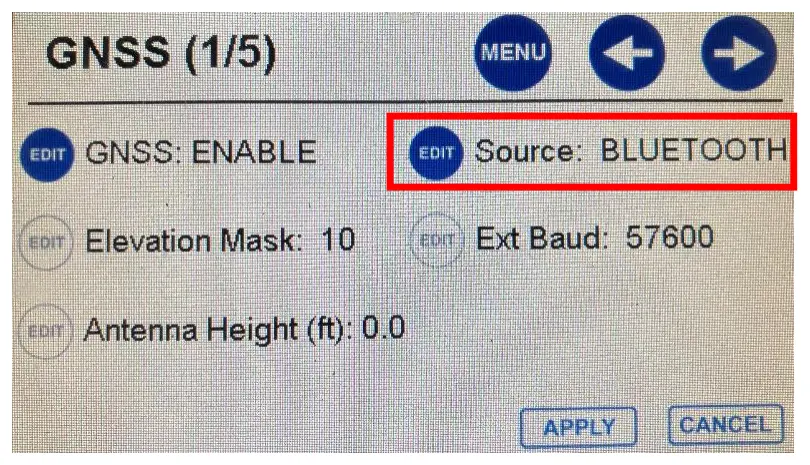
- On the GNSS menu, set Source to BLUETOOTH. Bluetooth connections have no baud rate setting.
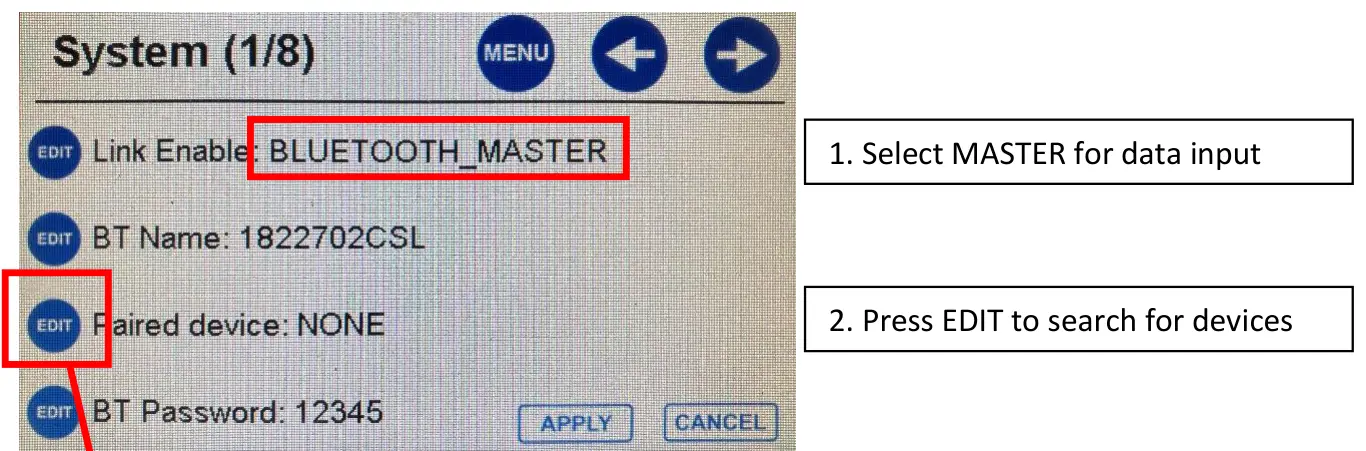
- On the System menu, set Link Enable to BLUETOOTH_MASTER. The CEESCOPE™ Bluetooth port can send or receive data; master is for receiving data from an external GNSS.
- Press EDIT next to Paired device to search for devices.
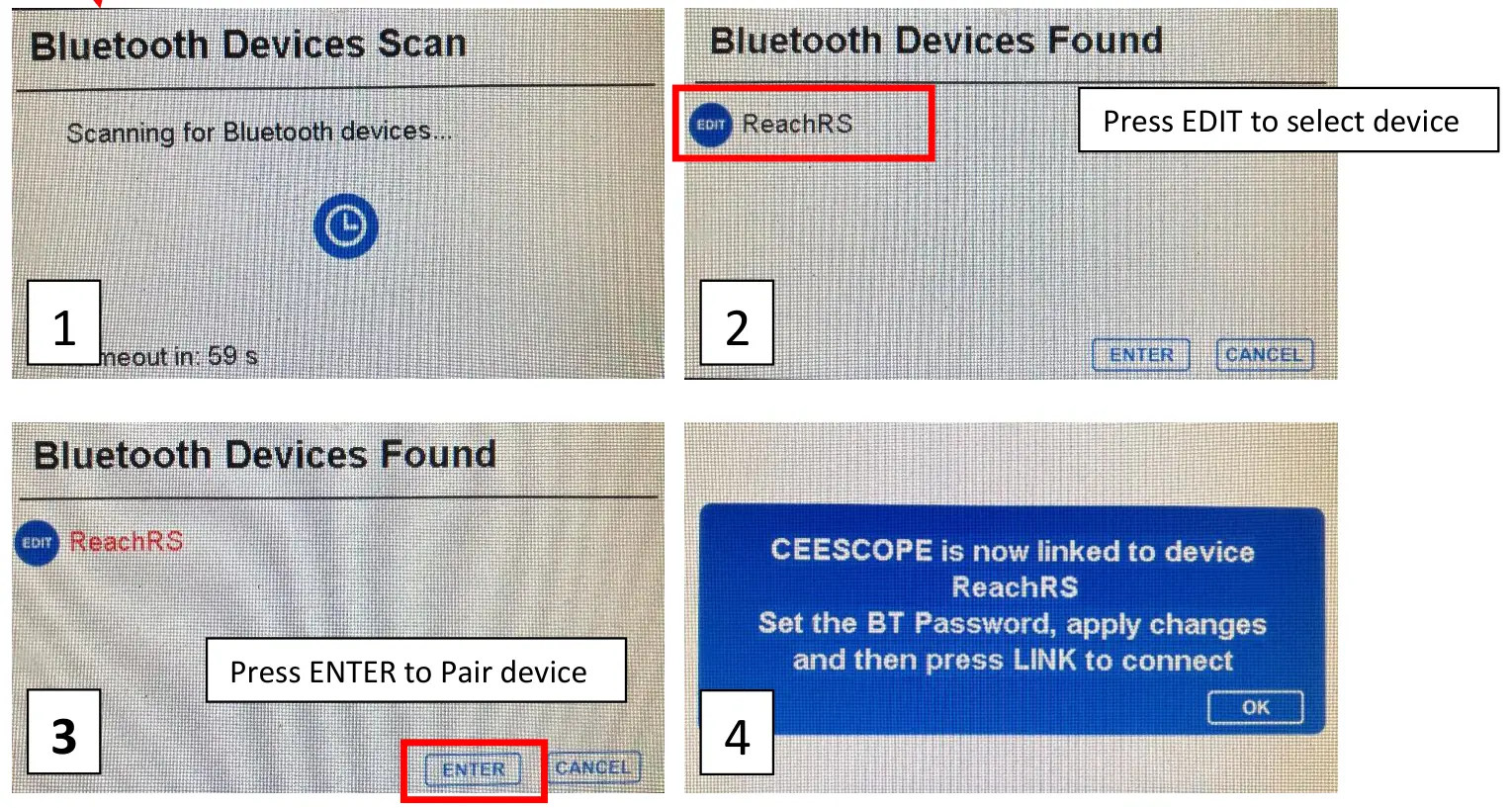
- When the scan finishes, press EDIT to select the Reach, then ENTER to pair. The CEESCOPE™ confirms it is linked to the device.
- Set the CEESCOPE™ BT Password to match the Reach pairing code, then press APPLY.
- Press the LINK ENABLE button to connect.
Match the passwords. The Emlid Reach default is
123456 and the CEESCOPE™ default is 12345. Either can be changed, but it’s easiest to change the CEESCOPE™ password.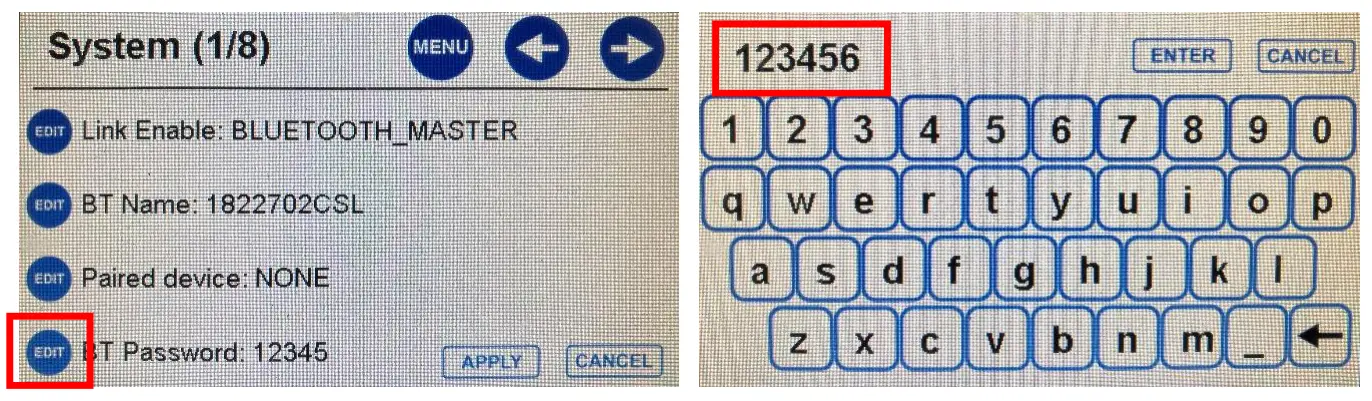
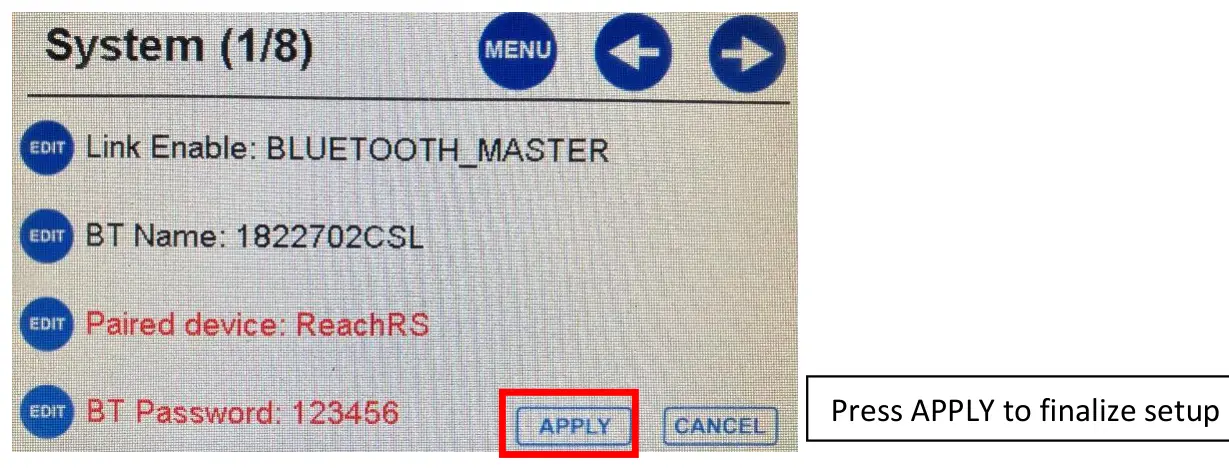
Once paired, the CEESCOPE™ connects automatically every time you press the LINK button. You don’t need to repeat the set-up for this receiver.
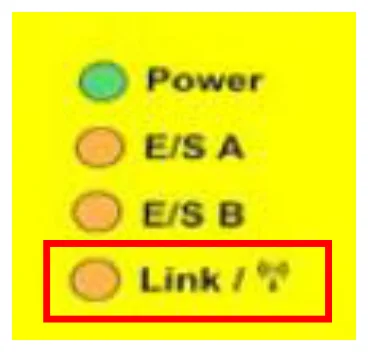
What does the LINK LED mean?
| LINK LED | Meaning |
|---|---|
| Off | Link disabled. No data transfer. |
| Flashing | Bluetooth is ready and trying to connect. |
| Solid orange | Bluetooth is connected and data can transfer. |
Flashing means no data. While the LINK LED is flashing there is no data transfer. Make sure it is solid before you go any further.
How do I know the position is coming in?
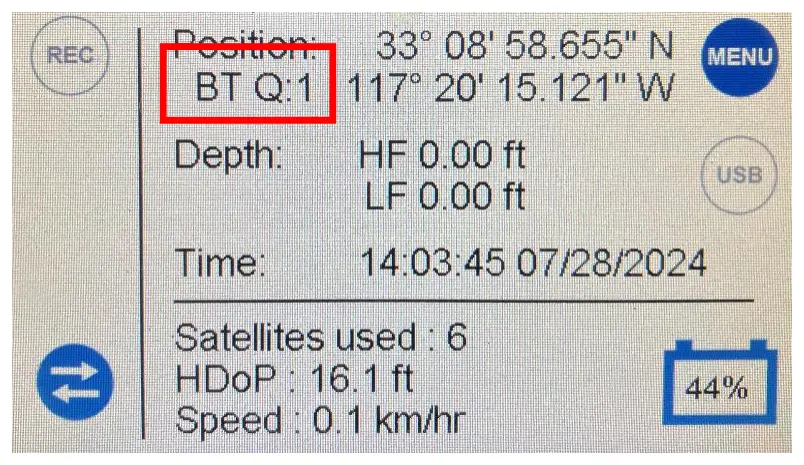
The CEESCOPE™ home screen shows the position with a BT code, meaning it’s coming over Bluetooth.
Quality shows 1 with SBAS? That’s expected. The Emlid Reach quality indicator stays at 1 even when SBAS corrections are received, because the GGA quality indicator isn’t updated for SBAS differential corrections.
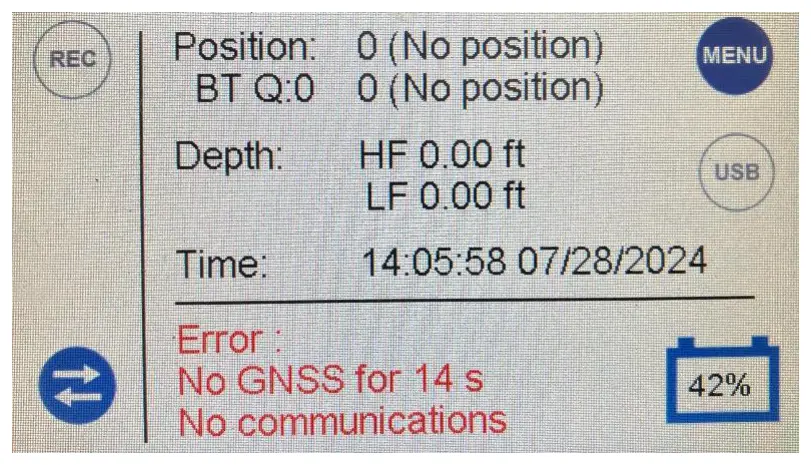
If communication with the receiver fails, most likely because the devices are too far apart, a communications error appears. When the devices are back in range, the data reappears automatically.
To end the data link, press the LINK ENABLE button to turn the link off. To connect to the same receiver later, just turn the link back on. For RTK fix problems, see why won’t my CEESCOPE™ get an RTK fix?
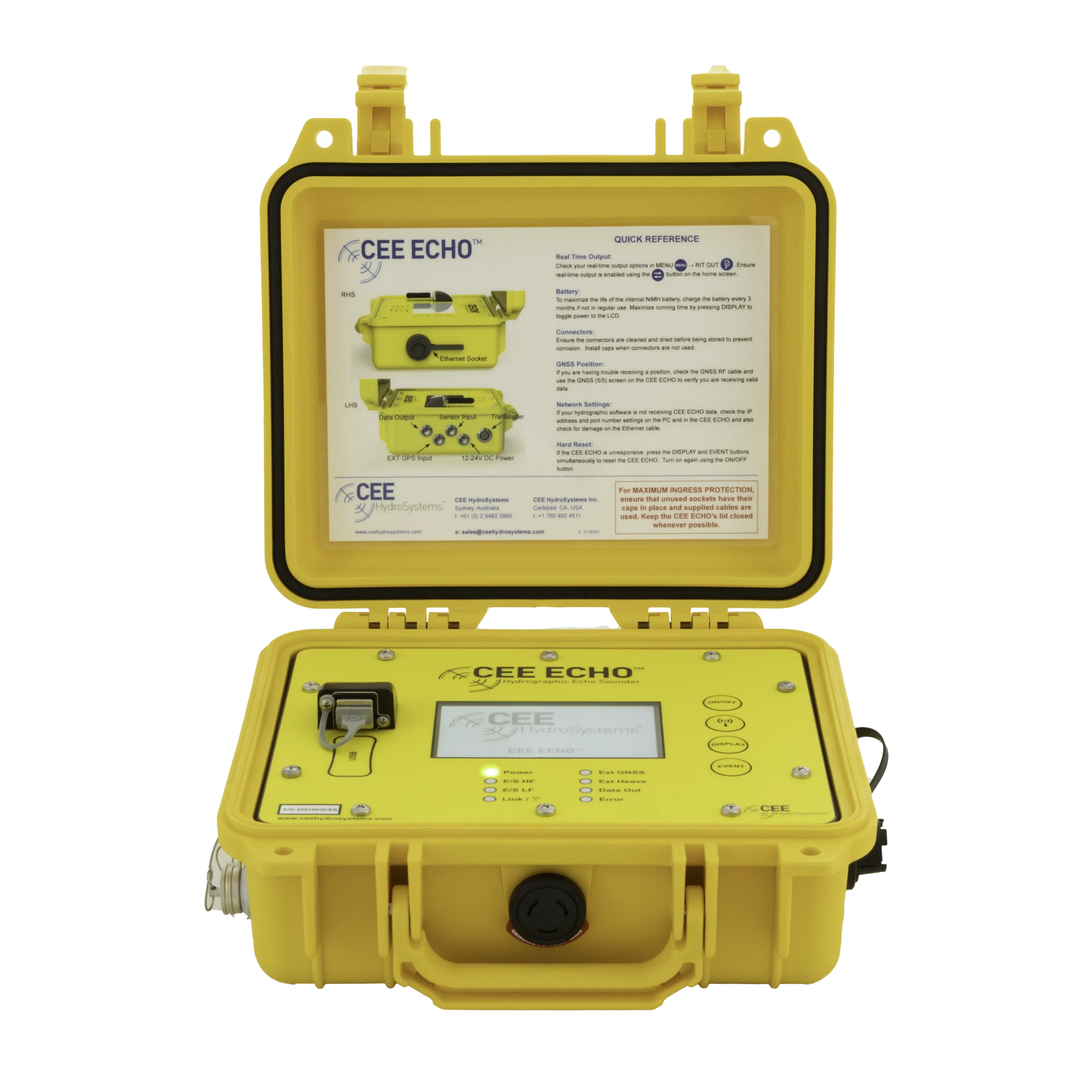
Equipment used
Talk to US
Need a hand with your set-up?
Our engineers answer survey questions every day.