

Knowledge base › Survey guide
Survey guide
How do I set up Bluetooth on the CEESCOPE™ and CEE ECHO™?
Bluetooth works one way at a time: BLUETOOTH_MASTER to receive GNSS position from a receiver, or BLUETOOTH_SLAVE to send survey data to a PC or data collector. Scan and pair from the System (1/8) menu, match the password, and press LINK: data only flows when the LINK LED is solid. For GNSS input CEE still recommends the RS-232 cable for consistency.
1 device at a time
MASTER receive GNSS
SLAVE send survey data
Solid LINK LED = data flowing
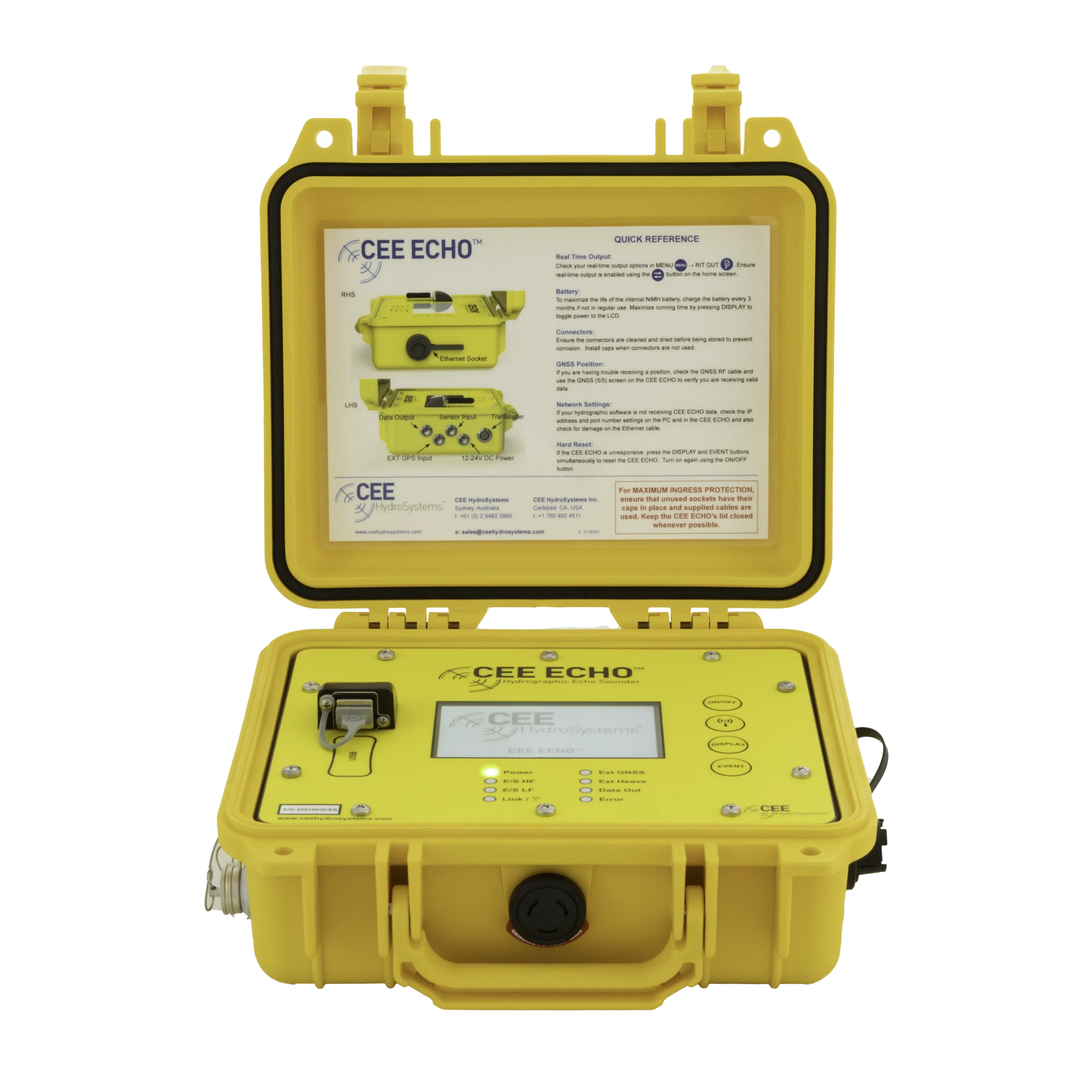
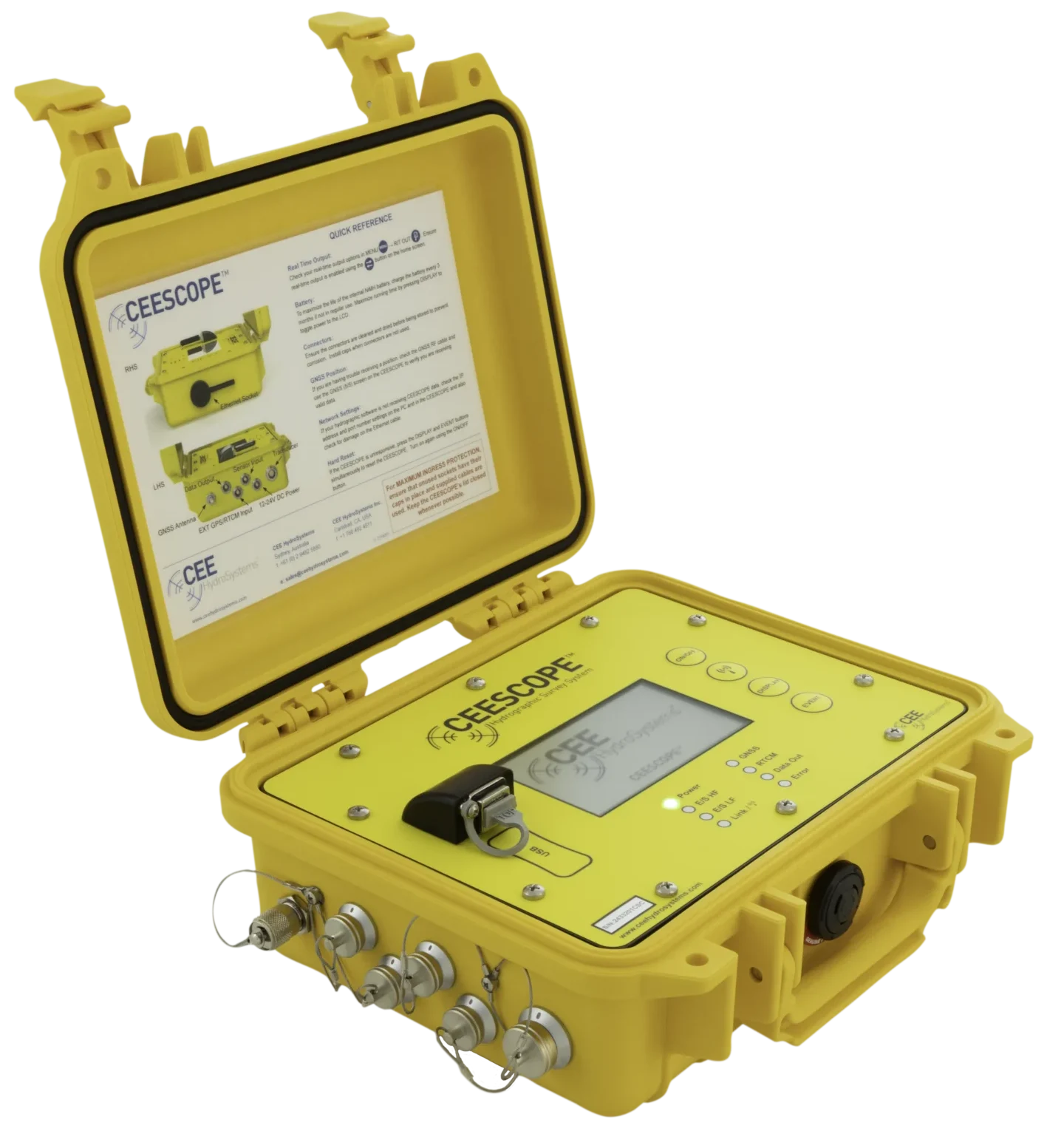
The CEESCOPE™ and CEE ECHO™ have a Bluetooth radio that can either receive position data from a separate GNSS receiver, or send selected survey data to a PC or data collector. It can’t do both at once: it supports one connected device. Careful set-up is needed for a consistent connection. CEE ECHO™ is used below, but everything applies to the CEESCOPE™ too.
| Mode (System (1/8) › Link Enable) | Use |
|---|---|
| BLUETOOTH_MASTER | Incoming GNSS data |
| BLUETOOTH_SLAVE | Outgoing survey data |
How do I receive GNSS over Bluetooth?
Bluetooth is a handy backup to the RS-232 cable and very convenient once set up. The drawbacks are inconsistent connections (usually from the GNSS receiver being set up wrongly) and variable latency if the signal is weak or intermittent. For data consistency, CEE usually recommends the RS-232 cable.
- GNSS (1/3) menu: set Source to BLUETOOTH (BTSerial on older units). The other options are EXTERNAL (RS-232) and INTERNAL (CEESCOPE™ built-in GNSS).
- Some firmware only shows BLUETOOTH if Bluetooth output is DISABLED on R/T Output (1/2).
- System (1/8): set Link Enable to BLUETOOTH_MASTER, and set BT Password (EDIT) to the GNSS receiver’s password.
- Press EDIT on Paired Device to scan.
- Select the receiver (EDIT, then OK).
- Press the LINK button (below ON/OFF) to connect.
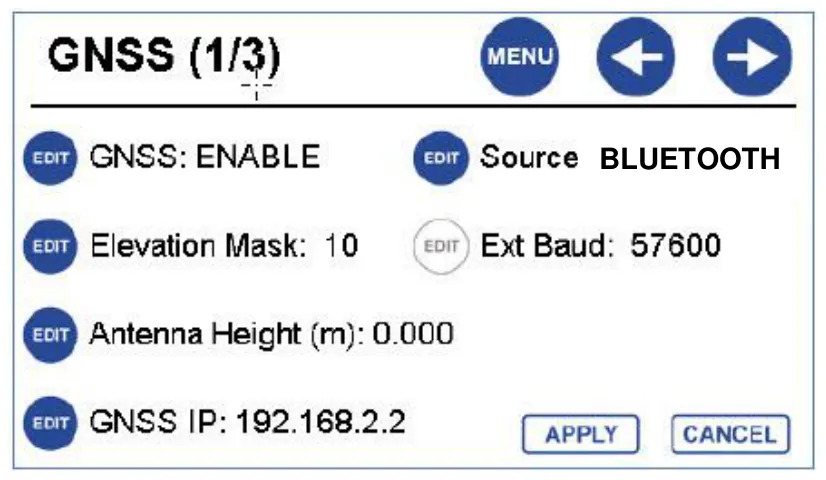
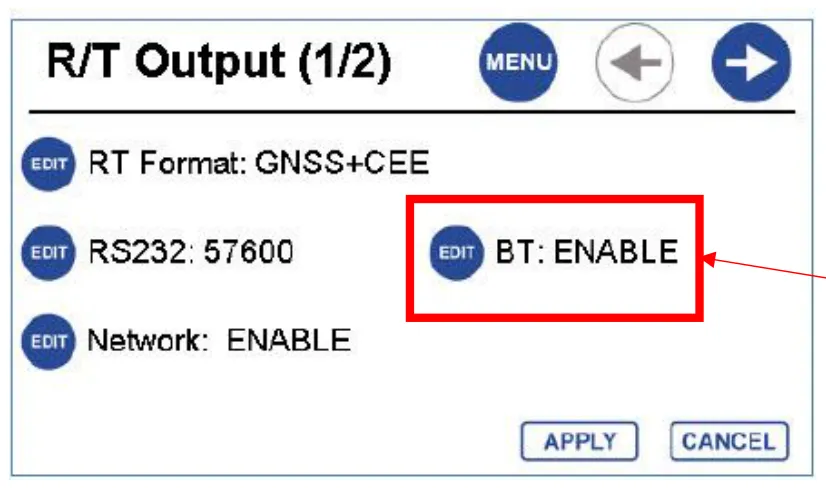
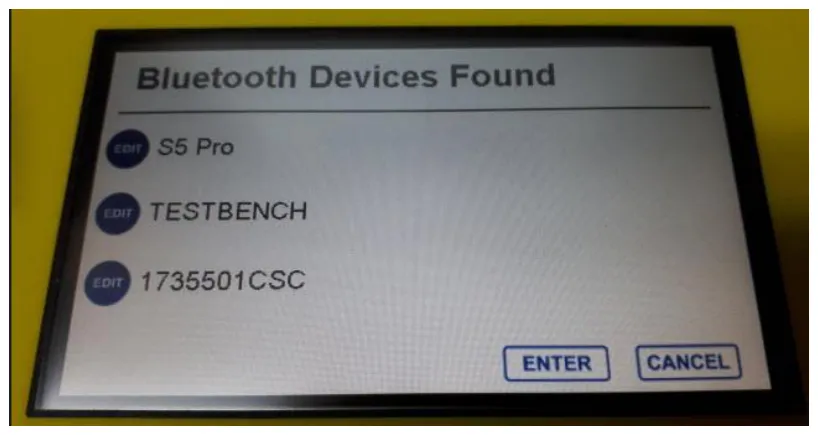
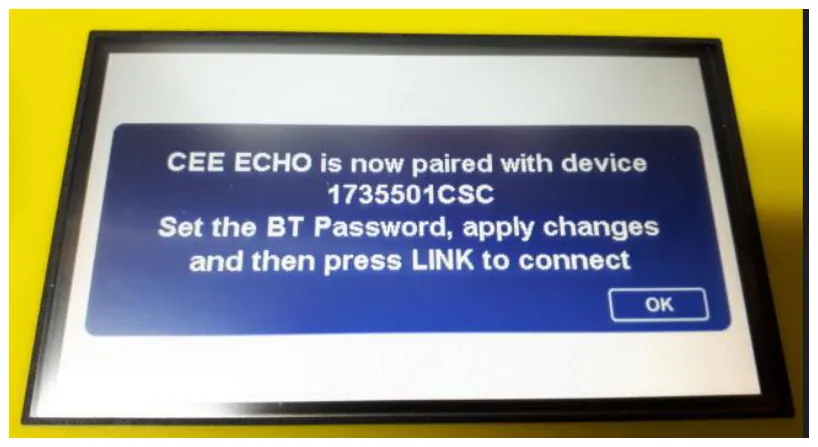
Wrong password is the most common reason it won’t connect. Defaults may be 12345, or 0000 (Trimble). If unsure, check the GNSS receiver set-up.
What does the LINK LED mean?
| LINK LED | Meaning |
|---|---|
| Off | Link disabled. No data transfer. |
| Flashing | Bluetooth is ready and trying to connect. No data transfer. |
| Solid | Connected; data can transfer. |
Set the receiver’s NMEA output
The receiver won’t send position automatically: turn on NMEA 0183 output on the Bluetooth port you paired with. Usually GGA (position), VTG (course) and ZDA (time). There’s no baud rate setting for Bluetooth. Check the incoming data on the GNSS (5/5) terminal viewer:
- Blank page: the GNSS output isn’t set up correctly.
- Messages streaming but no position on the home screen: the wrong messages are selected.
Watch the Bluetooth port numbers. Modern receivers have several Bluetooth ports. A data collector connected for configuration also uses one (typically port 1) and may override anything else on it. Set NMEA output on port 2 with the data collector connected, then pair the echo sounder with port 2, so connecting the data collector later won’t interrupt it.
Don’t expect Bluetooth input to work by magic: every step must be done exactly. Even then, a working connection isn’t guaranteed; it depends on the GNSS firmware, receiver age and Bluetooth design. For an Emlid Reach example, see Emlid Reach over Bluetooth.
How do I send survey data over Bluetooth?
The echo sounder has three outputs: Ethernet LAN (default, recommended), RS-232 and Bluetooth. RS-232 and Bluetooth can’t carry the water column echogram (baud rate limits), so they aren’t recommended with hydrographic software where a LAN cable can be used. Bluetooth is useful in a stripped-down mode with GNSS software such as Leica Captivate, Topcon Magnet or Trimble Access.
- R/T Output (1/2): change RT Format from the default GNSS+CEE (CEE = binary echogram) to a text-only format, and set BT to ENABLE.
- DBT (depth below transducer): no draft included, so enter the transducer-to-antenna offset in the GNSS software like a normal rod height. Usually the right choice.
- DBS (depth below surface): includes the draft set in the ES (1/6) menu.
- Most other formats (such as GNSS+DESO25) won’t be recognised by GNSS software. See the manual for all of them.
- System (1/8): set Link Enable to BLUETOOTH_SLAVE. The password shown must be entered on the connecting device if asked. The BT Name is the unit’s serial number by default.
- Press LINK: the LED flashes and the echo sounder is discoverable.
- Scan from the other device, select the echo sounder and enter the password if prompted.
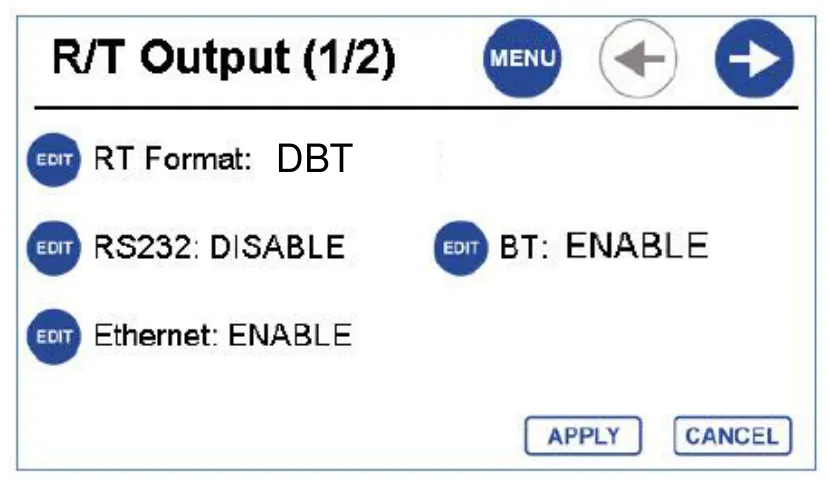
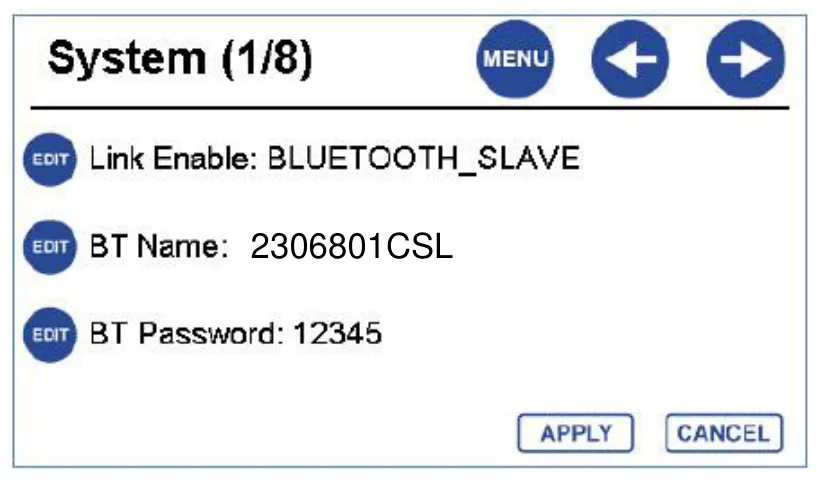
Connecting to a Windows PC
- Right-click the Bluetooth icon by the clock › Add a Device › Bluetooth, with the LINK light flashing.
- Select the echo sounder. Pairing is stored for next time.
- The LINK LED keeps flashing after pairing: there’s no data link until a program opens it.
- Pairing creates a Bluetooth COM port (see Device Manager; COM6 in our example). Use it in Hydromagic or HYPACK®. It disappears if the device is removed.
- Test with TeraTerm on that COM port: no baud rate is needed. When the port opens, the LINK LED goes solid.
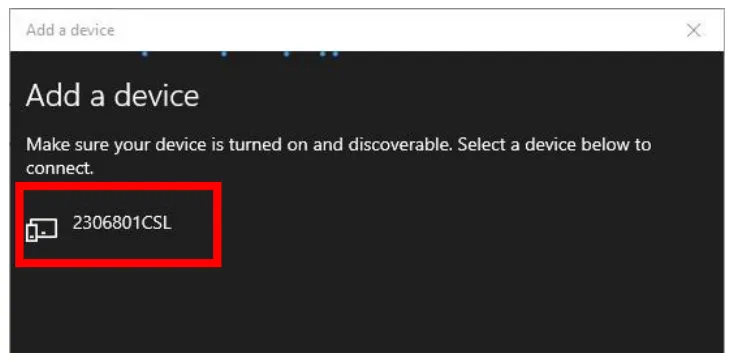
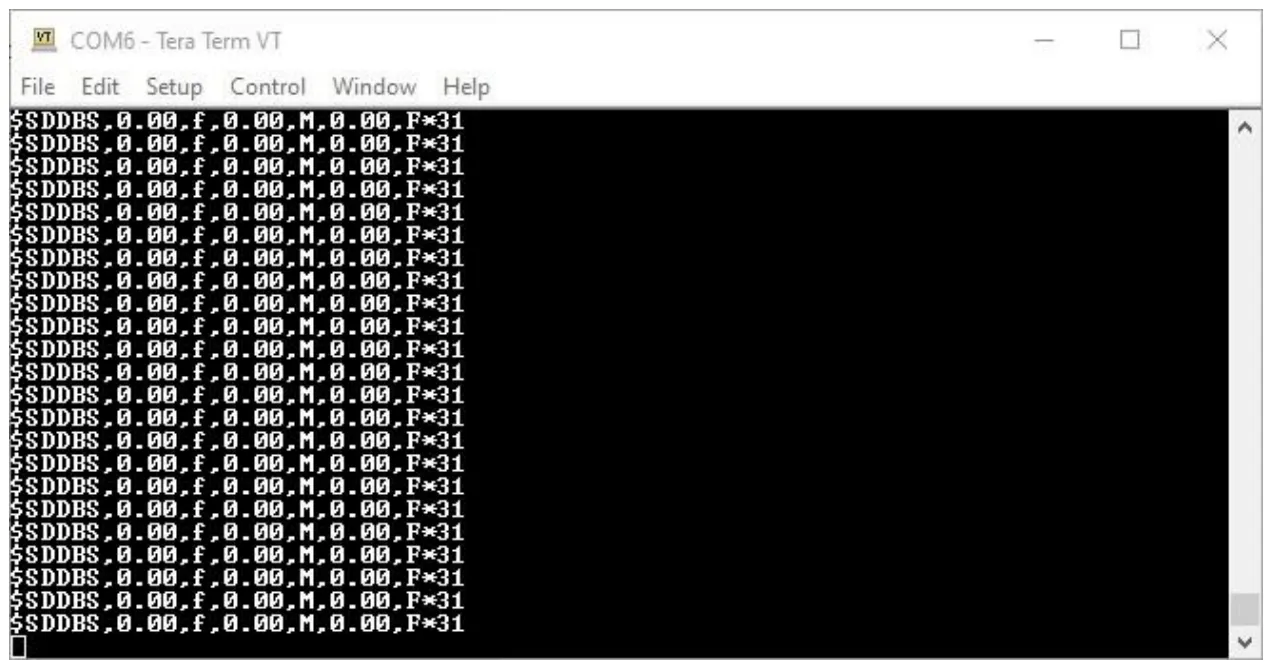
Bluetooth basics
- Low power, short range radio at 2.4–2.48 GHz. Bluetooth on GNSS receivers is very low power, so keep the devices close together.
- Pairing is a permanent bond, so devices reconnect automatically when in range without setting up the link each time.
- Connection is separate: paired doesn’t mean data is flowing. The right program must be running to start the transfer. A GNSS receiver configured to export on its Bluetooth port will send data automatically to a properly configured, paired device.
Equipment used
Talk to US
Need a hand with your set-up?
Our engineers answer survey questions every day.