

Knowledge base › Survey guide
Survey guide
What does a USV hydrographic survey workflow look like?
Set up the project and geodesy in the hydrographic software, configure GNSS, start the telemetry link, measure offsets and cross-check the water elevation and depths, then run parallel lines across the slopes with a few cross lines. Watch the echogram as you go, edit afterwards, and export XYZ, TIN surfaces and contours that line up with your land, drone or LiDAR data.
10 steps
<0.2 ft cross-line agreement
20 /s typical raw soundings
XYZ common export
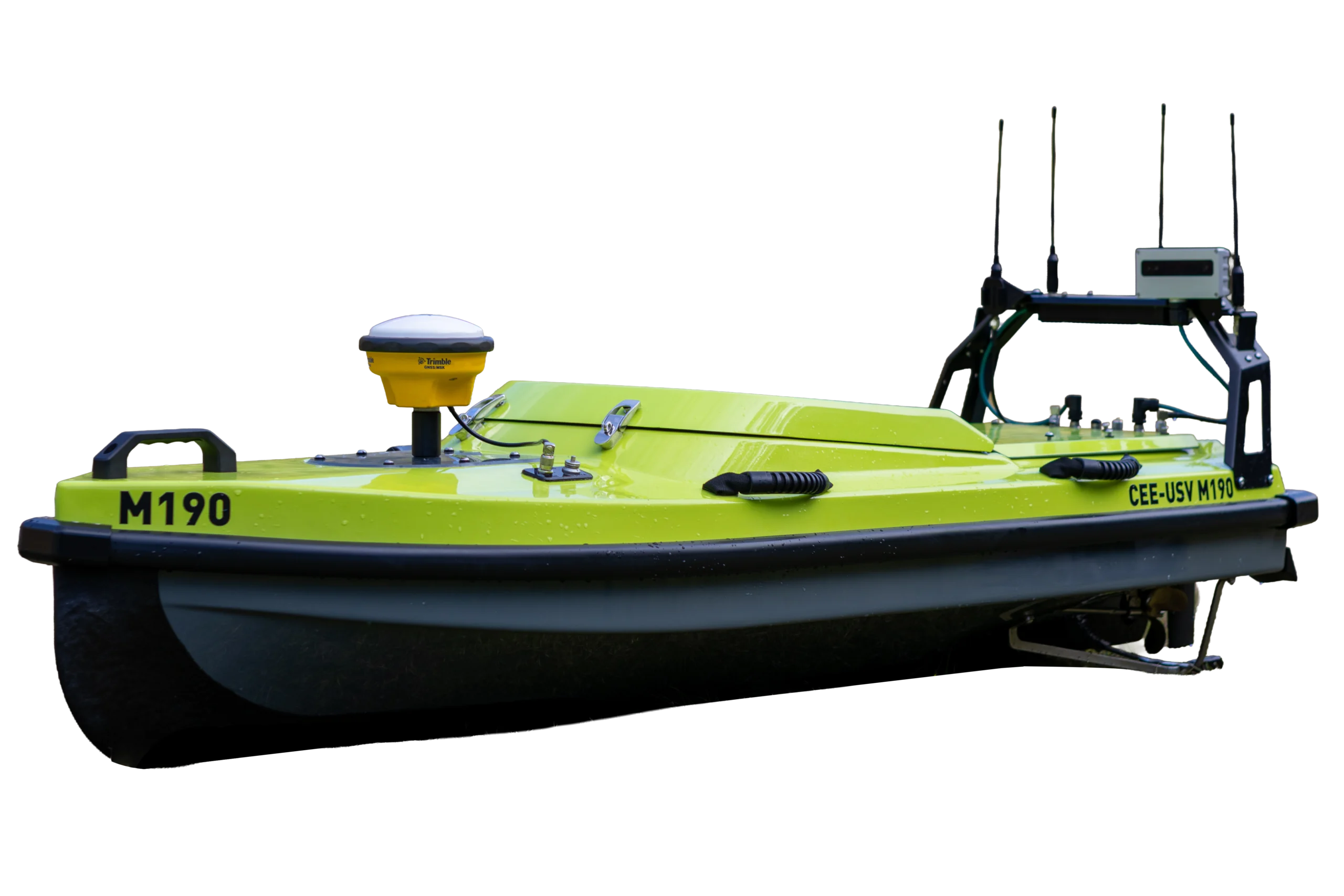
The CEE-USV™ remotely operated survey boat produces accurate bathymetry for construction and modelling projects, water volume and flood control. The hydrographic data is often merged with land surveys into a complete digital elevation model. Here’s the workflow, step by step.
This workflow was written for the original CEE-USV™. The steps apply to the CEE-USV™ M190, but check radio and autopilot names against your system’s manual.
Set up the project
In the hydrographic acquisition software, import background maps for reference, add the survey boundary polygon and planned lines or DXFs to show the crew the pattern, load waypoint routes if using robotic navigation, and import any previous survey data. Set the project geodesy, and the geoid model if using RTK.
Configure GNSS
- RTK-enabled CEESCOPE™ on board, or differential only: nothing to configure. The internal receiver is set to the base station UHF frequency and modulation and gets corrections automatically.
- Third-party GNSS (such as a Trimble R10, Leica GS16 or Topcon Hiper): reconfigure the rover to output the right NMEA 0183 messages and set up its data link to the echo sounder. Done when the corrected position shows on the echo sounder screen with the right fix quality. See connecting an external GNSS receiver.
Start the telemetry link and test RC range
Power up the shore radio to connect the shore laptop or tablet to the USV. Start the hydrographic software and check the echogram, position and depth are streaming. Check you can control the echo sounder remotely and set the maximum depth for the survey. Test telemetry and establish RC control as normal.
Measure offsets and cross-check GNSS
Measure the static transducer draft and (if used) the RTK antenna height above the waterline, and enter them in the software. Check the coordinate system (for example NAD83 State Plane) and geoid model.
Key cross-check for RTK surveys: the water elevation shown as the “tide” in the software should match a point shot with land GPS equipment, or a known elevation. This is essential when merging land and hydrographic data. See RTK tides.
Check the echo sounder and sound velocity
Check a depth or elevation against a range pole somewhere convenient, and do a bar check at a dock if you can. Enter the sound velocity in the echo sounder on board, from the bar check or a temperature and salinity estimate.
Mark the survey boundary
If the boundary isn’t already in the project, drive the USV around the safe boundary to mark the extent. Then generate survey lines and/or a robotic waypoint route in the software, or drive manually on the fly. Upload the route to the autopilot for autonomous surveys, or use it to guide manual driving. You can also survey with no boundary or lines at all.
Run the survey
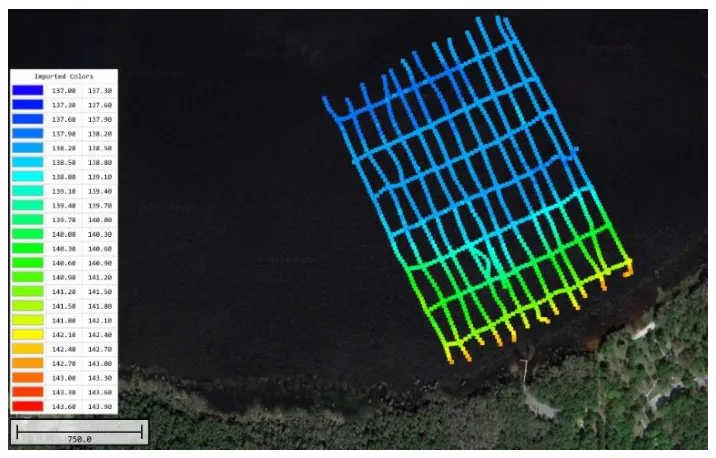
- Drive parallel lines, spaced to suit the job size and bathymetry complexity, recording each line in the software.
- Record the full dataset on the echo sounder on board at the same time, for redundancy.
- Run most lines across slopes; don’t run the main pattern parallel to them.
- Run fewer lines at right angles to the main set as cross lines for QC.
Check quality as you go
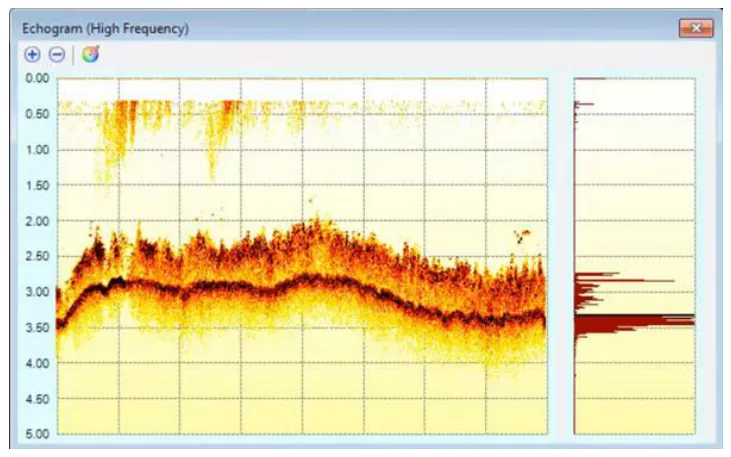
Watch the water column echogram during the survey to make sure the soundings are right, and adjust the echo sounder if needed. Review the data periodically: colour patterns should be consistent, and soundings at line intersections should agree within a few centimetres (under 0.2 ft).
Edit the data
Edit the raw data into a final sounding file. A typical raw file from the CEESCOPE™ in the original CEE-USV™ has 20 soundings per second. Remove spikes with filters or manual deletion, and fix the effects of vegetation or soft sediment by re-drawing soundings to the right level with the manual digitiser. See surveying in vegetation.
Export the results
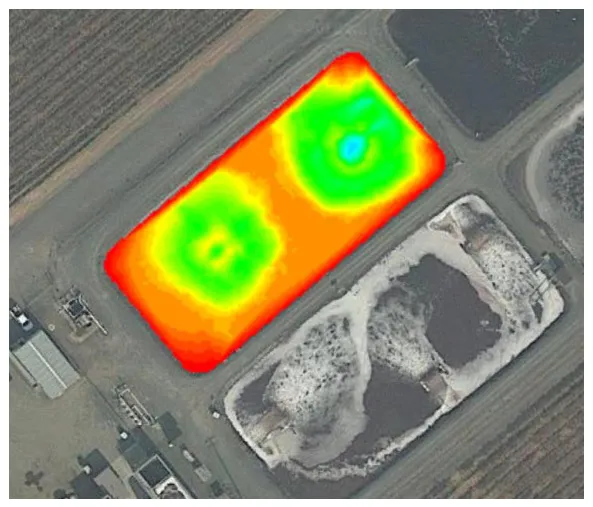
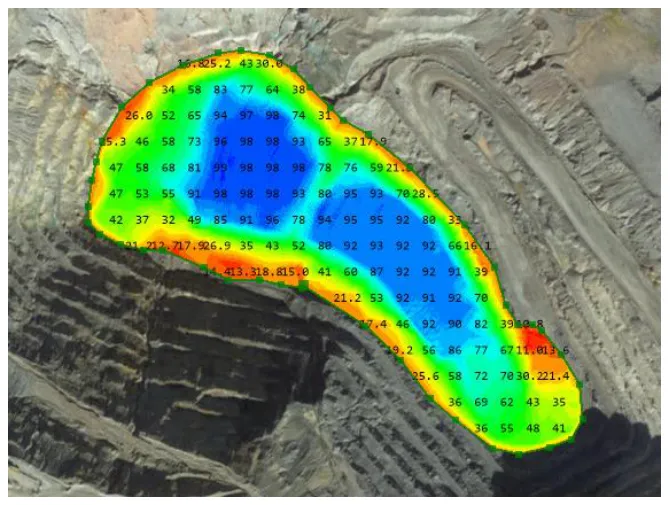
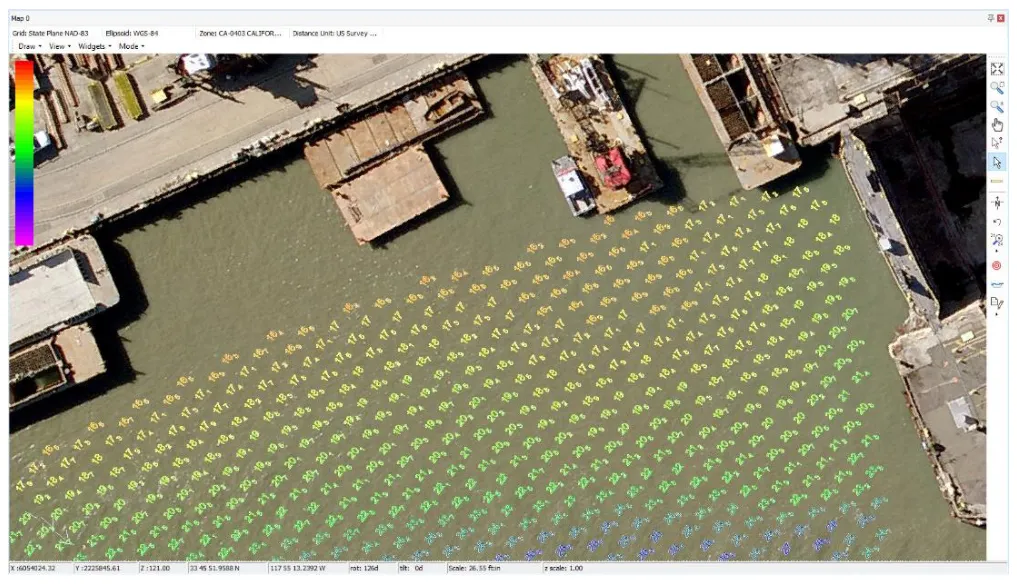
The edited soundings are positioned in your coordinate system as depths, or depths and bottom elevations. The usual goal is XYZ to merge with land survey, drone or LiDAR data, which works because the geodetic framework is identical and calibration has been done. Common outputs from HYPACK® or Hydromagic:
- Edited XYZ for every sounding, to reduce or manipulate in other software.
- Edited, thinned XYZ (for example 4 points per second, or one point per foot).
- A TIN model surface and DXF contours.
- XYZ at equal spacing from the TIN, for example every 3 × 3 ft.
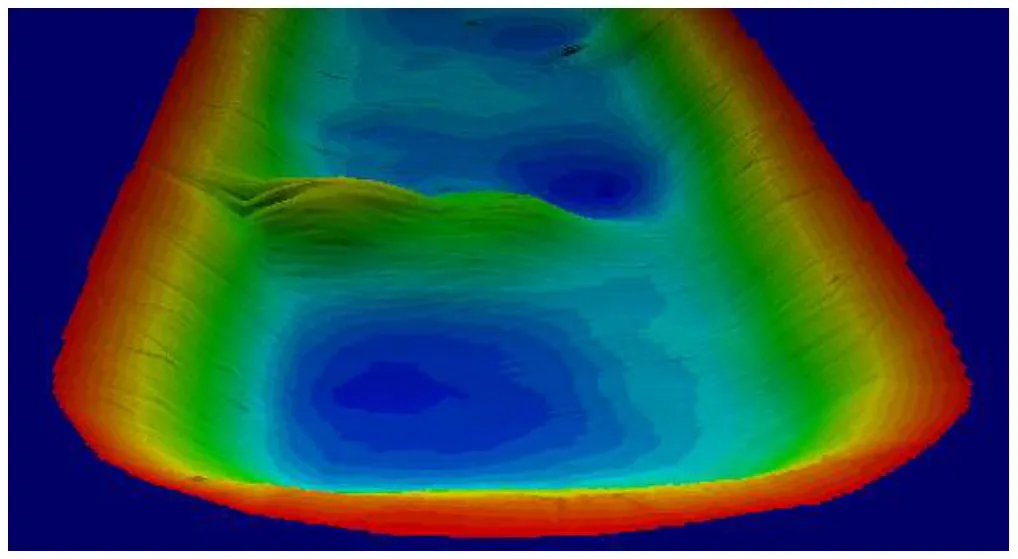
- A 3D view for presentations.
- KMZ, for easy reference when emailing survey data.
Other options
- PPK: if real-time GNSS doesn’t meet the precision needed, post-processed positions can replace it in HYPACK® and others. See post-processing raw GNSS.
- Geodetic transformations in the software can fix set-up errors or change the project geodesy.
- Dual frequency data can be collected and edited at the same time, giving separate XYZ surfaces for high and low frequency. See dual frequency for sedimentation.
Equipment used
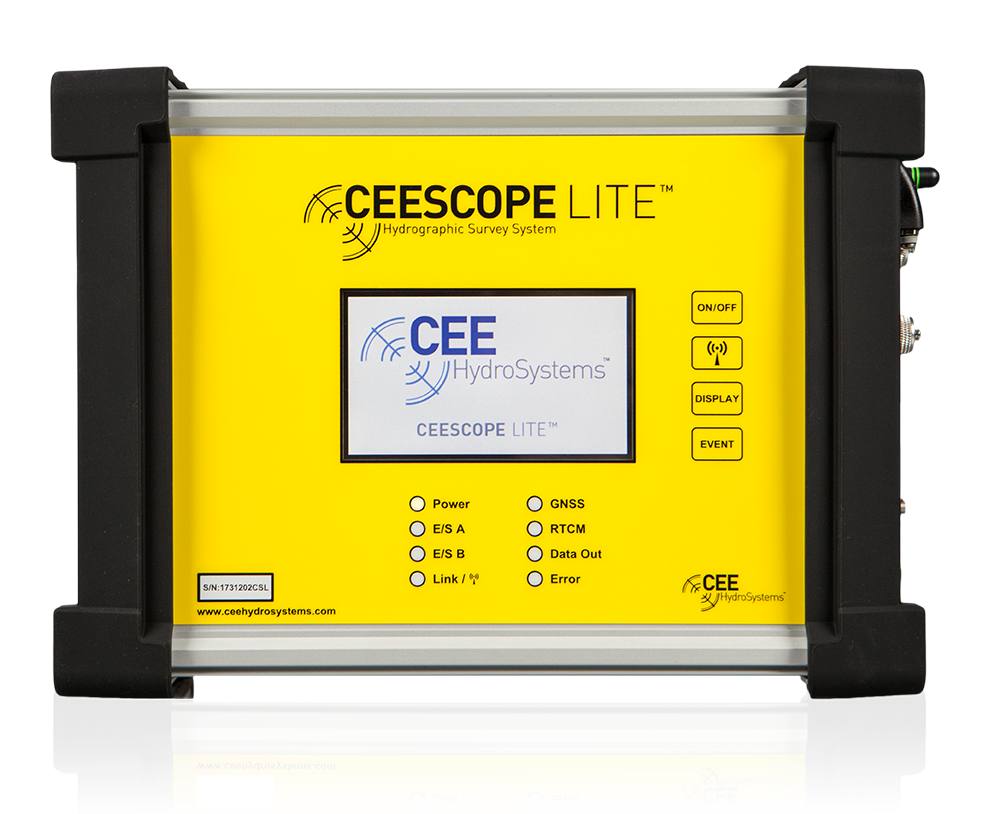
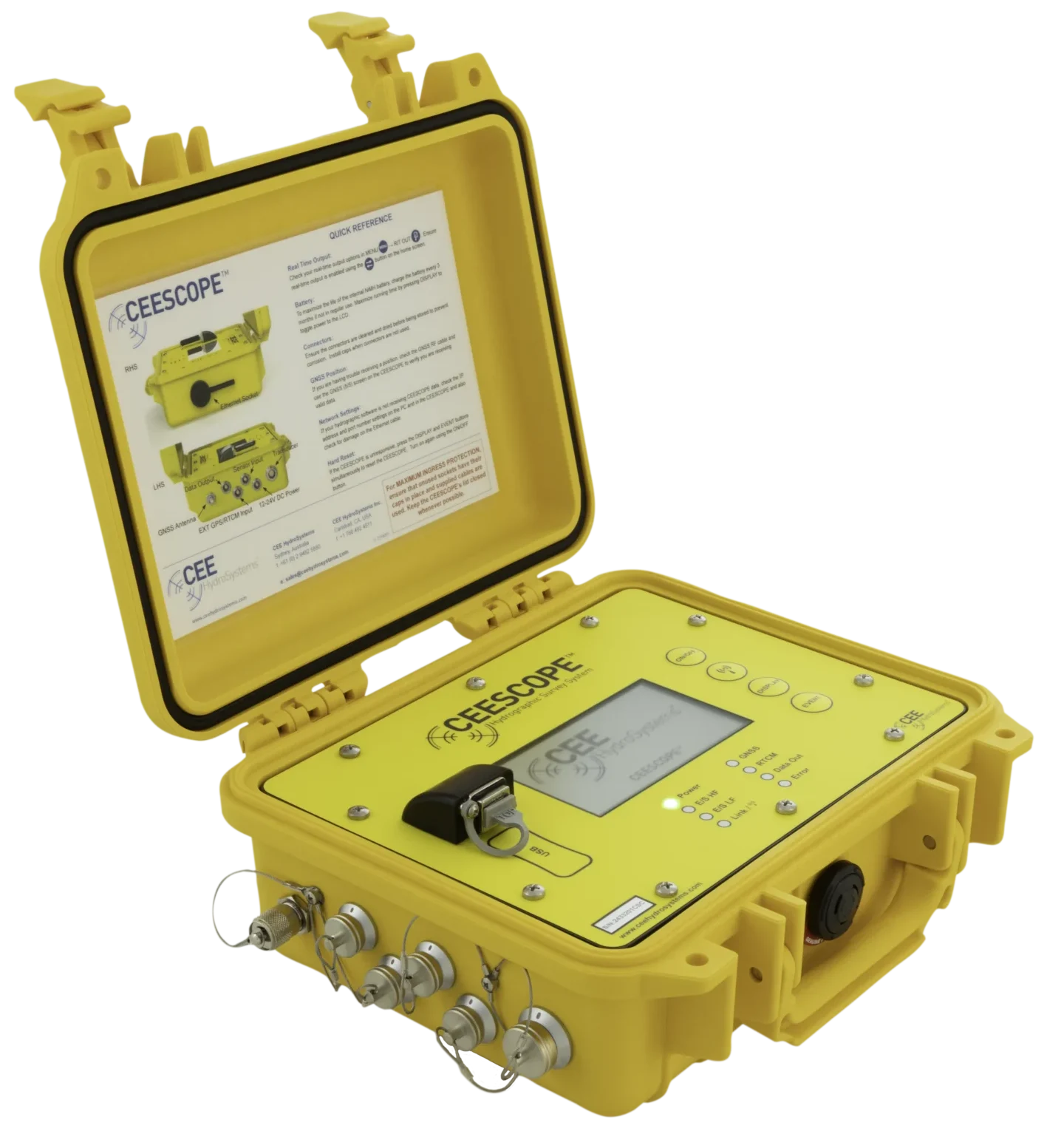
Single Beam Echo Sounder with Built-in GNSS
CEESCOPE LITE™
The whole CEESCOPE, in an even smaller footprint
View product
Talk to US
Need a hand with your set-up?
Our engineers answer survey questions every day.